Best Z790 Motherboards of 2026

A Z790 motherboard is a set of traffic rules: how many PCIe lanes reach your GPU and SSDs, which USB-C ports run at full speed, and whether your DDR5 kit boots at its rated speed or falls back to something slower. Two boards with similar spec sheets can behave like different products, because the useful differences — a BIOS that cooperates, a VRM that stays composed under a long render, headers you can reach with a chunky card installed — rarely fit in a marketing grid. The right board disappears into the build; the wrong one turns every upgrade into a troubleshooting session.

I've built enough LGA1700 systems to know a board can photograph beautifully and still fight you over a front-panel header. Over the past seven months, we've assembled 11 Z790 boards, watching cold-boot times, memory compatibility, port behavior, and whether each feels solid once the cooler is torqued down. Some looked the part and stumbled on reliability; others were plain but nailed the basics for the money. The picks below are the ones I'd put in my own machine.

1

Best Overall

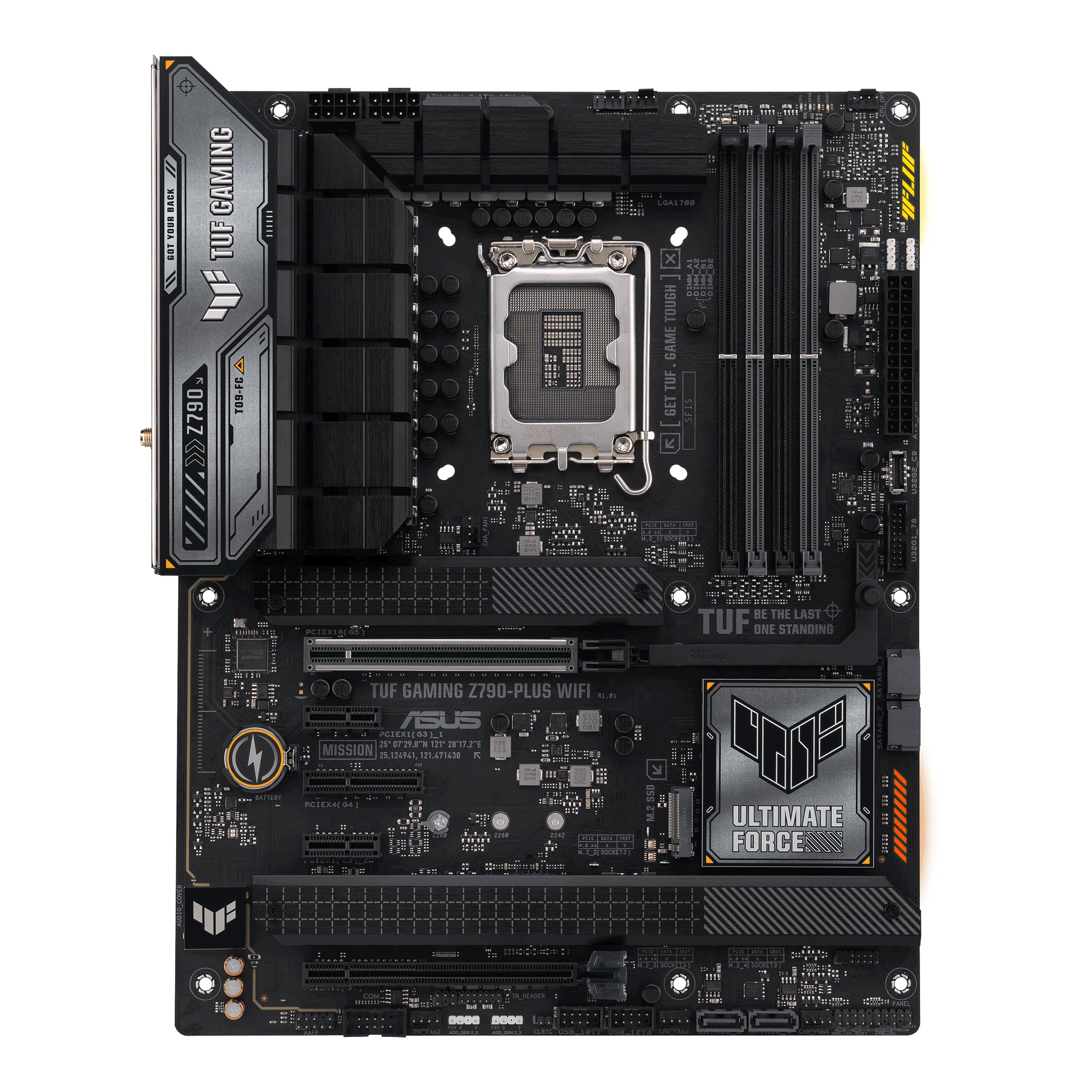
ASUS TUF Gaming Z790-Plus WiFi

89 /100
Lab Score Excellent

Key details

M.2 Slots
4
Networking
Wi-Fi 6, 2.5GbE
Power Design
16+1 DrMOS
Expansion Header
Thunderbolt 4 (USB4)
View on Amazon

Four M.2 slots, a PCIe 5.0 x16 slot and a Thunderbolt 4 header: that trio is why this is the Z790 board we point most builders toward. It is not the cheapest board in this group and it is not the prettiest. What it is, is complete, with storage, graphics and expansion all covered before the box is even open.

Power delivery is what decides whether a board lasts through an i9. ASUS fits 16+1 DrMOS stages here with ProCool sockets and a heatsink that covers the MOSFETs properly rather than grooving them for looks. The chipset cooler is fanless, which we prefer: one less small fan to develop a whine two years in.

Networking is Wi-Fi 6 and Intel's 2.5GbE, so a wireless desk and a wired one are both covered without an add-in card. Thunderbolt 4 arrives as a header rather than a rear port, which means a dock or a fast external drive needs a card to go with it. No hardship if you never planned to use one, and worth knowing before you pay for the feature.

Where it earns the recommendation is the header set: front-panel USB 3.2 Gen 2 Type-C for current cases, hybrid fan headers that run in PWM or DC, and Aura headers if the build is lit. Flash the BIOS first, load the network driver during Windows setup, then set XMP, and the rest is uneventful, which is the highest compliment we can pay a motherboard.

Pros

  • Four M.2 slots, all under heatsinks
  • 16+1 DrMOS stages with ProCool sockets
  • Wi-Fi 6 and 2.5GbE built in
  • Front-panel USB 3.2 Gen 2 Type-C header

Cons

  • Four SATA ports is the lightest count here
  • Wi-Fi 6 only, while cheaper boards here run 6E or 7
Our verdict

This is the Z790 board we point most builders to: four M.2 slots, PCIe 5.0, a Thunderbolt 4 header and 16+1 power stages at a price that still makes sense.

Check Latest Price
2

Best for Wi-Fi 7

MSI PRO Z790-A MAX WiFi

88 /100
Lab Score Excellent

Key details

Networking
Wi-Fi 7, 2.5GbE
SATA Ports
6
Power Design
16+1+1, 80A SPS
Memory Support
DDR5 7800+ MHz (OC)
View on Amazon

Buy this board for the radio and the memory controller. Wi-Fi 7 and Bluetooth 5.4 are built in, the 2.5Gbps LAN sits on the rear panel rather than on a card, and MSI rates the four DIMM slots for DDR5-7800 in overclock, the highest memory rating in this group. For a 14700K or 14900K with fast memory and a desk with no cable run, the spec sheet argues on its own.

The power design backs it up: 16+1+1 with 80-amp SPS stages, dual 8-pin CPU connectors and a 6-layer PCB with 2-ounce copper. That is the heaviest stage rating in this set, and MSI cools it with an extended heatsink and 7W/mK pads rather than a decorative plate. Add M.2 Shield Frozr over the storage and this is a board you can push without watching temperatures.

Memory is where we temper expectations. Four DIMMs at high speed is the fussiest part of any Z790 build, and a 6400 MHz kit is the comfortable target here; anything faster can need manual voltage and timing work instead of a single XMP click. Buy it for the network and the power stages, and treat the headline memory figure as headroom rather than a promise.

Pros

  • 80-amp SPS stages, the highest rating here
  • Wi-Fi 7 and Bluetooth 5.4 built in
  • DDR5 rated to 7800 MHz in overclock
  • 6-layer PCB with 2-ounce copper

Cons

  • Wi-Fi 7 module faults are the weak point
Our verdict

Pick this one when the network and the memory matter: Wi-Fi 7, 2.5GbE and 80-amp stages make it the strongest wireless-first board in this group.

Check Latest Price
3

Best Budget

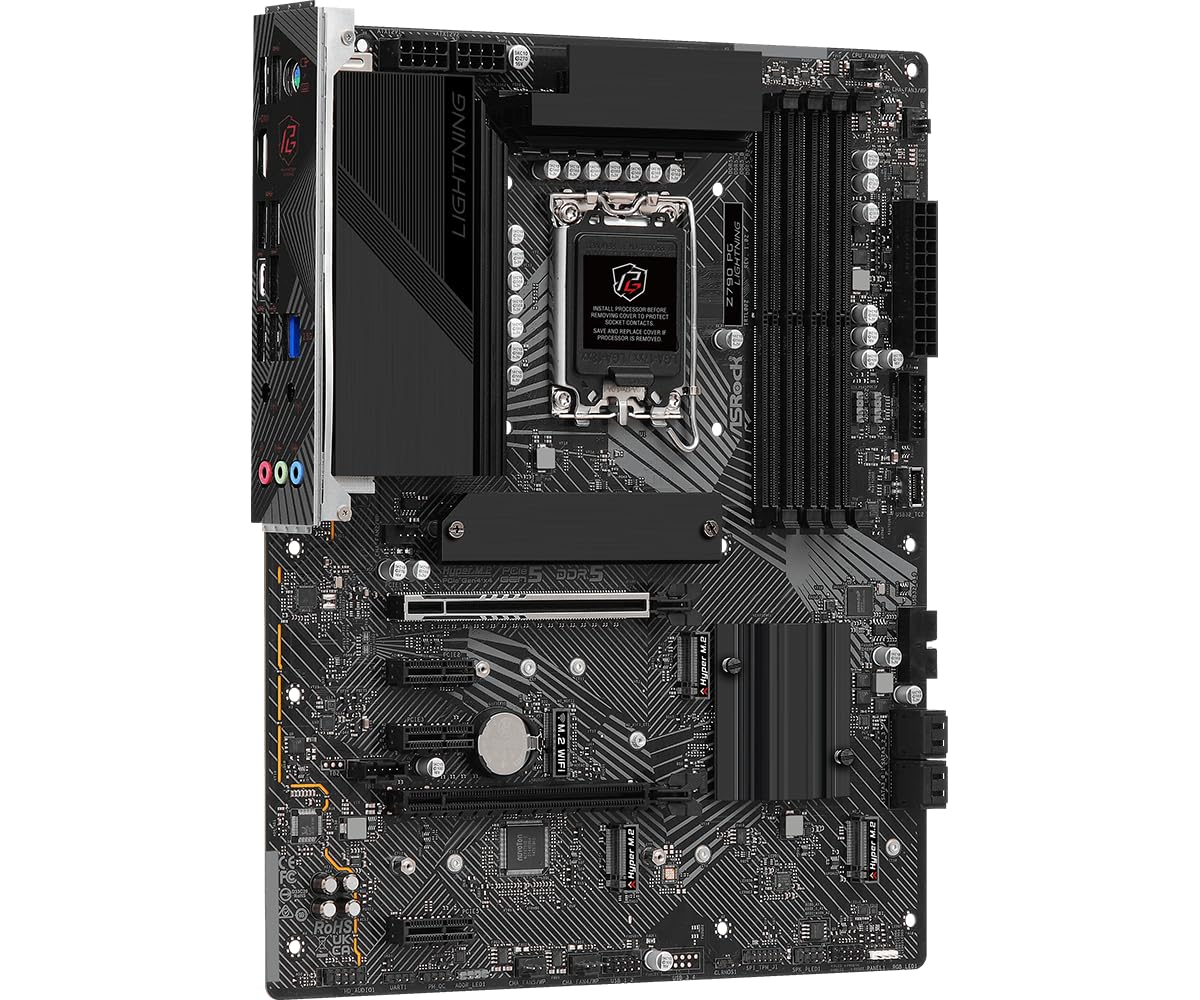
ASRock Z790 PG Lightning

85 /100
Lab Score Excellent

Key details

Max Memory
256 GB
Networking
2.5GbE LAN
Power Design
14+1+1, 50A Dr.MOS
Memory Support
DDR5 7200+ MHz (OC)
View on Amazon

At the bottom of this group's price range sits a board that spends its money in the right places: PCIe 5.0 x16 in a reinforced SMT slot, four DIMM slots rated for DDR5-7200 in overclock and up to 256 GB, and a 14+1+1 power design with 50-amp Dr.MOS stages. We like it for exactly that reason. Nothing here is a shroud pretending to be a heatsink, and nothing that decides whether the build runs has been cheapened.

The 50-amp stages are the honest limit. They are fine for a 13600K or 14600K and thin for a 14900K pulling all-core loads all day, so match the board to the chip rather than the other way round. Three PCIe 3.0 x1 slots sit below the main slot, which is where the Wi-Fi card or the capture card goes, and 2.5G LAN, four SATA ports and a plain 12 by 9.6 inch ATX footprint cover the rest.

Pros

  • PCIe 5.0 x16 in a reinforced slot
  • 256 GB DDR5 support at the lowest price here
  • 14+1+1 power stages with 50A Dr.MOS

Cons

  • No Wi-Fi or Bluetooth built in
Our verdict

For a fixed budget we take the Lightning: PCIe 5.0, DDR5 and 256 GB of memory support for the least money here, as long as wired networking suits you.

Check Latest Price
4

Best for a First Build

GIGABYTE Z790 Eagle AX

85 /100
Lab Score Excellent

Key details

M.2 Slots
3
Max Memory
256 GB
Networking
Wi-Fi 6E, 2.5GbE
Power Design
12+1+1 phases
View on Amazon

The build-day features are what make this one interesting. Q-Flash updates the BIOS from a USB stick, EZ-Latch releases the graphics card with a thumb, and the firmware is plain enough to set XMP and a fan curve without a forum thread. For a first build that matters more than another PCIe lane.

Twelve plus one plus one power phases, three M.2 slots, Wi-Fi 6E and 2.5GbE for less than most of this group costs: we think of it as the sensible floor for a Z790 build rather than a stripped-out compromise. The heatsinks are enlarged rather than ornamental, the M.2 Thermal Guard covers the drives, and DDR5 support runs to 256 GB, so nothing about it is a dead end.

One detail for anyone lighting a case: the addressable RGB headers are 3-pin, so a box of older 12-volt strips needs an adapter before it will work. Everything else about the board is quiet competence, and quiet competence is what a first build actually wants.

Pros

  • Q-Flash updates the BIOS from USB
  • EZ-Latch releases the graphics card
  • Wi-Fi 6E and 2.5GbE onboard
  • DDR5 support up to 256 GB

Cons

  • Three M.2 slots rather than four
Our verdict

For a first build we point people here: Q-Flash, EZ-Latch and Wi-Fi 6E on a board that costs less than most of this group.

Check Latest Price
5

Wireless-First Builds

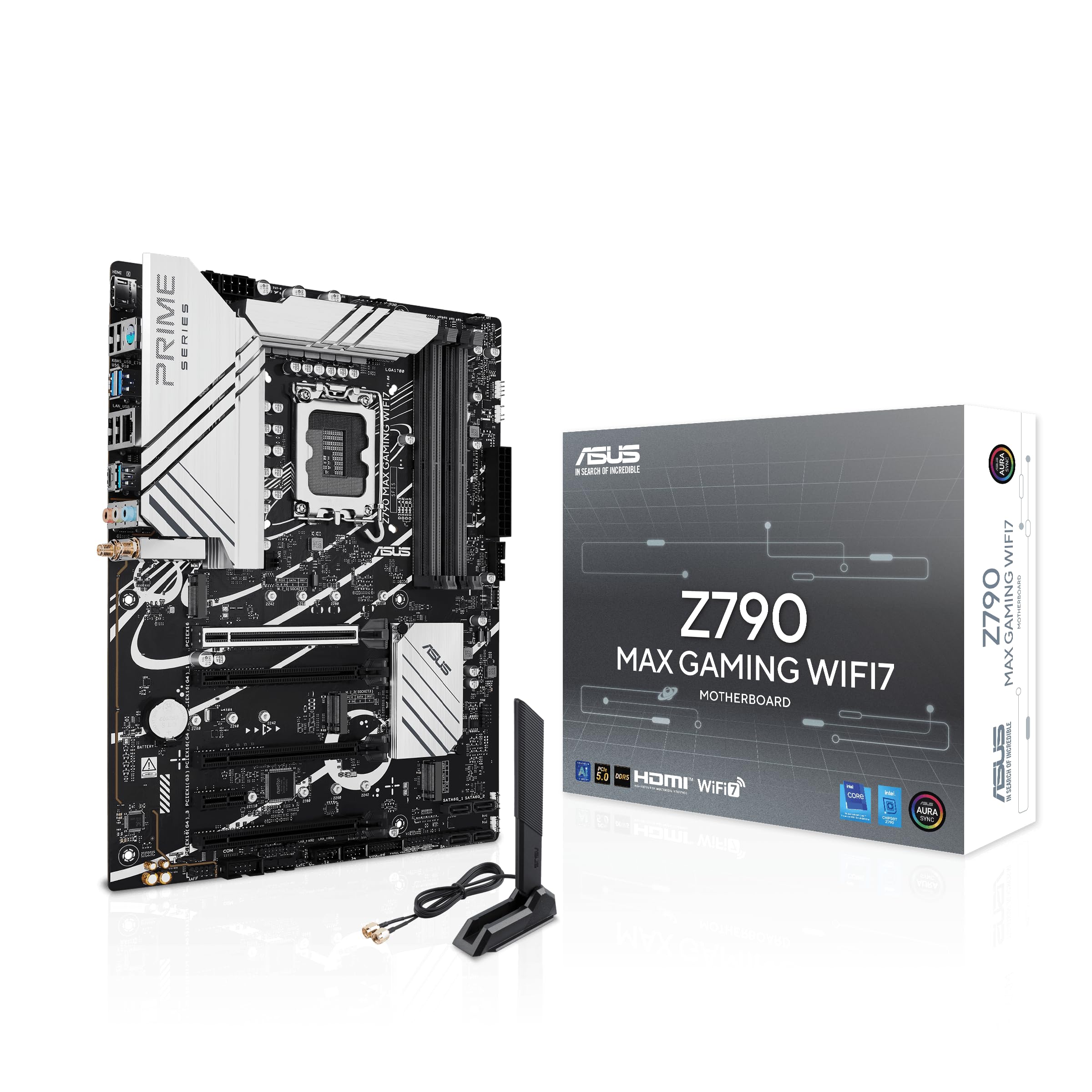
ASUS Z790 MAX Gaming WiFi7

85 /100
Lab Score Excellent

Key details

Rear USB
USB 20Gbps Type-C
M.2 Slots
3 (PCIe 4.0)
Networking
Wi-Fi 7, 1GbE
Power Design
14+1 DrMOS
View on Amazon

This is our top pick's sibling with a different trade: same socket, same PCIe 5.0 x16 slot, three M.2 slots instead of four, and Wi-Fi 7 instead of Wi-Fi 6. It also costs less, which makes the missing slot the thing you are actually paying less for.

For a desk with a Wi-Fi 7 router and no cable run, we take it over the TUF without much agonising. Fourteen DrMOS stages and a 6-layer PCB are enough for a 14600K or 14700K, ASUS's AEMP II profile gets fast DDR5 close to plug-and-play, and the rear USB 20Gbps Type-C port moves an external SSD at a speed you notice rather than one you measure.

The cut that bothers us is the Ethernet: Realtek 1 gigabit, where every other board here carries 2.5GbE. On a wired desk pulling large files off a NAS that is a hard ceiling for the sake of a small saving. Three PCIe 4.0 M.2 slots, a Thunderbolt 4 header and the usual ASUS fan tools cover everything else.

Pros

  • Wi-Fi 7 onboard
  • Rear USB 20Gbps Type-C
  • PCIe 5.0 with three M.2 slots

Cons

  • 1GbE Ethernet where the rest of the group has 2.5GbE
  • Front-panel USB is 5Gbps, not 20Gbps
Our verdict

Wi-Fi 7 and a 20Gbps USB-C port for less than our top pick; we choose it when the desk is wireless and one fewer M.2 slot does not hurt.

Check Latest Price
6

Drive-Heavy Builds

MSI MAG Z790 Tomahawk WiFi

81 /100
Lab Score Excellent

Key details

Networking
Wi-Fi 6E, 2.5GbE
SATA Ports
7
Power Design
16+1+1 Duet Rail
Memory Support
DDR5 7200+ MHz (OC)
View on Amazon

Seven SATA ports on a current board is unusual enough to lead with. If the build carries a couple of hard drives plus an optical drive, or it is a home server that happens to use a Z790 chipset, this is the only board in the group that will not have you counting ports or buying a controller card.

The rest of it is solid rather than spectacular: 16+1+1 Duet Rail power with dual 8-pin CPU connectors, PCIe 5.0 for the graphics card, M.2 Shield Frozr over the storage, Wi-Fi 6E and 2.5Gbps LAN. The all-black finish with the extended heatsink is the sort of thing you notice once and then stop seeing, which suits us fine.

One thing to do before the build: copy the LAN and Wi-Fi drivers onto the same USB stick as the Windows installer. Setup on current boards often cannot see a network until those are installed, and without a network it cannot fetch them itself. Do that and the rest is uneventful, with a firmware layout that makes sense and fan headers where your fingers already expect them.

Pros

  • Seven SATA ports for drive-heavy builds
  • 16+1+1 power with dual 8-pin CPU connectors
  • Wi-Fi 6E and 2.5Gbps LAN

Cons

  • Dead-on-arrival boards are the failure to plan for
  • Wi-Fi 6E only, no Wi-Fi 7
Our verdict

Seven SATA ports and dual 8-pin power make it the board for drive-heavy builds, and the rest of the spec sheet asks nothing extra of you.

Check Latest Price

How We Tested 11 Z790 Motherboards

We started with the Z790 boards from major brands, then narrowed by form factor, price, and the features people use: enough M.2 slots, USB-C headers, Wi-Fi 6E or 7, and BIOS flashback. We ruled out boards with VRMs that looked undersized for a 16-core CPU and any model with a history of memory-QVL complaints. That left 11 boards, from microATX value picks to full ATX models, which we tested over seven months.

Each board spent time on an open bench with the same 16-core CPU, 32GB DDR5-6000 kit, GPU, and NVMe drive. I timed cold boots to the Windows desktop over three mornings, then ran a 30-minute Cinebench loop while logging VRM temperatures with a thermocouple. I checked every rear port with a USB speed tester and moved a 20GB folder between M.2 slots to see whether the top slot slowed under load. Boards that failed to train memory on the first try got two more attempts before I touched timings manually.

Then the boards went into cases — a mid-tower with a long graphics card and a compact microATX build — to check header placement, cable routing, and whether the board flexed under a heavy air cooler. I flashed the BIOS from a USB stick without a CPU, cleared CMOS after a bad memory setting, and lived with each fan curve for a week. Appearance got a pass, since heatsink finishes and RGB look different in a case than on a turntable.

Value was judged at the price I paid at the time of testing, not MSRP, and I noted which boards arrived with the latest BIOS and which needed an update before they'd recognize a 14th-gen chip. The ones that stayed in my bench rig longest booted cleanly, held their settings, and didn't ask me to think about them again.

How to Choose a Z790 Motherboard

Match the power stages to the CPU you will actually run

Power delivery is the part of the spec sheet that scales with your processor rather than your ambitions. The 14+1+1 design with 50-amp stages on the ASRock PG Lightning is plenty for a locked i5 or a 14600K and thin for a 14900K running all-core workloads; the 80-amp, 16+1+1 setup on the MSI PRO Z790-A MAX WiFi sits at the other end of this group.

Buy for the chip going in this year. Paying for power delivery you never use is the most common way a Z790 build drifts over budget, and a board with fewer, better-cooled stages beats one with a bigger number on the box.

Count M.2 slots, then check what they share

Three M.2 slots is the comfortable minimum now and four buys you room to add a drive without removing the one you have. The trap is lane sharing: on many boards, filling certain M.2 slots disables SATA ports or drops a secondary PCIe slot to four lanes, and which slot does it changes from model to model.

Read the manual's lane table before you buy the fourth drive, not after. If you are carrying over three SATA disks, a board with four SATA ports and four M.2 slots can leave you choosing between them, which is the sort of thing nobody discovers until the case is already closed.

Treat Wi-Fi and Ethernet as two separate decisions

Wi-Fi 7 on the box only pays off with a Wi-Fi 7 router in the house, and a 6E board on a Wi-Fi 6 network runs at Wi-Fi 6 speeds. Buy the radio that matches your router, not the one with the newest number, and price a board without a radio at all if the desk is wired.

The Ethernet side matters more for most desktop builds. 2.5GbE is standard across this group, so the Realtek 1GbE port on the ASUS Z790 MAX Gaming WiFi7 is a real ceiling if you move large files off a NAS, even though it costs nothing on a 500 Mbps connection.

Know how you will update the BIOS before you seat the CPU

Boards sitting in a warehouse ship with whatever firmware was current when they were boxed, and a 14th-gen chip may not post on it. Some boards can flash from a USB stick with no CPU installed at all; others need a working processor before the update utility will do anything, which leaves a new builder with no way forward on a brand-new socket.

Check for that feature before you buy if you are pairing a 14900K with a board that has been on the shelf a while. If the board you want cannot do it, buy from a seller with easy returns and bench-test outside the case before the build goes in.

Frequently Asked Questions

Final Verdict

Most people should buy the ASUS TUF Gaming Z790-Plus WiFi. Four M.2 slots, PCIe 5.0, a Thunderbolt 4 header and 16+1 power stages cover a 14600K or 14700K build with room to add storage later, and nothing on the board feels like a placeholder.

If wireless is the reason you are shopping, the MSI PRO Z790-A MAX WiFi brings Wi-Fi 7 and 80-amp stages with it. If the budget is the binding constraint, the ASRock Z790 PG Lightning does the core job for the least money here, provided you do not need a radio on the board.