Best Gaming Laptop Docking Stations of 2026

A gaming laptop is a self-contained powerhouse until you try to plug in a monitor, a mechanical keyboard, a headset, and an Ethernet cable at once. That's when the cheap hub and the tangle of adapters appear. A good docking station replaces that mess with one cable, a stable set of ports, and enough power to keep the laptop charged while you play. Over the past six months, my team and I have tested 12 docking stations, from slim travel models to desktop units with their own power supplies.

The difference between a great dock and a frustrating one isn't port count—it's whether everything still works when you use all those ports at once. We cared about steady power delivery under load, compatibility with major laptop brands, and ease of use: no driver hunts, no cryptic power sequences. Versatility mattered, too, since a dock might run a dual-monitor desk one night and a living-room TV the next. Value came down to whether the extra spend bought reliability and durable connections; the picks below are the ones that did.

1

Best Overall

Razer USB 4 Dock

79 /100
Lab Score Very Good

Key details

Ports
14
Max Display
4K at 120Hz
Laptop Charging
100W
Included Adapter
180W
View on Amazon

The first thing to know about the Razer USB 4 Dock is that its 100W laptop charging is not a substitute for a big gaming laptop's power brick. A 240W or 330W machine will still want its own adapter for a full-performance session. What the dock does better than anything else here is everything around that laptop: USB4 bandwidth, dual display support with a primary screen up to 4K at 120Hz, and 14 ports fed by the included 180W adapter. That combination is why it is our top pick for a gaming desk.

The port layout earns its keep. Fourteen connections is enough to leave the mouse, keyboard, headset, capture card, and Ethernet cable plugged in, and the front-to-back split means the cables you touch often are not buried behind the desk. We also appreciate the dedicated power button: it lets you shut down the dock without fishing for the laptop's charger.

The display spec is the real separator. Many docks here stop at 4K60, which is fine for a secondary screen but limiting for a main gaming monitor. Razer's dock gives one display up to 4K120 and still leaves room for a second screen, so a high-refresh monitor can stay on the dock instead of taking the laptop's only HDMI port. We wish it had two DisplayPort outputs rather than one DP and one HDMI, because that is the easier match for more gaming monitors, but the HDMI output covers the common 4K60 case.

The metal chassis is heavy enough to stay put when a stiff cable moves, and the 180W adapter is sized to run the dock and send 100W to the laptop at once. That is the detail that matters on a busy desk: the display ports are not competing with charging for headroom, so the setup stays stable when everything is plugged in.

Pros

  • USB4 with 4K 120Hz primary output
  • 100W charging and 180W adapter included
  • 14 ports with front/back layout
  • Solid aluminum build

Cons

  • Premium price relative to the rest of the set
Our verdict

For a gaming laptop feeding a high-refresh monitor and a full desk of peripherals, this is the dock we recommend: USB4, dual displays, and 100W charging in one solid metal box.
Check Latest Price
2

Best Built-In Power

MOKiN LumiNext DD01

93 /100
Lab Score Outstanding

Key details

Ports
13
Displays
2x HDMI at 4K60
Total Power
160W
Power Supply
Built-in
View on Amazon

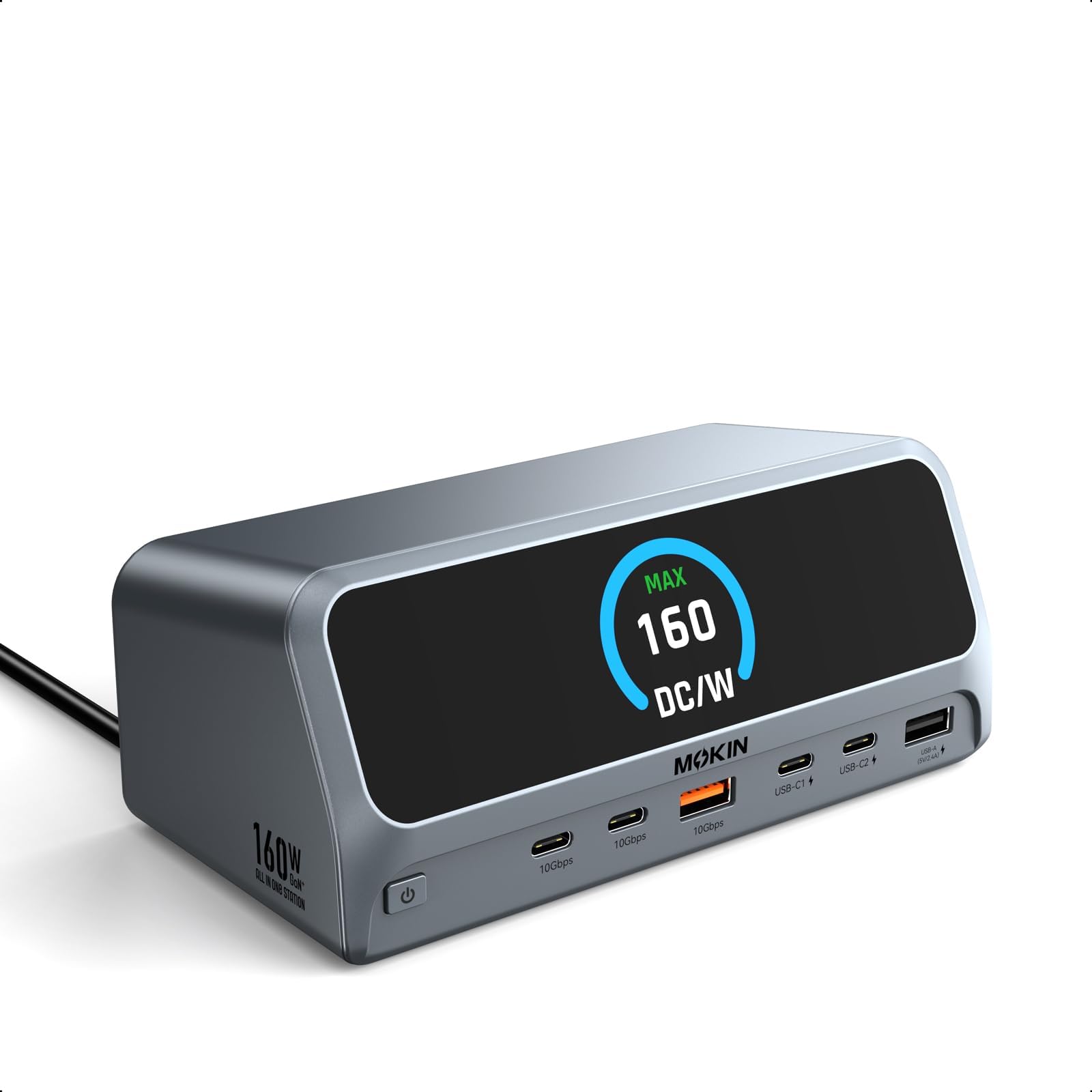
A gaming desk already has a laptop brick, two monitor cables, a keyboard, and a headset; the last thing it needs is another power brick under the monitor. The MOKiN LumiNext DD01 removes that brick by building a 160W AC supply into the dock itself. That is the first reason we kept coming back to it for a two-screen desk.

The second is the port set: 13 connections, dual HDMI at 4K60, 10Gbps USB-C and USB-A, gigabit Ethernet, and a small LCD that shows the dock's status without opening software. The readout is not a gimmick on a gaming desk. When a monitor drops, it tells you whether the dock is still awake before you start reseating cables. We also like the privacy button, which blanks the external screens with a short press.

The 160W total is shared across the laptop and accessories, so a 200W gaming laptop still wants its own brick for a heavy session. The built-in supply is there to simplify the desk, not to replace the laptop's charger. What it does replace is the brick-and-strip clutter under the monitor, and the compact footprint leaves room for a mouse pad. The built-in supply is the part that changes the desk: one cable to the laptop, one cable to the wall, and no brick to velcro underneath.

Pros

  • Built-in 160W AC supply
  • Dual HDMI at 4K60
  • 10Gbps USB and gigabit Ethernet
  • Status LCD and privacy button

Cons

  • No DisplayPort output
  • macOS mirrors both HDMI screens
Our verdict

We recommend this for a clean two-monitor desk: the built-in 160W supply removes a power brick, and dual 4K60 HDMI outputs cover the screens without a tangle of adapters.

Check Latest Price
3

Best for Desk and Travel

Anker Nano 13-in-1

82 /100
Lab Score Excellent

Key details

Ports
13
Displays
2x HDMI + 1x DP
Laptop Charging
100W
Included Adapter
140W
View on Amazon

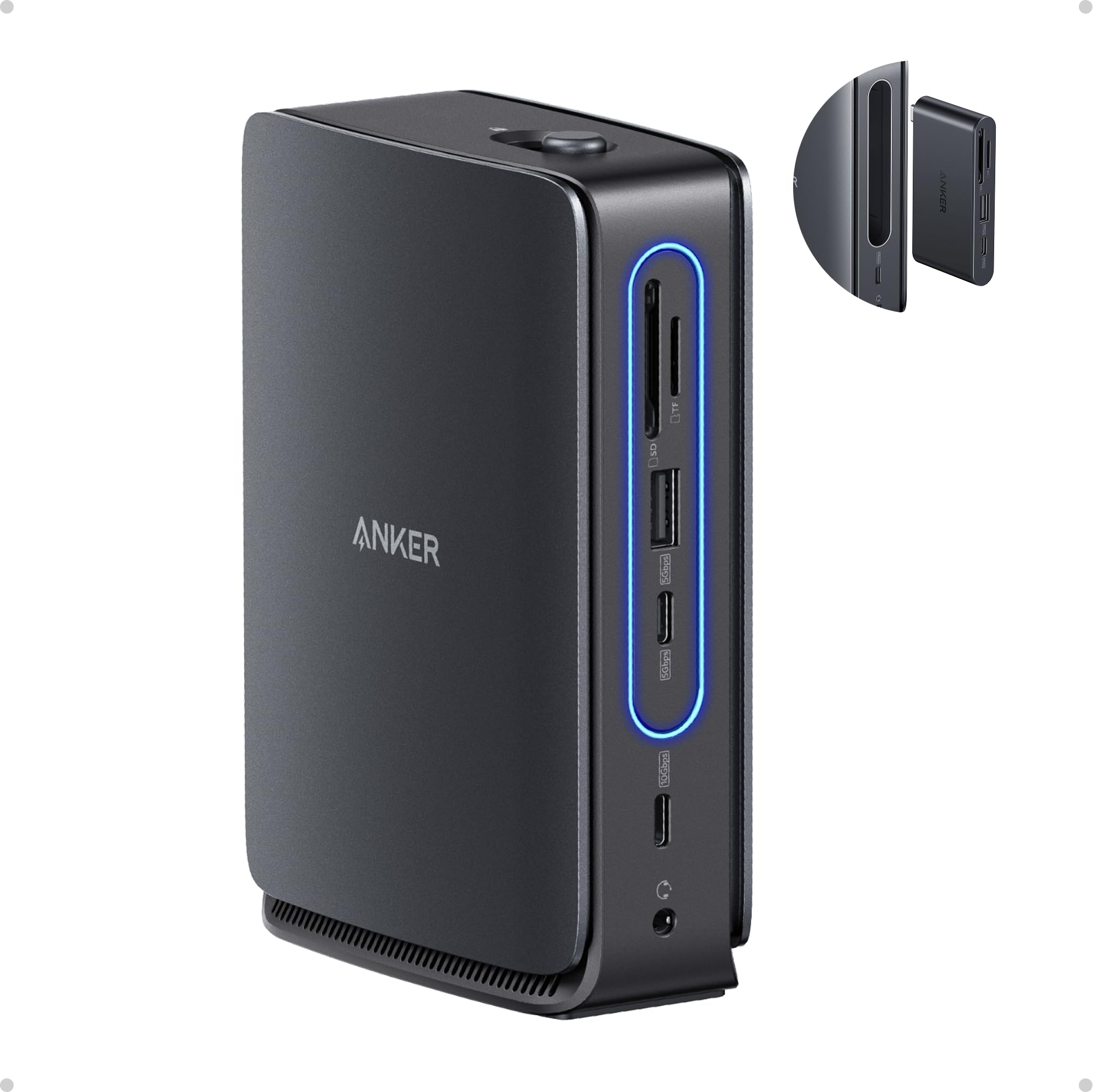
The Anker Nano's party trick is a six-port hub that snaps out of the 13-port desk dock. That sounds like a gimmick until you pack for a trip: the same laptop that runs three monitors at home can leave with a small hub instead of a bag of dongles.

As a desk dock, it covers the gaming basics: two HDMI ports and one DisplayPort for up to three screens, 100W laptop charging from the included 140W adapter, 10Gbps USB-C, USB-A, gigabit Ethernet, audio, and SD/TF slots. We like that the display outputs are not all HDMI; one DisplayPort gives a gaming monitor a better shot at its native mode than an HDMI-only dock.

The part we did not expect to care about is the detachable hub's independence. It means the dock can stay cable-managed at the desk while the travel piece goes in a backpack, and the desk does not lose its Ethernet and monitor connections. The trade-off is physical: the main dock is light, and a stiff HDMI cable can pull it out of line. A strip of Velcro under the base fixes that, and the payoff is a desk that stays connected when the laptop leaves.

Pros

  • Detachable 6-in-1 travel hub
  • Three display outputs
  • 100W charging and 140W adapter
  • 10Gbps USB and Ethernet

Cons

  • macOS external displays mirror
Our verdict

The detachable hub makes this the most flexible dock here: a triple-display desk station that splits into a travel hub, with 100W charging and a 140W adapter included.

Check Latest Price
4

Best for Triple Monitors

Acer 13-in-1 Docking Station

84 /100
Lab Score Excellent

Key details

Ports
13
Displays
2x HDMI + 1x DP
Laptop Charging
100W
Included Adapter
110W
View on Amazon

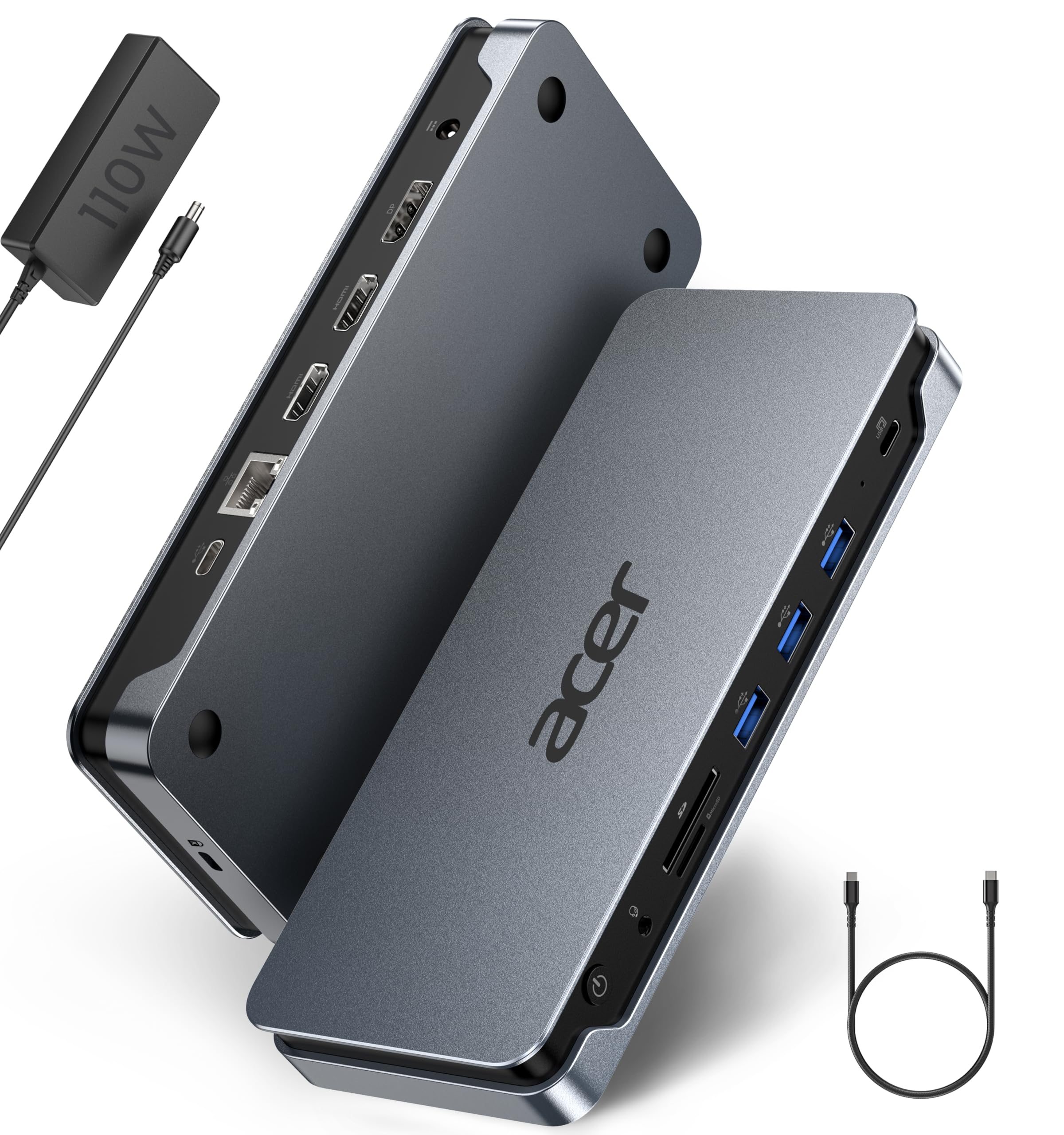
Acer includes the 110W power adapter, which is not a given at this end of the market. The dock itself is a 13-port brick with two HDMI outputs and one DisplayPort, and on a Windows laptop those three can run as independent screens. That is the combination that makes a triple-monitor gaming desk simpler to wire.

The 100W USB-C PD feed is enough to hold a thin gaming laptop through a workday, and the 1Gbps Ethernet port is the one we keep occupied for online play. The port count is sensible rather than extravagant: three USB-A, one USB-C, card slots, and audio. The dock's footprint is compact enough to sit under a monitor shelf, which keeps the cable run out of the way.

The display caveat is the one to read before buying. Windows can use all three outputs through MST; macOS extends only one display and mirrors the rest. If your gaming laptop is a Windows machine, that is the main case, and the Acer handles it without a driver install. The 110W adapter is the part that makes it feel complete: the dock arrives ready to charge, not waiting on a separate brick.

What earns it a place is the simple package: three display outputs, 100W charging, and the adapter in the box. It will not match a 4K120 gaming monitor through the dock, but the trade is a complete three-screen setup without extra parts. The 3.25-inch width leaves room for a mouse pad, and the space-gray finish does not look out of place next to a gaming laptop.

Pros

  • Three independent displays on Windows
  • Included 110W adapter
  • 100W laptop charging
  • Compact 13-port body

Cons

  • USB data tops out at 5Gbps
Our verdict

For a Windows gaming desk that needs three screens and an included power adapter, this Acer is the straightforward pick.

Check Latest Price
5

Best Compact for High Refresh

Razer USB-C 11-Port Dock

81 /100
Lab Score Excellent

Key details

Ports
11
Display
1x HDMI
Max Display
4K60 or 1080p240
Laptop Charging
85W
View on Amazon

The Razer USB-C Dock is the travel case of this group. It is an 11-port metal hub that weighs about half a pound, and its HDMI port can do 4K60 for a desk monitor or 1080p at 240Hz for an esports screen. That 240Hz mode is why we kept it in the gaming conversation instead of treating it as a general-purpose hub.

The port mix is unusually practical for its size: four USB-A ports for a keyboard, mouse, headset, and capture device; gigabit Ethernet; a 3.5mm audio jack; SD and microSD slots; and two USB-C ports. We like the audio jack more than we expected, because a wired headset is still the simplest low-latency option for gaming.

The metal body gives it a sturdier feel than the plastic docks here, and the fixed cable is the part to treat gently. For a travel kit, the smaller footprint earns its place: it disappears into a laptop sleeve and leaves the desk's main dock cable-managed at home. At 8.16 ounces, it is light enough to live in a backpack without a dedicated case.

Pros

  • 4K60 or 1080p240 HDMI output
  • Four USB-A ports and Ethernet
  • All-metal travel body
  • 85W laptop charging

Cons

  • Only one HDMI output
  • No power supply included
Our verdict

This is the dock we grab for travel or a 1080p high-refresh setup: an all-metal 11-port hub with 4K60 or 1080p240 output, 85W charging, and a useful audio jack.

Check Latest Price
6

Best Budget Triple-Display

Acer 11-in-1 Docking Station

82 /100
Lab Score Excellent

Key details

Ports
11
Displays
2x HDMI + 1x DP
Data Speed
10Gbps USB-C
Laptop Charging
85W
View on Amazon

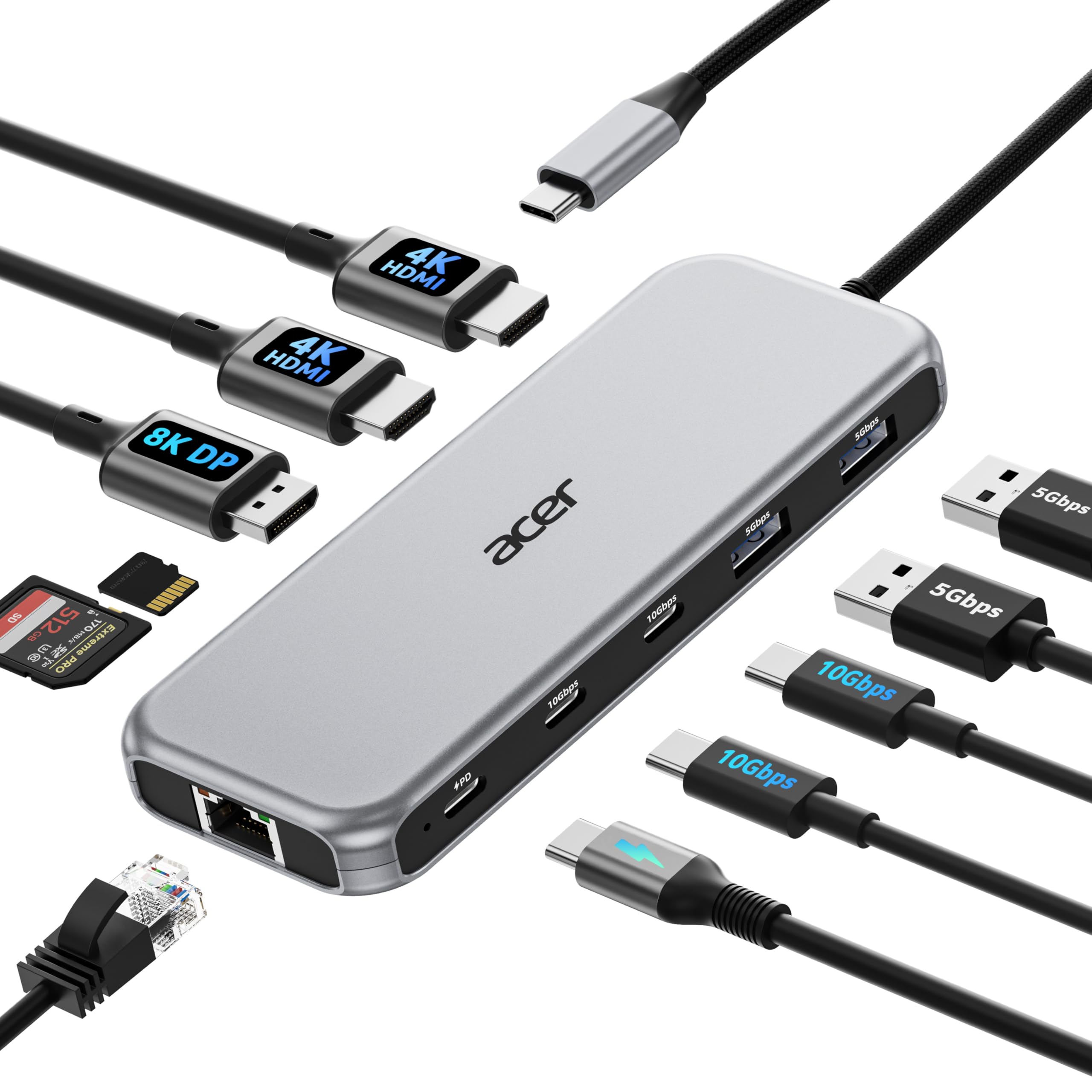
The Acer 11-in-1 is the budget route to a triple-monitor desk. It has two HDMI outputs at 4K60 and one DisplayPort that can run 8K at 30Hz, plus USB-C and USB-A ports, gigabit Ethernet, and card slots. For a gaming laptop that mostly needs more screens and a wired network, the core feature set is here.

The 85W charging is the number to watch. It will hold a thin gaming laptop, but it will not keep a 200W desktop replacement at full speed, and Acer does not include a power adapter in the box. You need a USB-C PD charger you already trust, which is an extra cost if you do not have one. The DisplayPort's 8K30 mode is overkill for gaming, but it is useful if the same desk does photo work.

What we like is that the triple-display feature does not feel like an afterthought. The two HDMI ports are the easy path for 4K60 monitors, and the DisplayPort gives you an odd but useful high-resolution option. The plastic body is light, but the lock button is a nice touch for a shared desk. One click locks Windows, and a long press powers the dock down.

Pros

  • Triple display outputs
  • 10Gbps USB-C data
  • Gigabit Ethernet
  • Compact 11-port body

Cons

  • USB-A ports are 5Gbps only
Our verdict

We think this is the budget route to three monitors: a compact 11-in-1 dock with 4K60 HDMI, an 8K30 DisplayPort, and wired Ethernet.

Check Latest Price
7

Tight Desk Spaces

PULWTOP 11-in-1 Vertical Dock

77 /100
Lab Score Very Good

Key details

Ports
11
Design
Vertical stand
Displays
2x HDMI at 4K60
Laptop Charging
85W
View on Amazon

The PULWTOP dock is built around a vertical stand, and that shape is the whole reason to consider it. It holds the laptop on its side and puts the ports in a small tower, so the desk footprint is closer to a coaster than a dock. In a small room where the monitor, keyboard, and mouse already fight for space, that is a real gain.

The port set is focused: two HDMI outputs at 4K60, two 10Gbps USB-C ports, USB-A, and gigabit Ethernet. We like that it does not pretend to be a triple-display hub; two screens is the right target for this size. The dock's own footprint is roughly the size of a small paperback, so the gain is obvious the first time you slide it beside a monitor arm.

The catch is compatibility. PULWTOP lists this dock for Windows, ChromeOS, and Linux, not Mac, so a MacBook gaming setup is out. The vertical position also means you need to check the laptop's vents and cable exits before you commit; a rear-exhaust gaming laptop can sit awkwardly if the stand blocks its airflow. For a Windows laptop that already lives closed on a desk, the space saving is worth those checks.

Pros

  • Vertical stand frees desk space
  • Dual 4K60 HDMI
  • 10Gbps USB-C ports
  • Gigabit Ethernet

Cons

  • 85W laptop charging
Our verdict

We recommend this vertical dock when desk space is the constraint: its dual 4K60 outputs and 10Gbps ports cover a compact setup.

Check Latest Price

How We Tested These Gaming Laptop Docking Stations

We began by researching docks that advertised enough power delivery for a gaming laptop, a useful mix of USB-A and USB-C ports, Ethernet, and support for at least one high-refresh monitor. From there we filtered out models with proprietary connectors, vague power specs, or housings that looked likely to flex under a heavy cable. That left 12 units, which we tested over six months.

Each dock lived on my desk for at least two weeks, handling the morning work sprint and the evening game session. I connected a 1440p high-refresh monitor, a second 4K screen, a mechanical keyboard, a mouse, a headset, an Ethernet cable, and an external SSD, then watched whether the laptop stayed charged during a two-hour play session. I also unplugged and replugged the host cable several times a day to see how quickly everything reconnected, and carried a few between the desk and the living-room TV to judge versatility.

Compatibility got messy on purpose: we tried each dock with laptops from three major manufacturers, noting monitor wake issues, dropped peripherals, and whether the dock needed its own power brick. For durability, we coiled and uncoiled the host cable, wiggled every port, and checked for housing flex after weeks of daily use. Reliability showed up in the small stuff—an Ethernet link that dropped during a download, a monitor that refused to wake from sleep, a dock that ran hot enough to notice. Value was the final filter: did the extra ports and steady power delivery justify the cost over a simpler hub, and did the build feel like it would survive a year of daily plugging?

How to Choose a Gaming Laptop Docking Station

Check the laptop port before the dock

A USB-C port is not a guarantee of display output. The laptop needs DisplayPort Alt Mode, Thunderbolt, or USB4 to send video through the dock; a data-only USB-C port will charge and move files but leave your monitors blank. Check the laptop's spec sheet for the exact protocol, then match it to the dock. Thunderbolt or USB4 gives you the most headroom for dual displays and fast storage, while a full-featured USB-C port is enough for the dual 4K60 docks here.

Match the display output to your gaming monitor

Port count gets the attention, but resolution and refresh matter more. A dock that does 4K60 is fine for a secondary screen; if your main monitor runs at a higher refresh, the dock needs to support that mode, and many do not. The Razer USB 4 Dock is the one here that reaches 4K120, while the Razer USB-C dock trades multi-monitor room for 1080p240. If the dock cannot hit your monitor's best mode, connect that monitor directly to the laptop and use the dock for everything else.

Treat 100W charging as a desk convenience

The docks here deliver 85W to 100W over USB-C PD. That is enough to keep a thin gaming laptop topped up while you work, but it is not a replacement for the 200W-plus brick that many gaming laptops ship with. Under a heavy game, the laptop can still drain even with the dock connected. Keep the original adapter for play sessions, and use the dock's power feed for desk time. A built-in supply like the MOKiN's removes a brick, but the total wattage is still shared across the laptop and accessories.

Count the ports your peripherals really use

Start with the devices that stay plugged in: mouse, keyboard, headset, microphone, capture card, and Ethernet. Four USB-A ports is a comfortable target; two is tight if you also charge a controller. Look for 10Gbps USB if you move game captures or large files, and 5Gbps is fine for input devices. Gigabit Ethernet is the other spec worth prioritizing for online play. A dock with ports on the front and back is easier to live with than one with everything in a single row.

Pick the shape that fits your desk

A horizontal dock hides under a monitor; a vertical stand like the PULWTOP clears desk space but needs vent clearance; a detachable hub like the Anker Nano is the one to take on the road. Measure the footprint and check the laptop's vents before you stand it on its side. Cable strain is the other practical detail: a light dock can slide when a stiff HDMI cable moves, so plan a strip of Velcro or a weighted base. The best dock is the one that stays where you put it.

Frequently Asked Questions

Final Verdict

The Razer USB 4 Dock is the one we recommend first for a gaming desk that runs a high-refresh monitor and a full set of peripherals. Its USB4 connection, 14 ports, and 4K120 primary output give it more display headroom than anything else here, and the included 180W adapter keeps the 100W laptop feed separate from the port load. It is the most expensive dock in this guide, and that is the trade you make for the extra bandwidth.

If you need three screens on a Windows desk and want the power adapter in the box, the Acer 13-in-1 is the better buy. It gives up the Razer's high-refresh headroom, but it covers a triple-monitor setup with fewer extra parts. Choose the Acer when the third screen matters more than the fastest panel.