Best KVM Switches for Gaming of 2026

A KVM switch does one unglamorous job: it lets a single keyboard, mouse, and monitor serve two computers, so you can drop out of a game and into a work laptop without crawling behind the desk. The catch is that the box also has to carry 4K at high refresh rates without flicker, wake a sleeping machine, and hand your mouse back mid-match without a stutter — and plenty of them can't. I've had one drop a display signal mid-raid and another that demanded a power cycle every time I switched, which is about when people give up and go back to a nest of cables.

Over four months, my team and I ran 11 of these through our own setups, from plain two-port boxes to dual-monitor units with desktop remotes. The keepers came down to setup that worked on the first try, near-instant switching, and reliability that survived to month four. Cheap switches share bandwidth across ports, too — feed two 1440p displays into the wrong one and something gives. What held up is below.

1

Best Overall

VPFET 8K Dual Monitor KVM

86 /100
Lab Score Excellent

Key details

Monitors
2
Switching
Panel button, wired remote
USB Ports
4 × USB 3.0 (5Gbps)
Resolution And Refresh
8K@60Hz, 4K@120Hz
View on Amazon

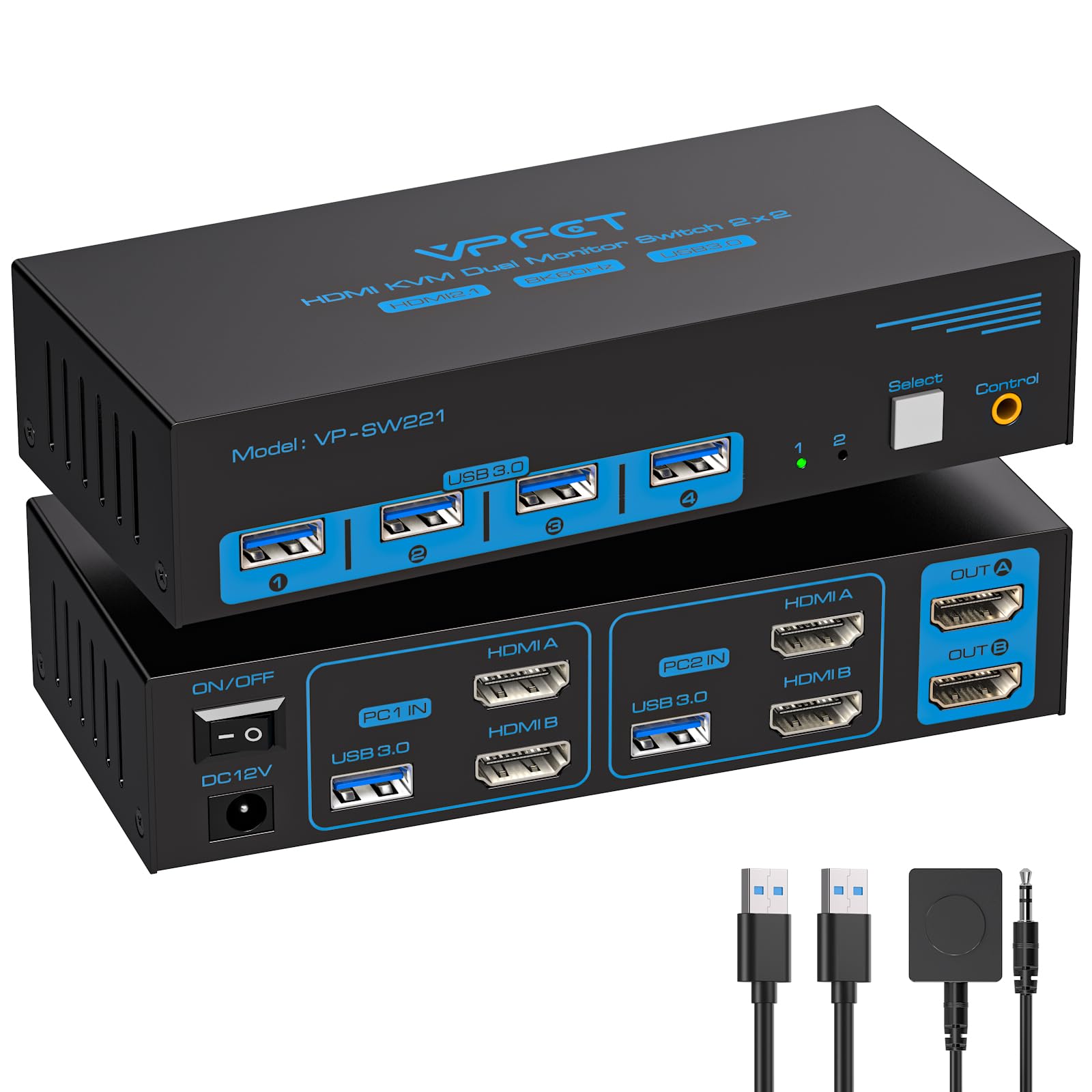
Two monitors at 4K and 120Hz is the figure that put this switch at the top of our list. That's the mode a modern gaming PC and a fast 27-inch panel actually want to run, and it's the mode several cheaper dual-monitor boxes drop to 60Hz the moment the second screen wakes up. The headroom is quoted for both outputs at once rather than one fast port and one slow one, and that is exactly the detail that decides a two-screen desk.

The supplied 12V adapter is the part we care about almost as much as the refresh rate. Four USB 3.0 ports at 5Gbps is plenty for a keyboard, mouse, headset and webcam, and because the hub is powered rather than leaning on the PC's ports, a bus-powered drive or a bright webcam doesn't brown out everything else the moment you plug it in.

Switching is a button on the box or a wired remote you can drop beside the keyboard, and there's nothing to install on either machine. We value a remote on a gaming desk for a practical reason: the switch itself wants to live behind the monitor or under the desk, well away from the mouse arm, and reaching back there mid-session is how people end up back at a USB hub and a spare cable.

Two things are worth checking before you order. The inputs are HDMI only, so a DisplayPort-only graphics card needs adapters rather than a different cable. And ask whether it passes HDR and variable refresh rate — a KVM is exactly the kind of part that can strip both, and on a gaming panel those two matter more than another 20Hz of ceiling. Neither point complicates a straightforward two-PC, two-HDMI-monitor setup, which is what this box is built for.

Pros

  • Dual 4K at 120Hz on both outputs
  • Its own 12V power keeps the USB hub stable
  • Wired remote for one-touch switching
  • Four USB 3.0 ports at 5Gbps

Cons

  • No HDMI cables in the box
Our verdict

For a two-monitor gaming desk, this is the switch we point people to: dual 4K at 120Hz, a wired remote, and a powered hub for a fraction of the docking-station picks.
Check Latest Price
2

Best for One High-Refresh Monitor

GREATHTEK 8K HDMI KVM

84 /100
Lab Score Excellent

Key details

Monitors
1
USB Ports
3 × USB 3.0
In The Box
2 USB 3.0 cables, wired remote
Resolution And Refresh
4K@240Hz, 144Hz, 120Hz
View on Amazon

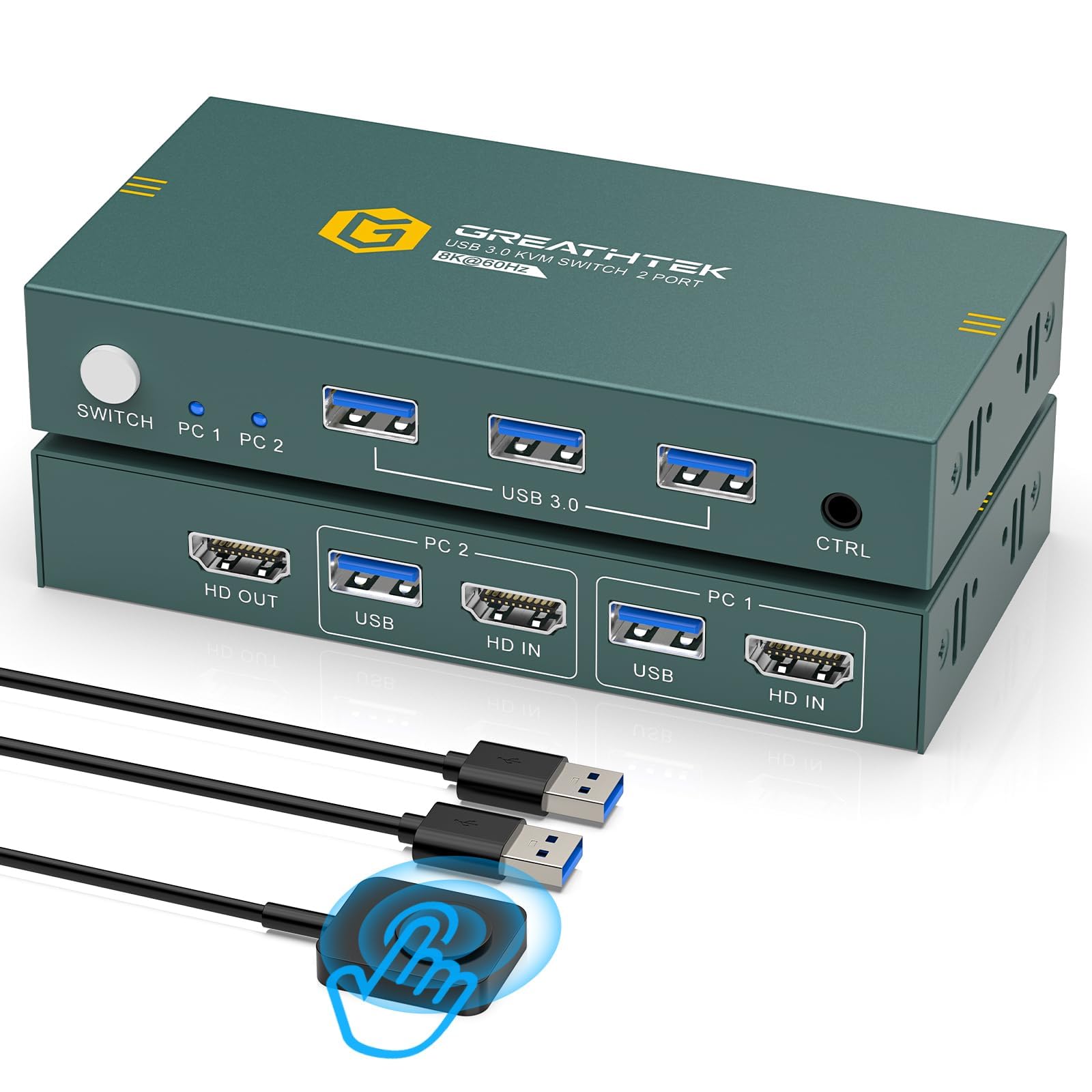
One monitor, no second screen, no dock features — this is the stripped-down version of the idea, and the fast-refresh support is why it's here. On a single 1440p or 4K gaming display it passes 4K at 240Hz, 144Hz and 120Hz, so a panel bought for competitive frames isn't held back by the switch in front of it. HDMI 2.1 and HDCP 2.3 give a modern graphics card or console output somewhere to land.

Two USB 3.0 cables and a wired remote come in the box, and the video side is on you. Spend the money on the cables: a tired 4K60 cable will negotiate the whole link down to 60Hz and you'll spend an evening blaming the switch. Three USB 3.0 ports cover a keyboard, a mouse and a headset dongle, which is the realistic load on a one-screen desk.

Adaptive EDID is the quiet win. Each computer comes back to the window layout it had, and on a single-monitor desk that's the difference between a switch you keep using and one you stop bothering with. It's the cheapest route in this group to a fast panel running at full speed, and it doesn't pretend to be anything more. Two screens, or a laptop you want to charge over USB-C, means spending more elsewhere on this list.

Pros

  • 4K at 240Hz on a single display
  • Adaptive EDID keeps window layouts
  • Wired remote and three USB 3.0 ports
  • Least expensive high-refresh option here

Cons

  • One monitor only
  • No HDMI cables included
Our verdict

If you game on a single high-refresh monitor and only need the second PC to share it, this is the least expensive way here to keep that panel at speed.

Check Latest Price
3

Best Value for Two Monitors

RubiPro 8K Dual Monitor KVM

78 /100
Lab Score Very Good

Key details

Monitors
2
USB Ports
4 × USB 3.0 (5Gbps)
In The Box
8K HDMI cable, 5V/2A adapter
Resolution And Refresh
8K@60Hz, 4K@120Hz
View on Amazon

This is the same class of box as our top pick — two monitors, 4K at 120Hz, four USB 3.0 ports — for less money, and it throws in a braided 8K-rated HDMI cable. The powered design is the part that matters day to day: a 5V/2A adapter feeds the hub, so a keyboard, mouse and headset aren't living off whatever current the selected PC feels like handing over.

What we want from a switch in use is for the link to hold: two machines, two screens, no random dropouts when you flick back and forth between them. That's the part this one gets right, and the picture stays crisp at full resolution on both outputs rather than softening when the second display wakes. Setup is plug and play with no drivers, so on a gaming desk you're finished before the machine has booted.

It's a midrange box with midrange ambitions, and that's the point — nothing here is pretending to be a dock. If your shared accessories are a keyboard, mouse, headset and the occasional flash drive, and both computers are desktops with their own power and displays, you're getting the display performance that matters without paying for ports you'd never fill.

Pros

  • Dual 4K at 120Hz for less than our top pick
  • 8K-rated HDMI cable included
  • Powered hub with a 5V/2A adapter
  • Plug and play, no drivers

Cons

  • One HDMI cable for a setup needing four
  • Brief re-sync pause when switching
Our verdict

A dual-monitor switch in the same 4K-at-120Hz class as our top pick for less money, with a powered hub and a cable in the box.

Check Latest Price
4

Best for a Laptop and Desktop

AV Access iDock B10

82 /100
Lab Score Excellent

Key details

Monitors
2
Networking
Gigabit Ethernet, both computers
Laptop Connection
USB-C, up to 100W charging
Resolution And Refresh
Dual 8K@60Hz, dual 4K@165Hz
View on Amazon

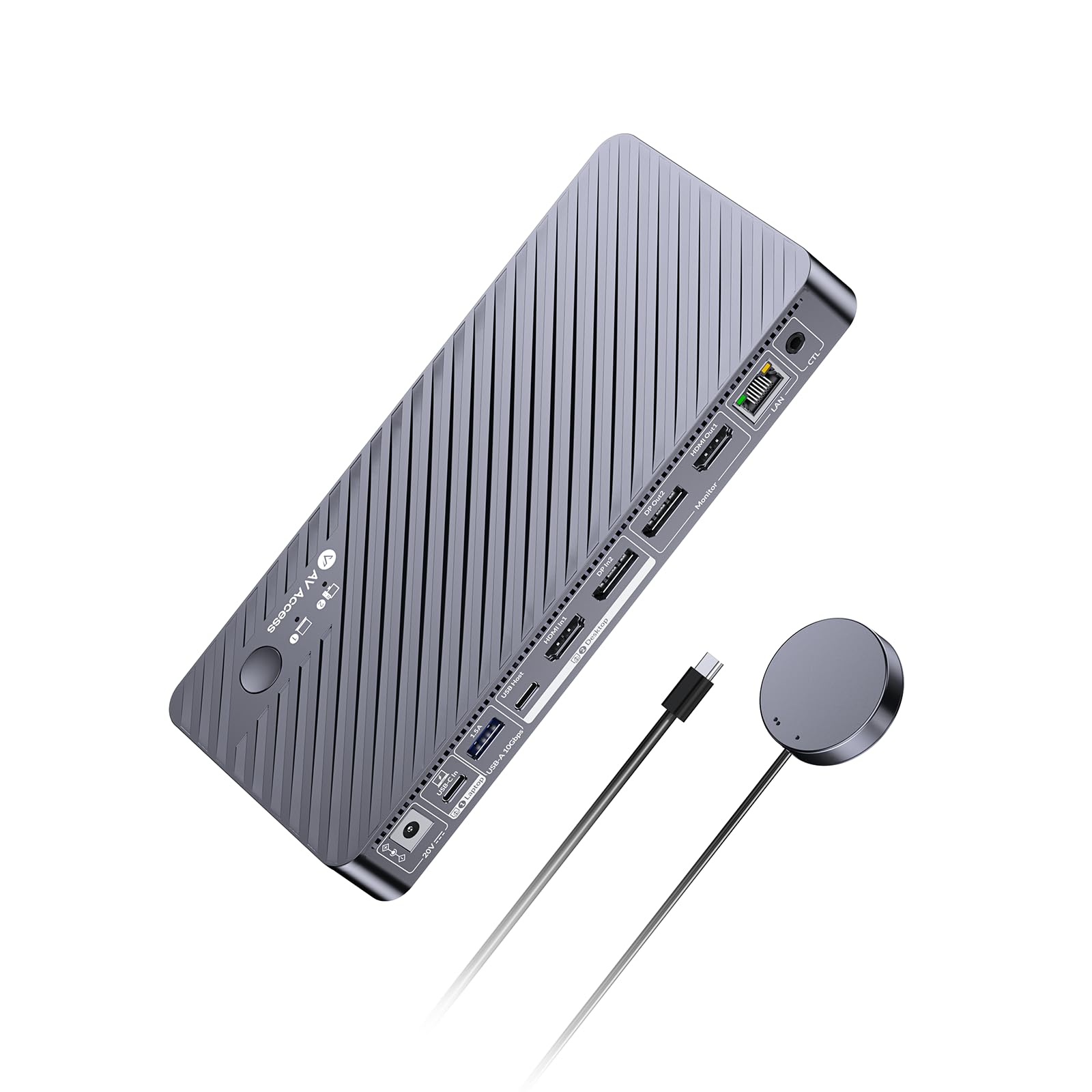
If your second computer is a laptop, this is the neatest version of the two-machine desk in this group. One full-featured USB-C cable carries dual displays, data and up to 100W of charging to the laptop, while the desktop side reaches dual 8K at 60Hz or dual 4K at 165Hz. That desktop figure is the highest dual-monitor refresh here, and it's the reason a fast panel doesn't feel wasted on working days.

Both computers keep their network connection while you switch, which sounds minor until a large download is halfway done and you want to play something. Gigabit Ethernet stays live on the machine you aren't using, so updates, cloud syncs and downloads carry on in the background instead of stalling until you switch back.

Laptops vary, and that's the real compatibility question. A machine without a full DisplayPort alt-mode implementation and enough lanes won't drive two screens down the single cable, so check what your laptop's USB-C port can carry before you build the desk around it. Older machines are the ones that disappoint.

The money here buys a dock and a charger as much as it buys switching. If both computers are desktops with their own power and their own displays, most of that hardware goes unused and the laptop is the whole justification for choosing this one over the picks above.

Pros

  • One USB-C cable for displays, data and 100W charging
  • Dual 4K at 165Hz from the desktop
  • Gigabit Ethernet stays live on both machines
  • Replaces a separate laptop dock

Cons

  • USB devices can drop and reconnect
Our verdict

The one to buy when your second computer is a USB-C laptop: one cable carries dual displays, peripherals, wired network and 100W of charging.

Check Latest Price
5

Best for Multiple Rigs

UGREEN 8K KVM, 4 Computers

79 /100
Lab Score Very Good

Key details

Monitors
1
Computers
4
USB Ports
3 × USB-A + 1 × USB-C
Resolution And Refresh
8K@60Hz, 4K@240Hz
View on Amazon

Four computers, one monitor, one keyboard and mouse. That's the whole pitch, and if your desk holds a gaming rig, a work machine, a media box and a handheld's dock, a four-way switch is the only thing that stops the cable shuffle. The chassis is aluminum, the shared hub gives you three USB-A ports and one USB-C at USB 3.0 speeds, and the video side is rated to 8K at 60Hz or 4K at 240Hz.

What we appreciate is that the ports you reach for sit up front, where a headset or a flash drive actually gets plugged in, and that the desktop controller means finding the box under the desk isn't part of changing machines. For this kind of desk the appeal isn't any single feature — it's that four machines stop competing for one set of peripherals.

The whole hub switches with the video, so a portable drive or a capture card goes wherever the selection goes. That's fine for most desks and mildly irritating if you wanted one device pinned to one machine. Plan the routing too: four machines make a lot of cable, and a switch that lives on the floor makes every run longer.

Pros

  • Switches four computers to one display
  • 8K at 60Hz and 4K at 240Hz
  • Four USB 3.0 ports including USB-C
  • Aluminum body with a desktop controller

Cons

  • One monitor only, no dual-screen desk
  • Every PC needs its own HDMI and USB cable
Our verdict

For a desk with four machines and one big monitor, this untangles the whole thing — keyboard, mouse and headset follow whichever computer you select.

Check Latest Price
6

Best Budget

Hearvo S7232H HDMI KVM

80 /100
Lab Score Excellent

Key details

Monitors
1
Switching
Panel button, wired remote
USB Ports
3 × USB-A + 1 × USB-C, USB 3.0
Resolution And Refresh
4K@60Hz
View on Amazon

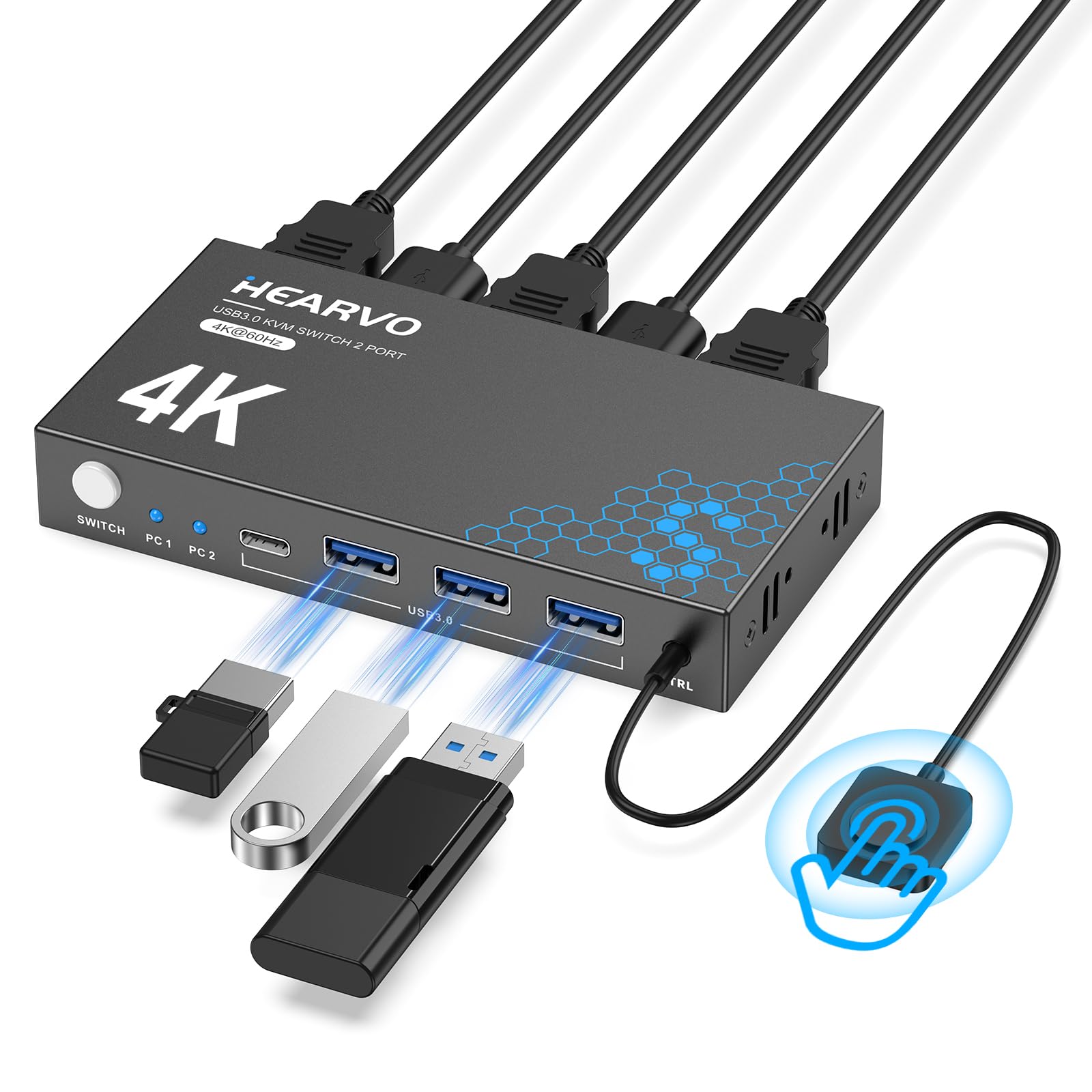
The least expensive switch here, and nothing about it feels stripped out on the desk: metal body, wired remote, four USB 3.0 ports (three A, one C) and 4K at 60Hz with HDCP 2.2. It's a small box, all the ports face one way, and the whole thing disappears behind a monitor without brackets or a shelf.

Adaptive EDID is the feature that keeps a shared desk civil — each computer comes back to the window layout it had, so a quick switch doesn't turn into five minutes of dragging windows back into place. The wired remote is the other small mercy: the box is small enough to vanish, and the remote means you're not reaching behind it every time you change machines.

Where it lands is a second screen or a secondary machine: an office monitor, a 1080p panel, the spare display beside the gaming monitor. Windows PCs are the safe pairing; Macs are the case to check before buying, because that's where support gets patchy. As a cheap way to give another computer a screen, a keyboard and a mouse, it earns its place at the bottom of the price range.

Pros

  • Least expensive switch here
  • Wired remote and four USB 3.0 ports
  • Adaptive EDID and HDCP 2.2
  • Aluminum body, plug and play

Cons

  • 4K capped at 60Hz
  • No power adapter, draws on USB power
Our verdict

The least expensive way here to share one monitor, a keyboard and a mouse; treat it as the switch for the second screen, not the gaming panel.

Check Latest Price
7

Basic Dual-Monitor Setups

UGREEN AK500 Dual Monitor KVM

80 /100
Lab Score Excellent

Key details

Monitors
2
USB Ports
3 × USB-A + 1 × USB-C, USB 3.0
In The Box
4 HDMI cables, 2 USB, adapter
Resolution And Refresh
4K@60Hz
View on Amazon

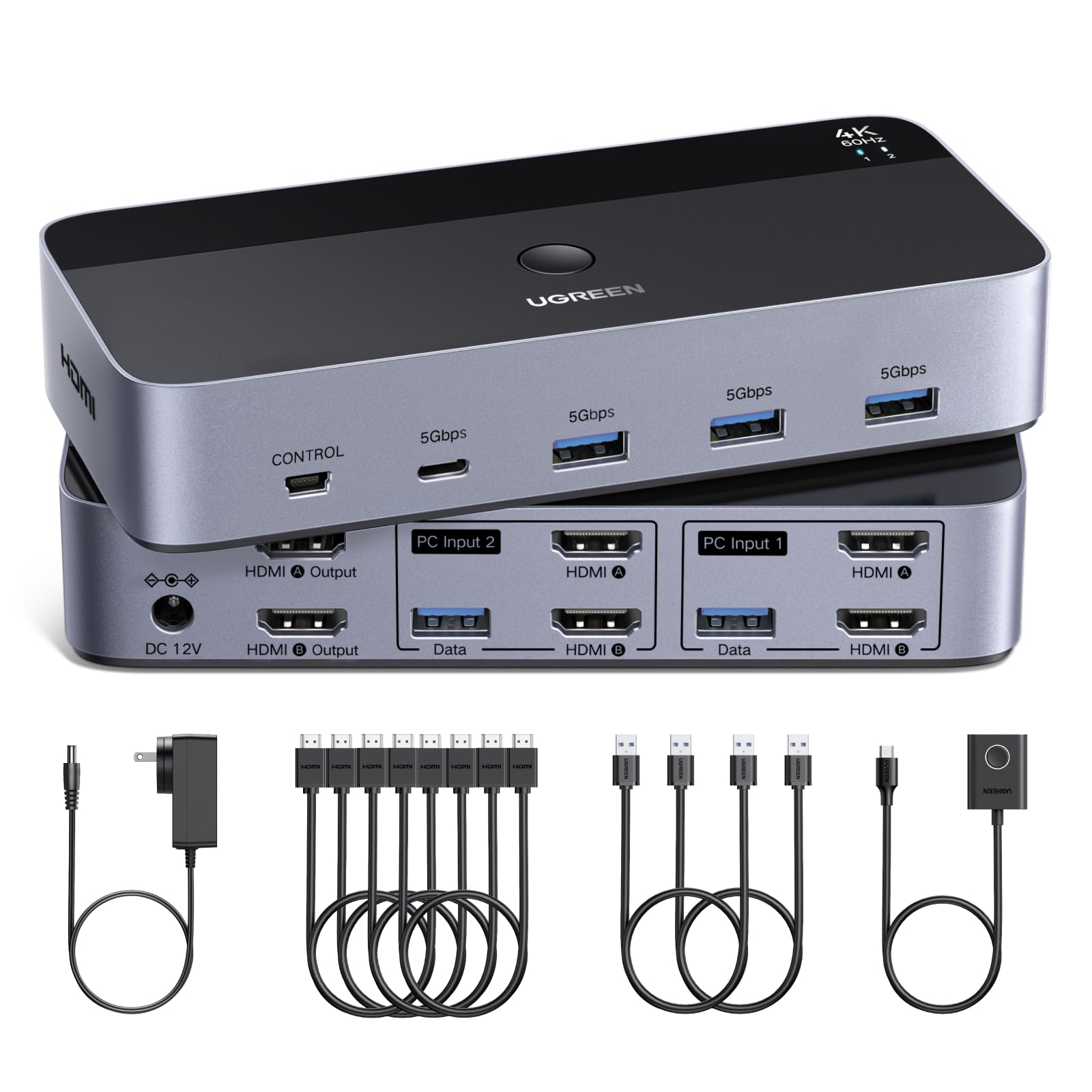
Open the box and you find four HDMI cables, two USB cables, a power adapter and a desktop controller. That's unusual enough to lead with: most switches here expect you to buy two to four video cables separately, and getting the whole loom included turns a fiddly install into an afternoon you get back.

The hardware is a two-in, two-out HDMI switch with four USB 3.0 ports for the shared keyboard, mouse, printer and drives, plus an external adapter so the hub isn't living off bus power. Setup is genuinely plug and play — the picture arrives without drivers and the button switches on the first press, which is the standard everything else here is judged against.

Windows, macOS and Linux are all on the compatibility list, and the desktop controller means the box itself can live out of sight rather than on the desk. Two computers and two monitors is the ceiling, so this is a box for a fixed pair of machines rather than a growing collection of them.

It's the one we point at a dual-monitor work pair, or at a second screen sitting beside the gaming monitor that never needs to run fast. Everything arrives together, the switch works first time, and the desk is done before lunch — a rare thing in this category.

Pros

  • Every cable and the adapter included
  • Two computers, two monitors, four USB 3.0 ports
  • Desktop controller for one-press switching

Cons

  • 4K capped at 60Hz
  • Outputs can swap after a switch
Our verdict

Everything needed to run two computers and two monitors arrives in one box — we point this at a work pair, not at the gaming display.

Check Latest Price
8

Triple-Monitor Setups

AV Access iDock B23

82 /100
Lab Score Excellent

Key details

Monitors
3
Networking
1Gb Ethernet, both computers
Laptop Connection
USB-C, up to 100W charging
Resolution And Refresh
Up to 8K@60Hz
View on Amazon

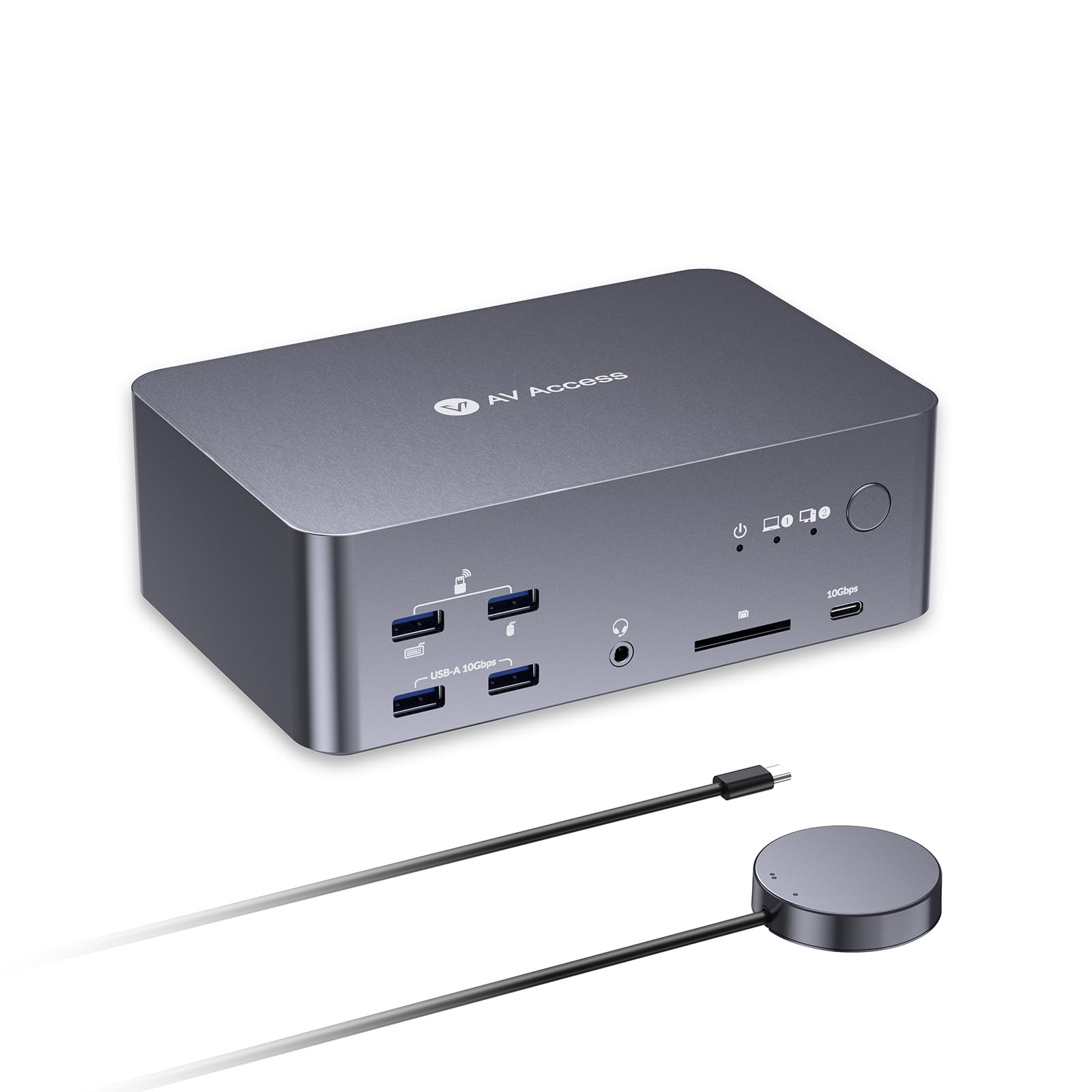
Three monitors, two computers, one keyboard. If you race, fly, or simply refuse to give up a third panel, this is the switch that lets a laptop and a desktop share the whole wall — the laptop through a single USB-C cable, the desktop through its own outputs. It's the dual-monitor dock's bigger sibling from the same family, and the little aluminum case gives that away immediately.

Alongside the switching you get up to 100W of charging over that one cable and a Gigabit Ethernet connection that stays live on both machines, so the computer you aren't using keeps its downloads and syncs running. Peripherals live on the shared hub and follow whichever machine is selected, and the wired remote means the box itself can hide behind the monitors.

Laptop support is what to check first. Driving three displays from one USB-C port is a heavy ask, and some business laptops and Macs won't do it however capable the dock is — the laptop's port specification is the ceiling, not the dock's. Get that answer before you buy, because no firmware update will change it.

For a two-monitor desk, our top pick does the same job for a fraction of the money. The third display is what the premium buys here, along with the charging and the always-on network. When three panels are non-negotiable, this is the tidiest way we've seen to feed them from a laptop and a desktop without a second dock on the desk.

Pros

  • Three displays from two computers
  • One USB-C cable with up to 100W charging
  • Gigabit Ethernet stays live on both
  • Wired remote included

Cons

  • Runs warm under a triple-display load
  • All USB-C ports switch with the selection
Our verdict

Three displays, one laptop cable, 100W of charging and a network connection that never drops — the switch for a wall of monitors fed by two machines.

Check Latest Price

How We Tested the Best KVM Switches for Gaming

We built the shortlist from spec sheets and one-star reviews. Anything that couldn't push 1440p at 144Hz to two displays, lacked a physical switch or hotkey, or needed software to change machines got cut before it reached a desk. That left 11 switches — two-port boxes, four-port units, and a few with a wired desktop remote — which we ran for four months. Price got weighed per usable port, not per box.

Setup happened on real desks: a work laptop and a gaming PC side by side, plus a two-monitor arrangement in one tester's office. I timed each switch from cutting the tape to both machines responding, deliberately without the manual, and noted where I had to guess. Only the ones that worked first try — right resolution on both monitors, right refresh rate, keyboard lighting up — moved on to daily use.

Then we just lived with them. I switched mid-match, counting frames on a slow-motion phone clip to see how long the black screen actually lasted, and logged whether the game kept running or my mouse briefly vanished. Sleep mattered more than I expected: I let both machines doze, woke one, and checked whether the other came with it. Two bus-powered units dropped a display the moment a keyboard with heavy RGB was plugged in, so we tracked which ones shipped with their own power adapter. Remote pucks stayed within arm's reach for a week each, and reliability got judged the boring way — whether a switch still changed inputs cleanly in month four without a power cycle.

How to Choose a Gaming Kvm Switch

Buy for the mode you run today, not the 8K badge

Every switch here leads with a headline resolution, and almost none will run that headline and a high refresh rate at the same time. The number you need is the one that matches your monitor: 4K at 120Hz, 1440p at 240Hz, 1080p at whatever the panel does. An 8K rating tells you about bandwidth in one direction, not about the 4K 144Hz mode your graphics card is set to.

The trap is assuming the switch sets the ceiling. The chain runs graphics card, cable, switch, cable, monitor, and the weakest part negotiates for everyone — an old HDMI cable will quietly hold a good switch at 60Hz and you'll blame the box. Decide the exact mode you game in, check that figure on the switch, then buy cables rated for it.

Count monitors and computers before anything else

Configuration is fixed, not expandable. A two-monitor, two-computer switch will never accept a third PC, and a four-way single-monitor box will never give you a second screen. Most gaming desks land on one fast monitor plus a second machine, which is the cheapest shape to buy; dual monitors at high refresh is the next step and costs noticeably more.

Three displays is a docking-station purchase rather than a switch purchase, and the price jumps with it. Draw the desk on paper first — how many screens, how many machines, which one charges over USB-C — then compare models against that drawing instead of against a feature list.

Powered hubs keep peripherals alive

A KVM is also a USB hub, and that is where the dissatisfaction usually lives: a mouse that needs a second to wake up, a webcam that drops, a portable SSD that the machine never sees. Two things fix most of it — an external power adapter, so the hub isn't borrowing current from whichever computer is selected, and USB 3.0 ports rather than USB 2.0.

If you share a keyboard, a mouse and a headset dongle, a bus-powered unit is fine and you can save the money. Add a webcam, a capture card or an external drive and the adapter stops being a detail.

Expect a blink when you switch

No switch here changes inputs instantly and invisibly. Coming back to a computer usually means a second or two of display re-sync, and USB devices may re-enumerate on the way. What separates the good ones is EDID handling: a switch that keeps the display handshake alive returns you to the window layout you left, while a cheap one lets the operating system fold everything onto one screen.

Look for EDID simulation or adaptive EDID in the specifications. On a multi-monitor desk it is the single most useful line on the box, and it matters more than another 60Hz of claimed headroom you'll never drive.

Cables, ports and what your card actually outputs

Count cables before you count features. A two-computer, two-monitor setup needs four video cables, and plenty of switches ship with none or one. Then match connector types: HDMI is the default on these units, so a card that only offers DisplayPort needs adapters, and a laptop needs a full-featured USB-C port with DisplayPort alt mode to send two screens down one cable.

A wired remote is worth having as well. The box belongs behind the monitor or under the desk, and the remote belongs within reach of your mouse hand — otherwise you'll stop switching and start unplugging.

Frequently Asked Questions

Final Verdict

For the standard gaming desk — a PC, a second machine and two monitors — the VPFET switch is the one we'd name, because dual 4K at 120Hz plus a powered hub and a remote is the combination that removes the cable shuffle without changing how your games look. On a single high-refresh panel, the GREATHTEK does the same job for far less and keeps 240Hz intact.

If the second computer is a laptop you also want to charge, the AV Access iDock B10 is the version of this desk that feels finished: one cable, dual displays, live Ethernet and power. And if three screens are non-negotiable, the iDock B23 is the only thing here that feeds them from two machines.