Best PC Fan Controllers of 2026

A fan controller looks like a simple fix for a noisy PC: turn the fans down at idle, up under load, and keep the wiring out of sight. The wrong one can add a nest of cables, software that forgets your settings, or fan headers that don't match what's already on your motherboard. I've built enough systems to know the useful difference isn't the flashiest display—it's whether the controller makes daily use easier. After eight months with 12 fan controllers, the good ones share a few quiet virtues: sensible fan curves, solid connectors, and an installation that doesn't eat an entire evening.

Compatibility is where most shopping trips go sideways: some controllers depend on motherboard software, others run standalone, and a few need a particular fan type to behave. I noted how quickly each one disappeared into the build—whether cables reached the back of the case, whether profiles survived a reboot, and whether the price felt fair after the novelty wore off. The picks below are the ones I'd leave in my own machine.

1

Best Overall

ARCTIC Fan Controller

87 /100
Lab Score Excellent

Key details

Power
SATA; 2 A per port, 4.5 A total
Control
Windows and Linux software
Mounting
Magnetic or adhesive
Fan Ports
10, individually controlled
View on Amazon

Ten fan headers, each on its own PWM channel, plus an internal USB cable that lets Windows or Linux see the board as a device you can tune. That is a different proposition from every other multi-port box here, which splits one motherboard signal across the whole group and leaves you adjusting fans in packs rather than one at a time.

Mixed fan sets are where the extra channels earn their keep. An intake, three radiator fans, and a rear exhaust all want different curves, and separate channels are the only way to give them one. The power side deserves a look before you order, though. Each port is rated at 2 A and the board draws its 12 V from a single SATA plug, but the total across all ten is 4.5 A — ten ordinary case fans sit comfortably under that, while a stack of high-static-pressure or industrial models will hit the ceiling long before you run out of headers.

Installation is about as simple as this gets. The board is held by magnets or the included adhesive, and at 59 g it stays where you put it; one USB header cable and one SATA lead are the only connections back to the system. We appreciated how much clutter disappears when ten fan cables land on one board instead of ten extensions and a handful of Y-splitters.

Pros

  • Ten fans on separate PWM channels
  • Windows and Linux driver support
  • 2 A per port from one SATA plug
  • Magnetic or adhesive mounting

Cons

  • 4.5 A total caps high-power fan arrays
  • Needs a free internal USB header
Our verdict

Our default for a multi-fan build: ten ports you can tune one at a time, power from a single SATA lead, and drivers for both Windows and Linux.

Check Latest Price
2

Best Manual Dial

Noctua NA-FC1

95 /100
Lab Score Outstanding

Key details

Control
Manual dial, PWM-based
Warranty
6 years
Fans Supported
3 (splitter included)
Minimum Speed Mode
300 rpm no-stop
View on Amazon

Smaller than a matchbox and priced like a premium part rather than a cable, the NA-FC1 is the odd one out in this group. It is not a hub you configure; it is a dial you turn, wired in between a motherboard header and your fans.

Because it scales the PWM signal the board already sends rather than replacing it, automatic fan control keeps working — you are trimming it, not switching it off. Turn the dial down and the group gets quieter; leave it up and the motherboard's curve takes over again. The included three-way splitter covers up to three fans, and the no-stop mode keeps them from dropping below 300 rpm, which is what stops the BIOS complaining that it cannot see a fan.

Where the price starts to make sense is a specific annoyance: a pair of fans louder than they need to be, a pump you want to trim, or a board whose curve has never suited you. At 48 g it disappears behind a panel, and we like that there is nothing to install and nothing running in the background. The weak point is the wiring — the connectors seat but do not lock, and there is no bracket in the box, so plan on a zip tie if you want it fixed in place.

Pros

  • Dial control with no software to install
  • Works alongside the motherboard's own curve
  • No-stop mode avoids BIOS fan errors
  • Six-year warranty

Cons

  • Three fans maximum on the included splitter
  • Connectors don't lock and no mount is included
Our verdict

For taming a couple of loud fans without software, the NA-FC1 is the neatest answer here — a dial, a splitter, and a six-year warranty.

Check Latest Price
3

Best for ARGB Builds

Thermalright ARGB Fan Hub 8-Port

90 /100
Lab Score Outstanding

Key details

Power
SATA
Mounting
Magnetic and adhesive
Fan Ports
8 × 4-pin PWM
ARGB Ports
8 × 5 V 3-pin
View on Amazon

Eight ARGB fans, one 5 V header, one fan header, one SATA plug. That is the trade Thermalright's eight-port hub makes, and for a straightforward RGB build it is the one we reach for first — the wiring problem disappears the moment the fans land on it.

Each port takes a 4-pin PWM fan and a 5 V 3-pin ARGB connector, and the board pulls its power straight from SATA rather than through the motherboard, so eight fans are not drawing on a single header. It passes PWM through, which means your existing BIOS or software curve still does the thinking. The lighting side syncs with the usual 5 V motherboard software without a translator in between, and the magnetic backing plus adhesive pad make it easy to park on a steel panel.

Only the fan on the red port reports its speed, so your monitoring shows one fan where there are eight — fine for a matched set of case fans, less so if you watch individual RPM. The shell is light plastic and the double-sided pad is the weakest thing in the box; the magnets and the SATA lead are the parts that last. For the money, though, it is the least fussy route to a fully lit case.

Pros

  • Eight PWM and eight ARGB connections on one board
  • SATA power keeps the load off the motherboard
  • Magnetic and adhesive mounting
  • Syncs with 5 V ARGB software

Cons

  • All eight fans follow one PWM signal
  • No support for 12 V 4-pin RGB gear
Our verdict

For an eight-fan ARGB build this is the simplest box here: one SATA lead, one header each for fans and lighting, and no software of its own to fight.

Check Latest Price
4

Best for NZXT CAM Builds

NZXT RGB & Fan Controller

90 /100
Lab Score Outstanding

Key details

Mounting
Magnets, adhesive, or 2.5-inch bay
Software
NZXT CAM
Fan Channels
3 (up to 9 fans)
RGB Channels
6
View on Amazon

If your case is already full of NZXT gear and CAM is open on the second monitor, this is the controller the rest of the build assumes you own. Three fan channels driving up to nine PWM fans, six lighting channels, and one window to manage all of it.

Mounting is more flexible than most: magnets, adhesive strips, or the screw holes for a 2.5-inch bay, so it can sit on a panel, a drive cage, or wherever there is bare steel. The 36 W rating covers a normal fan load with room to spare, and the software is the real feature — fan curves and lighting profiles that can follow an app or a game rather than sitting at one fixed setting all evening.

The catch is the ecosystem. The connectors are NZXT's own, control runs through CAM, and the further you get from NZXT's fans and strips the more likely you are to meet something that does not fit or is not recognized. Inside the brand that is a fair trade for how tidy the result is, and that is who we recommend it to; mixing brands, one of the hub picks will serve you better for less.

Pros

  • Three fan channels for up to nine fans
  • Six RGB lighting channels
  • Magnets, adhesive, or 2.5-inch bay mounting
  • Per-app profiles through CAM

Cons

  • Proprietary connectors favor NZXT accessories
  • Control depends on NZXT CAM
Our verdict

For a build that already lives in CAM, this is the tidy answer: nine fans and six lighting channels in one window, provided your parts are NZXT's.

Check Latest Price
5

Best for iCUE Link Upgrades

CORSAIR Commander Duo

86 /100
Lab Score Excellent

Key details

Channels
2 × ARGB and PWM
Software
CORSAIR iCUE
Fans Per Channel
Up to 6 daisy-chained
LEDs Per Channel
Up to 50
View on Amazon

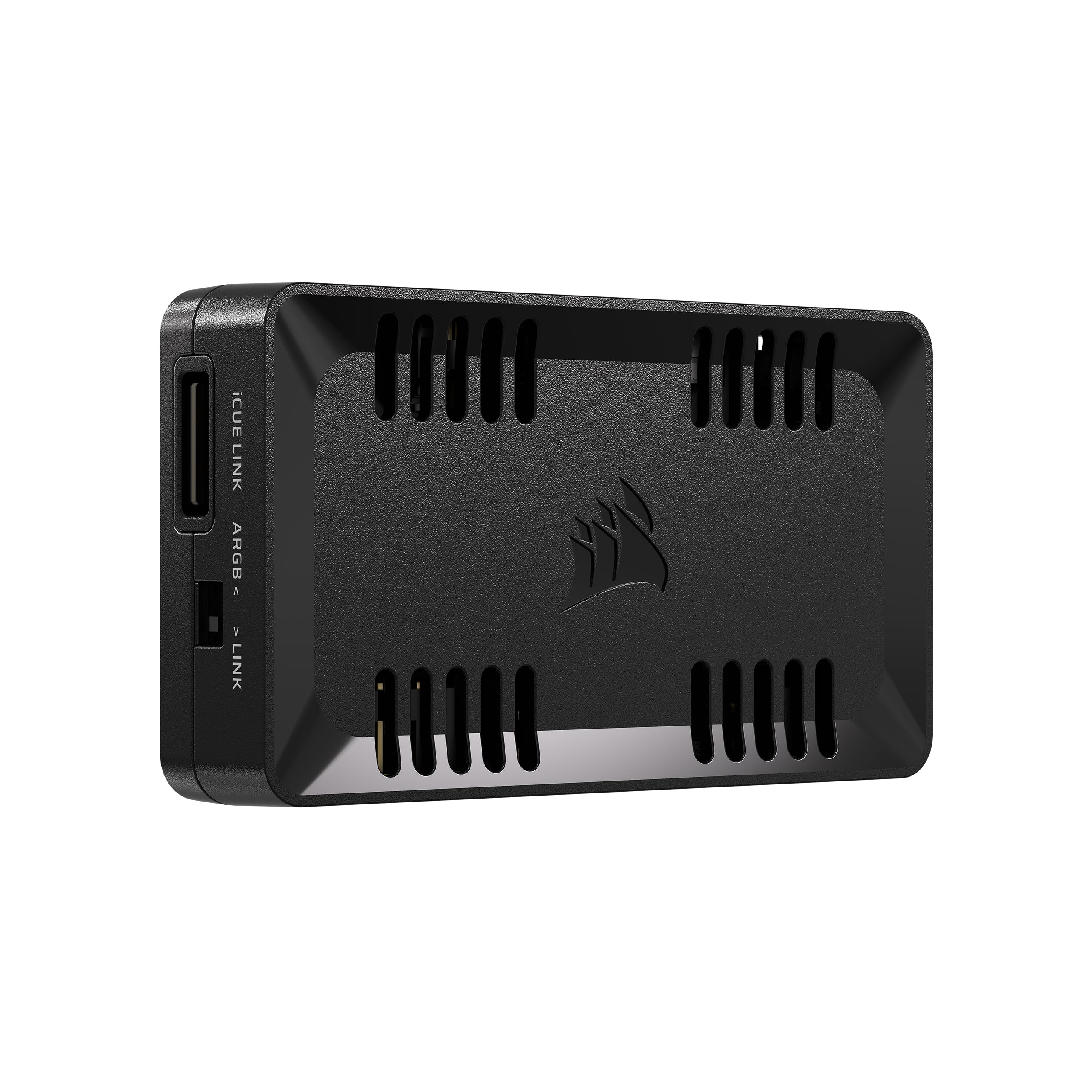
Two channels. That is the whole of it — the Commander Duo does not pretend to be a ten-port hub, and a build that needs six separate fan groups should look elsewhere. What it does is bridge two worlds: ordinary 4-pin PWM fans with 3-pin ARGB, and Corsair's iCUE Link devices.

Each channel takes up to six daisy-chained fans and up to 50 LEDs of ARGB, and iCUE drives them together, so a set of non-Corsair ARGB fans can sit in the same lighting scene as your iCUE Link gear. For an older motherboard with new fans, that is a genuine shortcut — you are not buying a second ecosystem just to get lighting control, and the fan curves live in the same place as everything else.

The software is also the fussiest part of the package. iCUE is the only way in, we have watched the controller drop off the device list when it shares an internal USB hub, and third-party tools such as SignalRGB do not pick it up at all. In a Corsair-centric build none of that is new — you were running iCUE anyway.

Where it makes sense is as an upgrade rather than a first build: an iCUE Link system that has run out of ports, or a handful of ARGB fans that need somewhere to live. For that job it is small enough to tuck behind the motherboard tray, and it keeps every fan under one set of curves.

Pros

  • Bridges ARGB PWM fans into iCUE Link
  • Six daisy-chained fans per channel
  • Up to 50 LEDs per ARGB channel
  • Fan curves managed in iCUE

Cons

  • Requires Corsair's iCUE software
  • Not recognized by SignalRGB and similar tools
Our verdict

For a Corsair build that's run out of iCUE Link ports, this is the missing piece: two channels, six fans each, everything visible in one iCUE window.

Check Latest Price
6

No-Software Builds

OwlTree 6-Fan PWM Controller

84 /100
Lab Score Excellent

Key details

Control
Knob, 1–99% duty
Fan Ports
6 × 4-pin PWM
Power Input
SATA or DC 5525
Total Output
60 W (5 A at 12 V)
View on Amazon

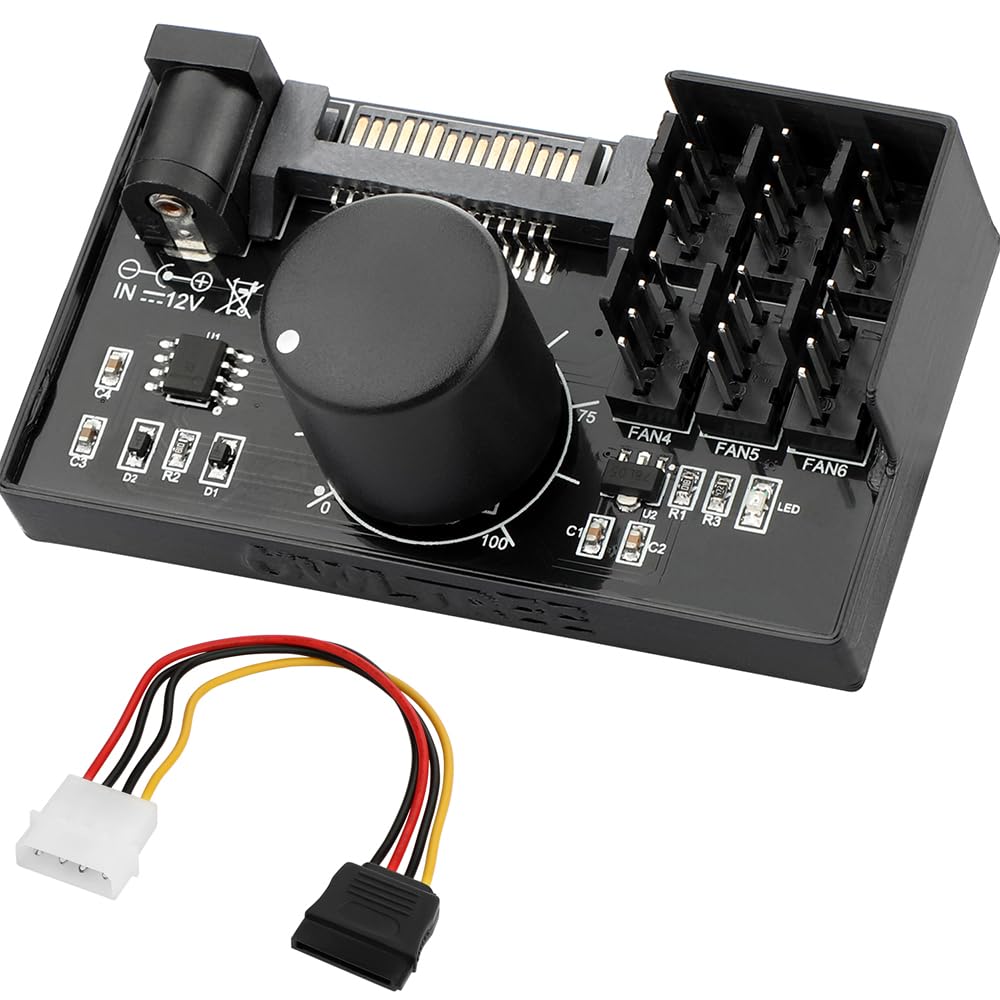
Less money than the Noctua and twice the fans, with no software at all — on paper the OwlTree knob controller looks like the obvious budget answer. In practice it is the most situational pick here: six 4-pin PWM fans on one dial, powered from SATA or a 12 V DC brick, with nothing talking to your motherboard.

That last part is the point rather than the problem. This is a controller for a fan wall on a test bench, the drives in a NAS shelf, or a mining frame where no header is watching: you set the dial and the fans follow it, anywhere from 1% to 99% duty, up to 60 W total and 2 A per port. What struck us is how much of the value sits in the power options — SATA from inside a case, or a DC brick for a shelf with no power supply in reach. The open question is fan response: some fans ignore the dial and run flat out, and the zero position will not necessarily stop anything, so test yours before it goes into a build you care about.

Pros

  • Six PWM fans on one dial
  • SATA or 12 V DC input
  • 60 W total, 2 A per port
  • No software or motherboard header needed

Cons

  • 4-pin PWM fans only, no 3-pin support
Our verdict

We keep this one for benches, shelves, and frames: six PWM fans on a knob, no software — as long as your own fans answer to it.

Check Latest Price
7

Bench Cooling

Tokatuker 12V Fan Controller

88 /100
Lab Score Excellent

Key details

Input
100–240 V AC
Output
3–12 V DC, 36 W
Cable Length
5.5 ft total
Fan Connections
4-way splitter (3- or 4-pin)
View on Amazon

The first thing to understand about this one is that it does not go inside the computer. A 100–240 V AC plug feeds a small box with a knob that puts out anywhere from 3 V to 12 V DC, and a four-way splitter carries that to your fans.

We found the honest use for it quickly: a test bench, an external radiator, a mining frame, or a cabinet or AV receiver that needs a fan and has no header to spare. One dial trims all four fans together, the cable runs about 5.5 ft end to end, and it takes 3-pin as well as 4-pin fans, which is more than the PWM-only controllers can say.

Its limits are worth respecting. All four fans share one voltage, so there is no per-fan tuning at all, and 36 W is the ceiling for the whole set — a couple of large fans is a better fit than a stack. Near the top of its range it can also cut out, so treat the last part of the dial as headroom rather than a setting you will live at.

Pros

  • Adjustable 3–12 V output
  • Runs 3-pin and 4-pin fans
  • Four-way splitter included
  • Powered from a wall outlet

Cons

  • One voltage shared by all four fans
Our verdict

For cooling outside the case — a bench, a cabinet, a frame — this is the simple answer: one knob, four fans, and no motherboard involved.

Check Latest Price

How We Chose and Tested PC Fan Controllers

We started by narrowing a long list of controllers by the basics: header count, fan type support, mounting options, software or hardware control, and price. That left 12 units, which we installed in two mid-tower builds and one small-form-factor case over eight months. Each controller stayed in a system for at least a week of normal work, gaming, and overnight stress runs, and we rotated them through different motherboards to see which ones played nicely with existing fan hubs and splitters.

Installation was timed with a stopwatch, because a controller that promises tidy cable management can still cost an hour behind the motherboard tray. We routed every cable ourselves, noted whether the included leads reached front and rear fan mounts, and checked how much slack was left for a clean fold. We also unplugged and reinstalled each unit twice to see whether the connectors, mounting points, and plastic or metal housing held up to real handling.

Fan control got the most use: we set curves in the controller software and in BIOS where supported, then watched how smoothly each unit ramped from idle to load. We logged the lowest speed each fan would hold without stalling, listened for clicking or whine at low RPM, and checked whether profiles survived a reboot. Compatibility checks included three- and four-pin fans, daisy-chained splitters, and boards with limited headers; we also weighed what each controller added in features against its price. The ones that stayed in our builds were the ones that disappeared into the routine—no drama, no forgotten settings, no cable spaghetti.

How to Choose a Pc Fan Controller

Controller or hub: decide this first

Almost everything here is sold as a controller, but only some of them control anything individually. A hub takes the single PWM signal from one motherboard header and hands the same signal to every fan on the board: the fans spin, and you tune them as a group. A controller has its own logic, usually over an internal USB header, and gives each port a channel of its own, so a radiator fan and a rear exhaust can follow different curves.

Count how many distinct curves you actually want. If the answer is one, the Thermalright hub is cheaper and simpler. If it is more than one, start with the ARCTIC board, which is the only pick here that gives every port its own setting.

Add up the current, not the ports

Controllers run out of power before they run out of headers. A board can offer ten ports at 2 A each and still cap the total at 4.5 A, which is exactly what the ARCTIC does; the OwlTree quotes 60 W for its six. Read the label on your fans — most 120 mm case fans draw well under half an amp, while high-static-pressure and industrial models draw several times that.

Add the rated current of everything you plan to connect, keep roughly a quarter of the ceiling in reserve, and only then decide how many ports you need.

Match the connectors before you order

Two mismatches cause most of the frustration. The first is fan type: a 4-pin PWM controller will not vary the speed of a 3-pin DC fan, and several picks here say so plainly, while the Tokatuker splitter accepts both. The second is lighting: 5 V 3-pin ARGB and 12 V 4-pin RGB are different electrical standards, not different plugs, and a 5 V hub has nowhere to put a 12 V strip.

Sort your fans by connector before you buy. It is a two-minute job that rules out half the options for you.

Decide how much software you want in the loop

Control comes in three flavors: vendor software over USB (ARCTIC, NZXT, Corsair), your motherboard's own header and BIOS (the Thermalright hubs), and a physical dial that talks to nothing (Noctua, OwlTree, Tokatuker). Software gives you curves tied to temperatures and one place to see everything, at the cost of an app that has to keep running — and, with Corsair, an ecosystem to stay inside.

A dial is instant and immune to driver updates, but it cannot react to a hot GPU. Pick the failure mode you can live with.

Plan where it physically goes

Magnetic mounting is the most forgiving option in a steel case, which is why the ARCTIC, Thermalright, and NZXT units all offer it — you can slide the board around while you work out cable runs. Adhesive pads are the fallback and they age faster than the electronics do.

Before you commit, find the spot: a flat panel behind the motherboard tray, a spare 2.5-inch bay, or a clear stretch of chassis floor. Then check that the SATA lead will reach, because you will be plugging fans in one at a time.

Frequently Asked Questions

Final Verdict

The ARCTIC controller is what we recommend to most people: ten ports with their own PWM channels, power from a single SATA lead, and drivers for both Windows and Linux. Nothing else in this group gives you per-fan control at the same price tier, and that is the feature that changes how a mixed fan set behaves.

Change the requirement and the answer changes. For a dial with no software behind it, the Noctua NA-FC1 is the neatest option here. For eight ARGB fans running off one header, the Thermalright hub asks very little of you. And if your case already lives inside NZXT's ecosystem, the CAM controller is the tidy choice.