Best 4K Capture Cards of 2026

A capture card should disappear: plug in, hit record, and trust what you see lands in the file. The wrong one makes itself known: a half-second delay in your headphones, lip-sync drift twenty minutes into a stream, or a source that refuses to handshake with your laptop. I spent six months cycling through 12 4K cards, from bus-powered pucks to desktop boxes with passthrough, and the good ones fix the gap between your camera or console and your computer without adding a new job to your day.

Setup should take minutes, not an afternoon of driver roulette. Each card went on a living-room console, a desk camera, and a laptop bag, watching whether 4K stayed sharp, audio stayed in sync, and the card kept cool during long recordings. Some looked fine in a short clip but stumbled under a two-hour session; others were rock-solid but fussy about cables. Value matters too: you should not need extra audio gear for clean sound, or pay for 4K if passthrough adds noticeable lag. The picks below earned a permanent spot in my setup.

1

Best Overall

Elgato 4K S

89 /100
Lab Score Excellent

Key details

HDR
HDR10 with tone mapping on Windows
Connection
USB 3.0 Type-C
Max Capture
4K60
High Frame Rate
1440p120 / 1080p240
View on Amazon

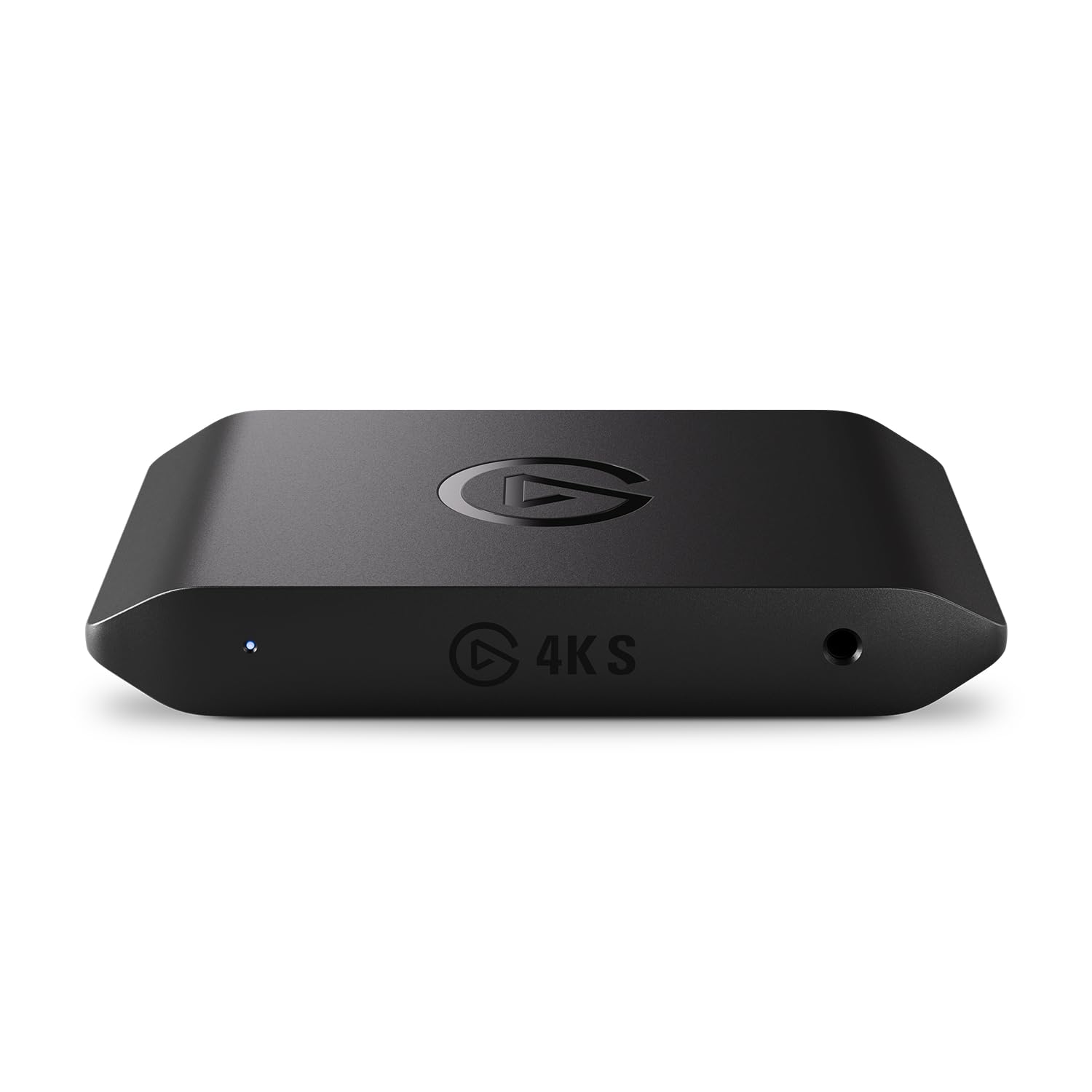
Three numbers explain why this is our default: 4K60 capture, HDR10 with tone mapping on Windows, and passthrough that holds a 1440p monitor at 120Hz or a 1080p one at 240Hz while you record. That last part separates it from the cheaper end of this list. A card that forces your display down to 60Hz to capture 4K is a card you quietly stop using, and Elgato's middle model does the recording without asking you to give up the screen you play on.

Setup is the other half of the recommendation. It is a USB-C box with HDMI in and out, it works with PS5, Xbox Series X/S and Switch 2, and it lists Windows 11, macOS 13 and iPadOS with an 8th-gen Core i5, a Ryzen or an M1 as the floor. The 3.5mm input is the detail we kept coming back to: game chat or a microphone goes straight in, so a console desk does not need a separate mixer to sound like it has one.

Read the host requirement before you order. A desktop with only USB-A needs an adapter, and a five-year-old laptop will not record 4K60 just because the card can. Long-session reliability is the one thing worth proving early: run a full-length recording, chat included, before you trust it with a live show. Linux is not on the supported list at all, which is where the Magewell earns its price.

Pros

  • Records 4K60 while the display stays at 1440p120
  • HDR10 capture with tone mapping on Windows
  • 3.5mm input for chat or a microphone
  • Works with PS5, Xbox, Switch 2, Mac and iPad

Cons

  • No Linux support in the listed hosts
  • HDR tone mapping works only on Windows
Our verdict

For a PS5, Xbox or Switch 2 owner who wants real 4K60 recording without dropping the display to 60Hz, this is the card we point to first.

Check Latest Price
2

Best for High-Refresh Gaming

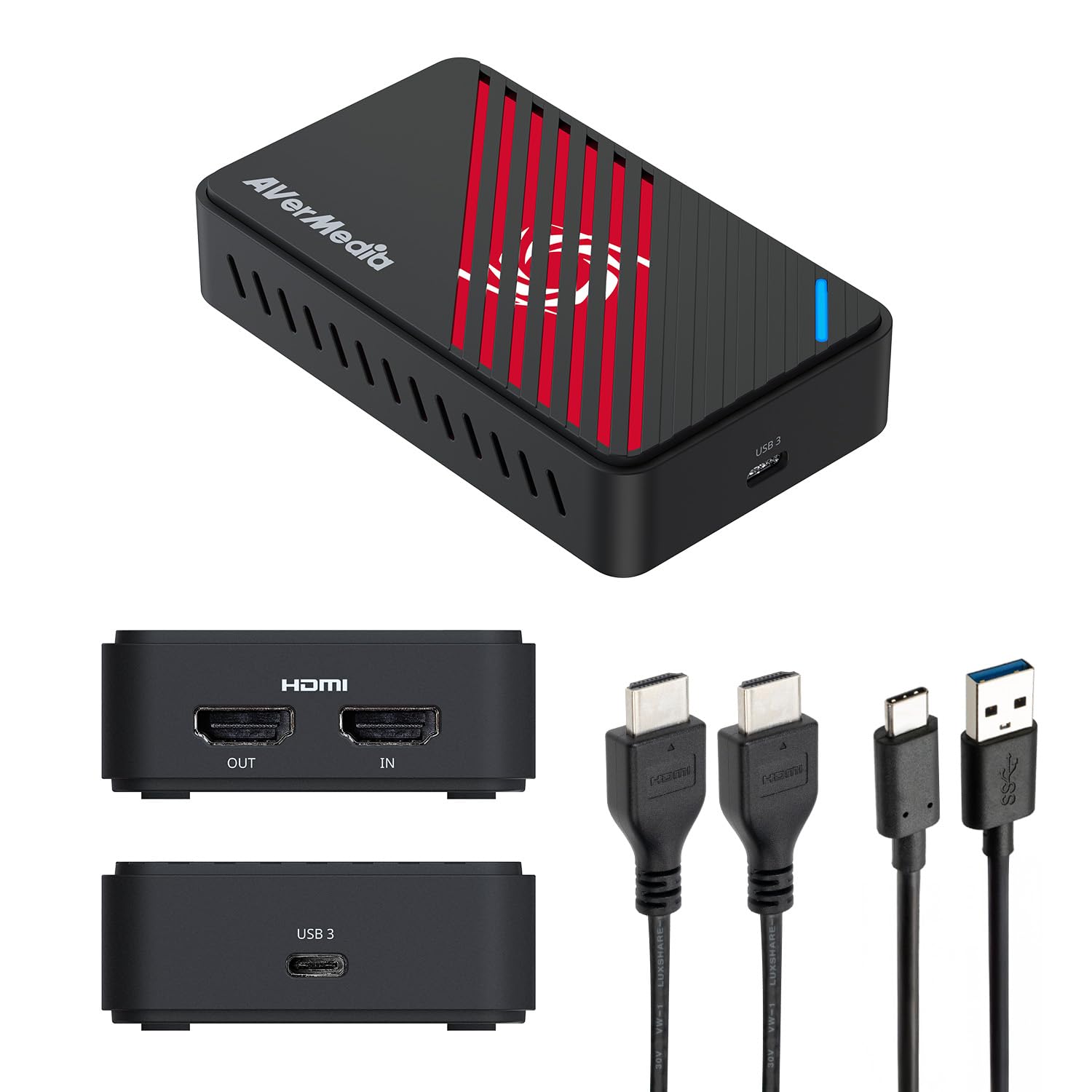
AVerMedia Live Gamer Ultra 2.1

80 /100
Lab Score Excellent

Key details

Audio
Dual 3.5mm four-pole, 5.1 channel
Connection
USB-C, USB 3.2 Gen 2 10Gbps
Max Capture
4K144 MJPEG on Windows, 4K60 on macOS
Passthrough
4K144 HDR/VRR, 1440p240, 1080p360
View on Amazon

4K144 capture here is a real capability, not a passthrough claim — on Windows, in MJPEG, through AVerMedia's Streaming Center or the OBS plugin. The number that shapes daily use is the passthrough: HDMI 2.1 in and out, up to 4K144 with HDR and VRR, or 1440p240 and 1080p360 for the competitive set. One caveat sits inside the specification: monitors that use DSC can limit 4K passthrough to 120Hz, so your display, not the card, may set the ceiling.

For anyone whose screen already runs past 60Hz, this is the USB card we recommend first. It is the only USB model in this set that keeps a 4K144 display fed while it records, and the 10Gbps USB-C link is how it does it. On a 4K60 TV you are paying for headroom you will never touch — the Live Gamer Ultra S does the same 4K60 job for less, and the internal Elgato 4K Pro is the other card here that outruns a 4K60 panel.

Audio deserves your first session. Two four-pole 3.5mm jacks take a headset and gamepad chat separately, and 5.1 works on Windows, but sync is the thing to verify when a capture chain gets complicated: record ten minutes with commentary and check the alignment before a live show. The bundled software is the weakest part of the package; most people end up in OBS with the AVerMedia plugin, which works fine and costs nothing.

Pros

  • HDMI 2.1 passthrough at 4K144 with HDR and VRR
  • 1440p240 and 1080p360 for competitive play
  • Two audio jacks for headset and controller chat

Cons

  • 4K144 capture needs Windows and MJPEG
  • DSC monitors can cap 4K passthrough at 120Hz
Our verdict

If your monitor already runs past 60Hz, this is the USB card that keeps up with it while it records, and the one we trust for 1440p240 play.

Check Latest Price
3

Best Internal Card

Elgato 4K Pro

88 /100
Lab Score Excellent

Key details

Connection
PCIe, HDMI 2.1 in/out
Max Capture
4K60 HDR10
Passthrough
8K60 with VRR
High Frame Rate
Up to 1080p240
View on Amazon

This one starts with an empty PCIe slot. It is an internal card: HDMI 2.1 in and out, 8K60 passthrough with VRR, 4K60 HDR10 capture and up to 1080p240 recording, all sitting on the motherboard instead of hanging off a USB cable. If your desktop has never been opened, that is the first thing to check. The second is the host, because Windows is the only one it lists.

We pick it for a dedicated streaming PC every time the slot exists. Nothing competes for the USB bus, the passthrough stays out of the way of VRR, and a dual-PC setup gets a clean feed without a dongle to knock loose mid-stream. Capture quality matches the USB Elgato at 4K60 HDR10; what the slot buys is headroom and one less cable in the troubleshooting chain.

What it does not buy is plug-and-play certainty. Output handshakes are the failure mode worth hunting: a black screen on the passthrough or a freeze partway through a long recording. Run a full session with the exact cable and display you will use before going live. It is also the wrong shape for a laptop or a console-only desk, where a USB box is simply easier to live with.

Pros

  • 8K60 passthrough with VRR over HDMI 2.1
  • 4K60 HDR10 capture plus 1080p240 recording
  • Internal card leaves USB bandwidth free

Cons

  • Needs an open PCIe slot and case access
  • Windows-only host support
Our verdict

We choose this one when the PC has a free PCIe slot: the cleanest 4K60 HDR capture here, with 8K60 passthrough for the display.

Check Latest Price
4

Best for Mac and Ultrawide

AVerMedia Live Gamer Ultra S

80 /100
Lab Score Excellent

Key details

Ultrawide
3440x1440 and 2560x1080 input
Connection
USB-C, USB 3.2 Gen 1
Max Capture
4K60
Passthrough
4K60, 1440p144, 1080p240 with HDR and VRR
View on Amazon

The Ultra S is the AVerMedia for people who do not need 4K144. It records 4K60, passes through 4K60 with HDR and VRR (or 1440p144 and 1080p240), and connects over USB 3.2 Gen 1 Type-C — the ordinary 5Gbps link rather than the 10Gbps one its bigger sibling requires.

Two details earn it a place. RGB24 capture on Windows means full-color recording instead of MJPEG-only, which keeps text, HUD elements and fine edges cleaner and gives your encoder less to repair. It also accepts 3440x1440 and 2560x1080 ultrawide sources, and it lists Mac, iPad and 5.1 audio on Windows alongside the usual console support.

Set against the Ultra 2.1, it trades the 4K144 ceiling and the 10Gbps link for a lower price and the same 4K60 HDR/VRR passthrough — and for a PS5 or Xbox on a 4K60 TV, that is the trade most people should take. It is the AVerMedia we hand to someone building a first 4K setup around a Mac or an ultrawide monitor, with a three-year warranty behind it.

Pros

  • 4K60 passthrough with HDR and VRR
  • RGB24 full-color capture on Windows
  • Ultrawide 3440x1440 and 2560x1080 input
  • Works with Windows, macOS and iPad

Cons

  • Passthrough stops at 4K60
Our verdict

The AVerMedia we hand most people: 4K60 HDR passthrough, full-color recording on Windows, and Mac support a step below the flagship.

Check Latest Price
5

Best Budget 4K60

BlueAVS Cyber4K

83 /100
Lab Score Excellent

Key details

Audio
3.5mm line-in and headset
Capture
4K60, 1440p144, 1080p240
Connection
USB-C, USB 5Gbps port
Passthrough
4K60, 1440p144, 1080p240
View on Amazon

At 126 grams and a little over four inches long, the Cyber4K is the one that lives in a bag. It records 4K60 in MJPEG, passes 4K60 through to a monitor, and handles 1440p144 or 1080p240 for high-refresh play over a USB 5Gbps port — for less than the established brands here charge for their entry models. We like it for exactly that: a second card for a laptop, a travel kit, or the console in the room that isn't the streaming room.

The trade-offs are format and history. MJPEG at 4K60 is data-heavy, so plan on a fast drive and a lot of space, and the compression shows in fine detail if you are cropping or keying. BlueAVS also does not carry the track record of Elgato or AVerMedia, which matters more for firmware and support than for the recording itself. Buy it as a value pick with your eyes open, not as the last card you will ever need.

Pros

  • Records and passes 4K60 in a 126 g body
  • 1440p144 and 1080p240 for high-refresh play
  • Line-in and headset jacks for audio
  • Driver-free UVC/UAC setup

Cons

  • 4K60 capture is MJPEG only
Our verdict

Our value pick for 4K60: it records and passes 4K, fits in a bag, and undercuts the established brands without giving up the frame rate.

Check Latest Price
6

Pro AV and Linux

Magewell USB Capture HDMI 4K Plus

78 /100
Lab Score Very Good

Key details

Input
Up to 4096×2160 at 60fps, 4:4:4
Connection
USB 3.1 Gen 1
Monitoring
HDMI loop-through, headphone out
Max Capture
4096×2160 at 30fps
View on Amazon

Read the capture spec before anything else: this is a 4K30 device. It accepts 4K60 4:4:4 over HDMI and records up to 4096×2160 at 30 frames per second, and the listing is upfront that the ceiling depends on the host's bandwidth. If 4K60 gameplay is the job, this is not the card — the Elgato 4K S is.

What the money buys is everything around the recording. HDMI loop-through gives a clean preview without a splitter. An FPGA pipeline handles scaling, cropping, de-interlacing and color conversion on the card, so your CPU is not doing it and the software receives a tidy signal. There is mic/line input and a headphone output for monitoring, and it runs driver-free on Windows, macOS, Linux and Chrome OS — the broadest host list here.

That makes it a tool for cameras, services, lectures and Linux desks rather than a console streaming card, and we treat it that way. Test the 4K ceiling on your own machine before a paid job; on weaker hosts, 1080p is the realistic target and the place where this device feels most comfortable. It is the most expensive card here, and it is priced for the signal path rather than the frame rate.

Pros

  • HDMI loop-through for clean monitoring
  • Onboard scaling, cropping and de-interlacing
  • Driver-free on Windows, macOS, Linux and Chrome OS
  • Mic/line input plus headphone monitoring

Cons

  • Premium price for a 4K30 capture ceiling
Our verdict

A professional capture device for loop-through, Linux and onboard scaling — the right buy when 4K30 is enough and the signal has to be clean.

Check Latest Price
7

Mixer-Based Audio Setups

UGREEN 4K Capture Card 25173

79 /100
Lab Score Very Good

Key details

Audio
Headphone, mic and line-in jacks
Capture
4K60, 2K144, 2K120, 1080p240 in MJPEG
Loop-out
4K60 with VRR and HDR
Connection
USB-C, USB 3.2 Gen 1
View on Amazon

Three 3.5mm jacks is the reason to look at this one: headphone out, mic in, and a line-in for a mixer. If your stream has a microphone and a game feed and you have been making do with a splitter or a separate interface, this card removes a piece of hardware from the desk.

The video side is competitive rather than class-leading. It records 4K60 in MJPEG, captures 2K at 144Hz or 1080p at 240Hz, and loops out at 4K60 with VRR and HDR support. The aluminum shell has cooling vents and seven RGB modes, which is either a feature or clutter depending on what is on your desk.

Two limits sit underneath that. MJPEG-only at 4K60 means big files and slightly softer fine detail than the RGB24 capture the AVerMedia Ultra S offers. And the loop-out stops at 4K60, so a 1440p240 or 4K120 display gains nothing from routing through the card.

So it is a card for the audio-first setup: a mixer, a mic and a console, with 4K60 recording as the baseline rather than the point. For pure gameplay capture the Ultra S is the more balanced buy; for the desk with three cables that used to run into an interface, we reach for this one.

Pros

  • Headphone, mic and mixer line-in jacks
  • 4K60 capture with 4K60 loop-out, VRR and HDR
  • Aluminum body with cooling vents

Cons

  • 4K capture only in MJPEG
  • Loop-out tops out at 4K60
Our verdict

Buy it for the three audio jacks: this is the card for a mixer-based setup, provided MJPEG at 4K60 and a 4K60 loop-out suit you.

Check Latest Price
8

Cheap 4K60 Trial

Guermok GM-29F

83 /100
Lab Score Excellent

Key details

Max Capture
4096×2160 at 60fps in MJPEG
Light Formats
YUY2/NV12 up to 2560×1440 at 50fps
High Frame Rate
2560×1440 at 120fps, 1920×1080 at 120fps
View on Amazon

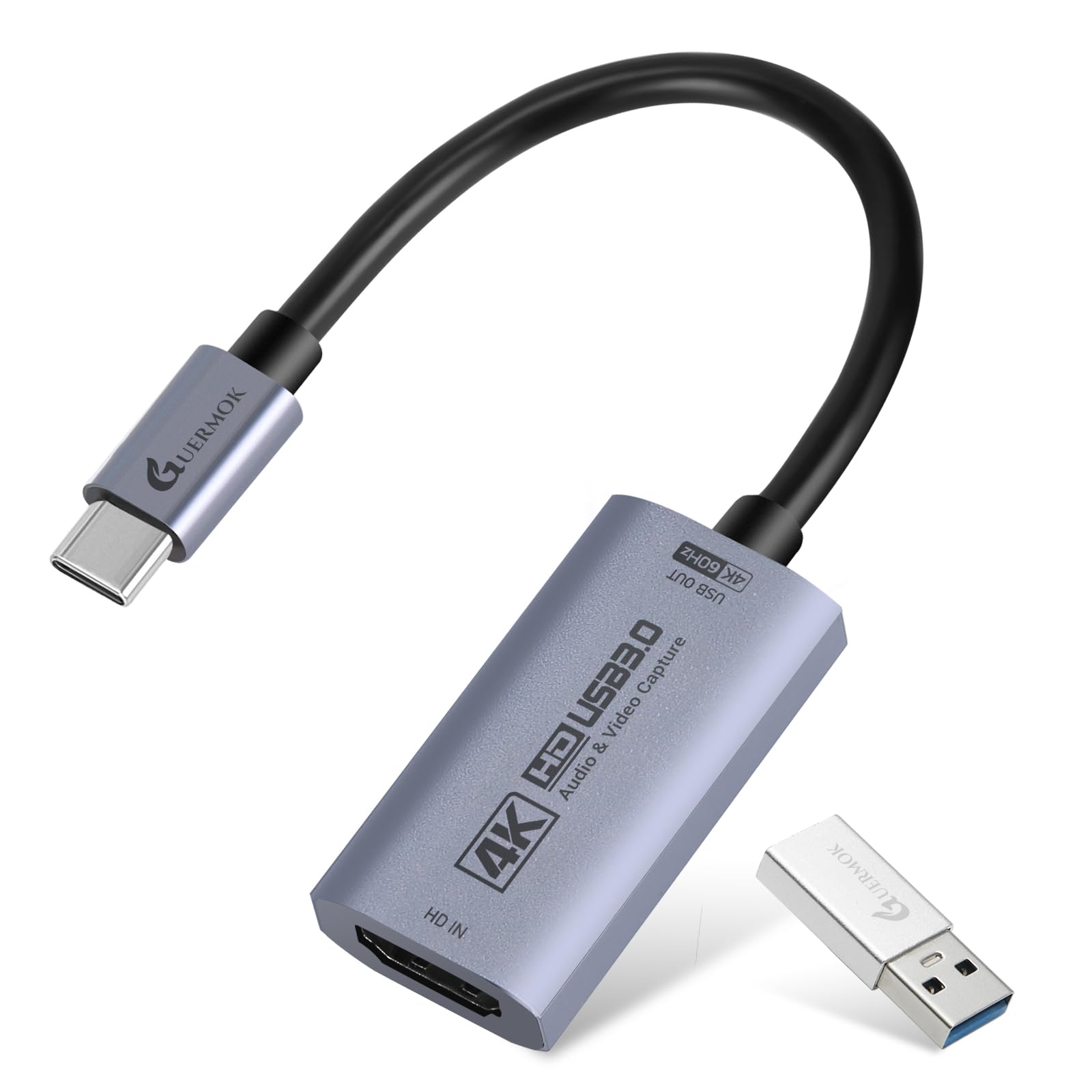
4K60 on this card means MJPEG, and the format sets the rest of the numbers: 4096×2160 or 3840×2160 at 60fps in MJPEG, 1440p and 1080p at 120fps, while the lighter YUY2 and NV12 formats top out around 1440p50. That is a normal shape for a budget card — the resolution is real and the compression does the work — and it explains why uncompressed 1440p can look cleaner than compressed 4K on the same device.

Physically it is the smallest thing here: 1.6 ounces, under two inches long, with a USB-C to USB-A adapter in the box so it fits whichever port you have. It runs driver-free on Windows 7 through 11, macOS, Linux, Android and iPadOS 17 and later, and OBS picks it up as a standard UVC source without a setup ritual.

The risk is unit-to-unit consistency: a card that never leaves 1080p, a stuttering preview, image quality that varies between examples. Spend the first hour recording a full 4K60 clip and playing it back at 100 percent rather than trusting a five-second test, and keep the return window open until you have.

We treat it as a trial run: a second card, a travel card, or a cheap way to find out whether 4K capture is something you will actually use. If 4K60 is the job rather than the experiment, the BlueAVS Cyber4K is the better budget card here and the Elgato 4K S is the one you stop thinking about.

Pros

  • Tiny 1.6 oz body with USB-A adapter included
  • Driver-free on Windows, macOS, Linux and iPadOS
  • 4K60 recording in MJPEG

Cons

  • Some units cap at 1080p instead of 4K60
Our verdict

A cheap way to try 4K60 capture: small, driver-free, MJPEG-only, and worth testing hard in the first week.

Check Latest Price

How We Tested the Best 4K Capture Cards

We started by pulling every 4K capture card we could find that advertised 4K passthrough, 1080p60 capture, or 4K capture, then narrowed by connectivity—USB-C, USB 3.0, PCIe—and whether it required external power. Price and software compatibility filtered the rest. The final 12 arrived over six months and went straight into active setups rather than a lab shelf.

Each card spent at least a week in three places: a living-room console feeding a gaming PC, a desk rig with a mirrorless camera pointed at my face, and a laptop bag for portable recording. I ran OBS and the manufacturer's software when available, started and stopped recordings dozens of times, and left one long session running for two hours to see if frames dropped or the enclosure got hot. For audio, I monitored through headphones while recording game chat and a microphone, then checked the file for drift at the ten-minute and hour marks. Latency got measured by routing the passthrough to a second monitor and watching for lag between the source and the preview.

Setup was timed, including driver install and first capture. I noted whether the card was recognized without a reboot, whether cables felt secure, and whether passthrough kept a clean 4K signal. Reliability meant repeating the same recording after a sleep/wake cycle and swapping USB ports mid-week. We compared two units of any model that arrived with inconsistent behavior—one card that failed to lock onto a signal out of the box was replaced and retested. Value came down to whether the card delivered clean 4K capture, usable audio, and stable passthrough without extra dongles or software upgrades.

How to Choose a 4K Capture Card

Capture Resolution, Not Passthrough

Find the recording figure first, usually listed as video capture resolution or hidden in the format table. A card advertising 4K input with 1080p60 capture is a 1080p card: it sends your console's 4K signal to the TV and records a downscaled copy.

Once you have the real number, choose between 4K30 and 4K60. Thirty frames is fine for a camera feed, a service or a lecture and a poor fit for gameplay. The Magewell 32090 is the honest example here: superb signal handling, 4K at 30fps, no apology about it.

What Format Your 4K60 Arrives In

Most affordable cards record 4K60 in MJPEG, which compresses each frame on its own. It is efficient and easy on the CPU, and it means large files and slightly softer fine detail. The lighter-looking formats — NV12, YUY2, RGB24 — demand more bandwidth, which is why they tend to top out at 1440p rather than 4K.

If color accuracy and crisp text matter, look for RGB24 support on Windows, as the AVerMedia Live Gamer Ultra S offers. If you plan on long sessions, price the storage before you price the card.

USB or PCIe, and the Port Behind It

A USB card is the flexible choice: it moves between a laptop, a console desk and a second PC. It is also only as good as its port. A 5Gbps USB 3.0 connection carries compressed 4K60, while 4K144 capture needs a 10Gbps link.

Plug into a hub or a front-panel port and you are asking for stutter; use a rear port and the cable in the box. An internal card such as the Elgato 4K Pro sidesteps all of it if you have a free PCIe slot and don't mind opening the case.

Passthrough, HDR and the Screen You Play On

The card sits between your console and your display, so its passthrough sets what you see while recording. Any card here serves a 4K60 TV; a 1440p240 monitor narrows the field immediately.

HDR is two separate questions: passing HDR through to the TV, and capturing it in a form your editor can use — Elgato's tone mapping, for instance, is a Windows feature. And if your monitor relies on DSC, expect 4K passthrough to settle at 120Hz.

Audio, Software and Host Support

Consoles put chat in awkward places, so the audio inputs matter: a 3.5mm jack for a headset or controller chat, a line-in for a mixer, and separate monitoring. Cards without them push you toward a second interface on the desk.

Then check the host list. macOS and iPadOS support is not universal, Linux is rarer still, and driver-free UVC operation saves an afternoon. Bundled software is usually the weakest link; assume you will record in OBS and treat the manufacturer's app as a bonus.

Frequently Asked Questions

Final Verdict

The Elgato 4K S is the card we recommend to most people. It records 4K60, keeps a high-refresh display running through passthrough, and handles HDR on Windows without a fuss — the shortest path from a console to a usable 4K archive.

Buy the AVerMedia Live Gamer Ultra 2.1 instead if your monitor runs at 1440p240 or 4K120 and you do not want the card to be the bottleneck. And if the PC has a free PCIe slot, the Elgato 4K Pro is the cleaner version of the same job: no USB bus to share, no dongle to lose.