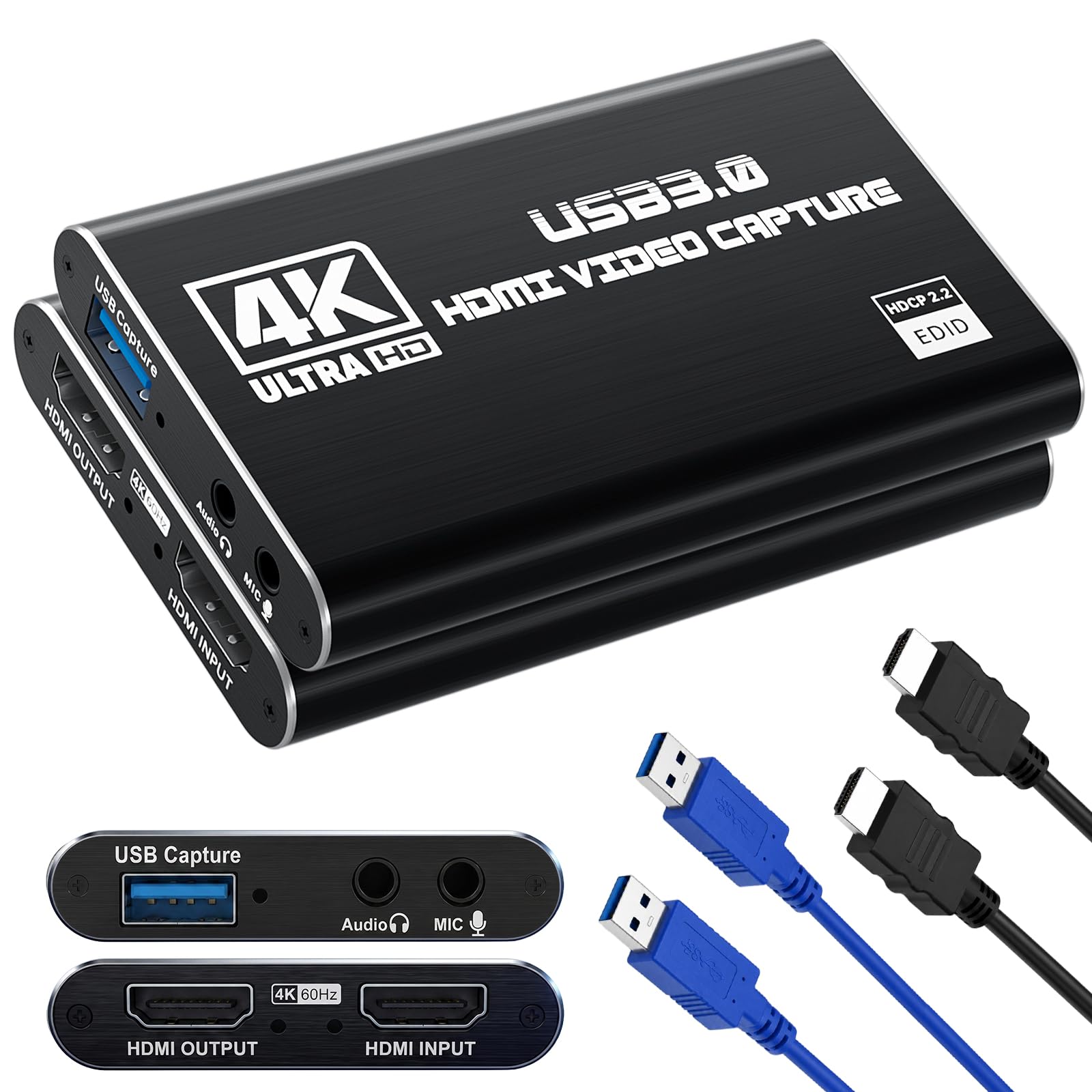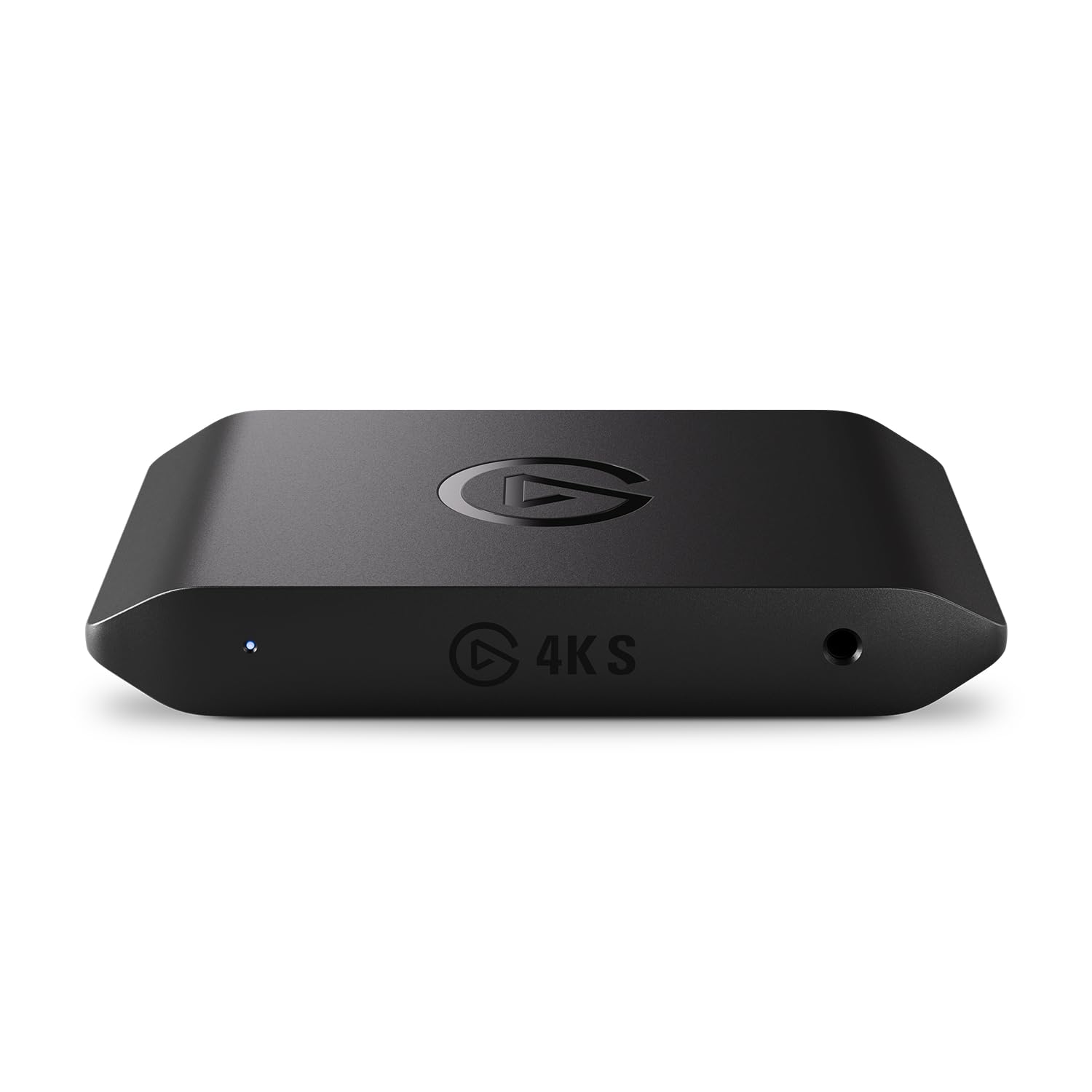
Best Capture Cards for PS5

The worry with a capture card is that you plug it into your PS5 and everything gets slightly worse: the picture dims, 120 frames per second drops to 60, and the game starts to feel like it's running through molasses. The card sits between your console and your TV, handing a copy of the signal to your PC, and the good ones do it invisibly. The bad ones add delay you can feel mid-boss-fight, flatten HDR, or quietly push your passthrough down to 1080p.

I've recorded my own gameplay for years, and Sony's built-in capture still caps at 1080p and cuts out the moment you open the share menu, which is why a dedicated card earns its keep. We've spent seven months with 11 of them across my living room TV and my desk setup, from bus-powered pucks to full-size boxes. The picks below are the ones that vanished into the setup after a week.

1

Best Overall

Elgato 4K S

89 /100
Lab Score Excellent

Key details

HDR
HDR10 with Windows tone mapping
Connection
USB-C 3.0
Max Capture
4K60
High Frame Rate
1440p120 / 1080p240
View on Amazon

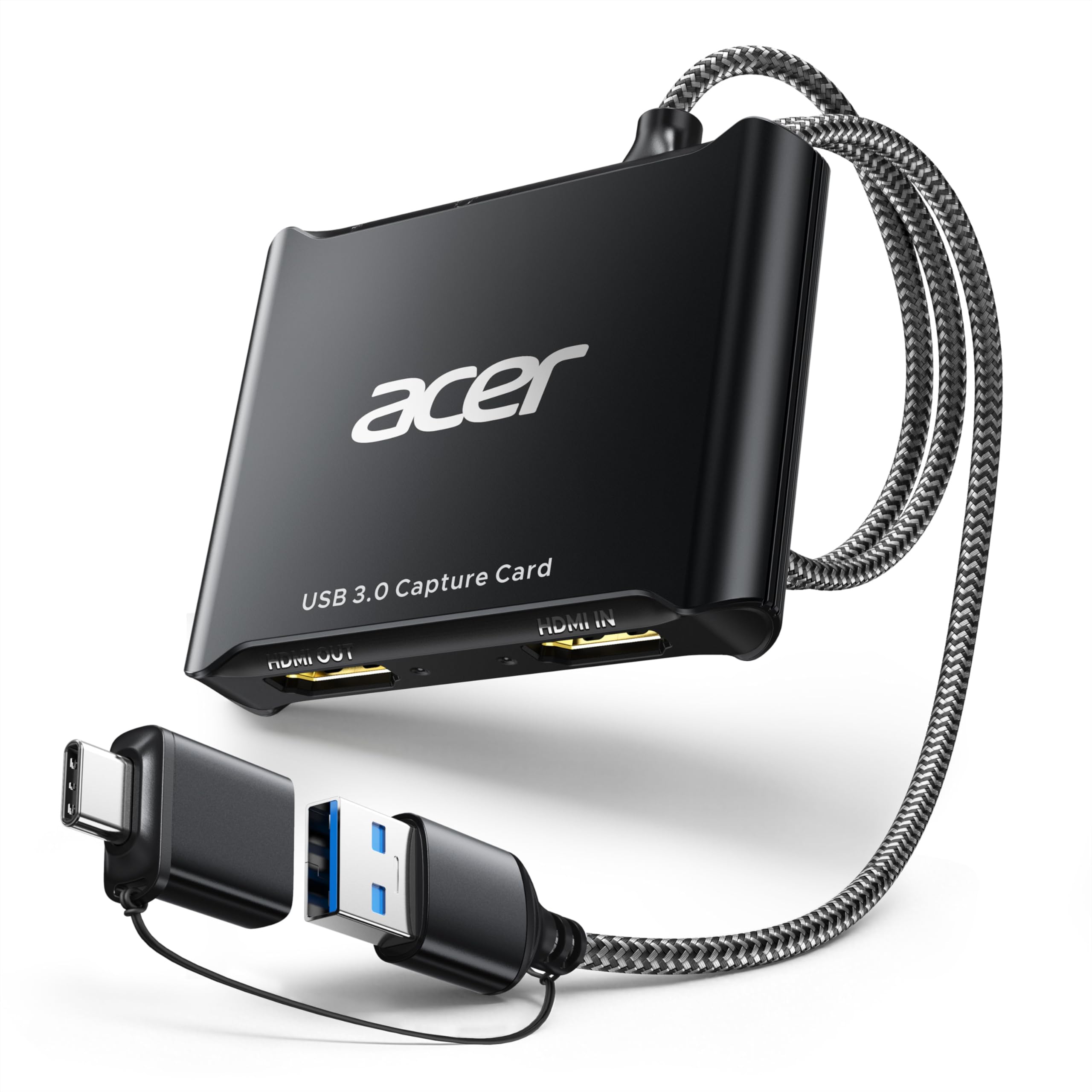
The question that decides a PS5 capture setup usually is not resolution. It is HDR. Leave HDR on with a cheap card and recordings come back washed out; turn it off and the console looks flat on your TV for the whole session. The 4K S is the card here that handles the handoff properly, capturing HDR10 with tone mapping on Windows so an HDR game lands on your drive looking like something you can post. That, more than any other single spec, is why it leads this list.

The capture ladder is generous: 4K60 to the PC, 1440p120 or 1080p240 for high-frame-rate games, and a passthrough that keeps the television's picture intact while you play. We were also pleased by the 3.5mm analog input. PS5 party chat does not travel down the HDMI cable, so a physical input is how your friends' voices reach the recording without a second mixer in the chain. It is a small port that solves a problem most cards here leave you to sort out yourself.

It is, however, the pickiest card of the group about the machine on the other end. The requirements are specific: Windows 11 64-bit or macOS 13, an 8th-gen Core i5 or an M1, and a real USB-C 3.0 port. The friction sits at setup rather than later, so plug it into the port it asks for instead of a hub shared with a webcam, and read the setup steps once before deciding anything is wrong.

For a PS5 on a 4K TV with a Windows desktop behind it, this is the least compromising route to recordings that hold up next to the console's own output, with HDR, high frame rates, and the chat input in one small box. Stream at 1080p60 and never touch HDR, and you are paying for headroom you will not use.

Pros

  • 4K60 capture with HDR10 tone mapping
  • 1440p120 and 1080p240 support
  • 3.5mm input for chat or commentary
  • Two-year manufacturer warranty

Cons

  • HDR tone mapping is Windows-only
Our verdict

The one we point PS5 owners to when the recordings need to match what the console puts out: 4K60 capture, HDR tone mapping, and a passthrough that leaves your TV alone.
Check Latest Price
2

Best Value

Acer USB 3.0 Capture Card

85 /100
Lab Score Excellent

Key details

Connection
USB-A and USB-C
Audio Input
3.5mm mic
Max Capture
1080p60
Pass-through
4K
View on Amazon

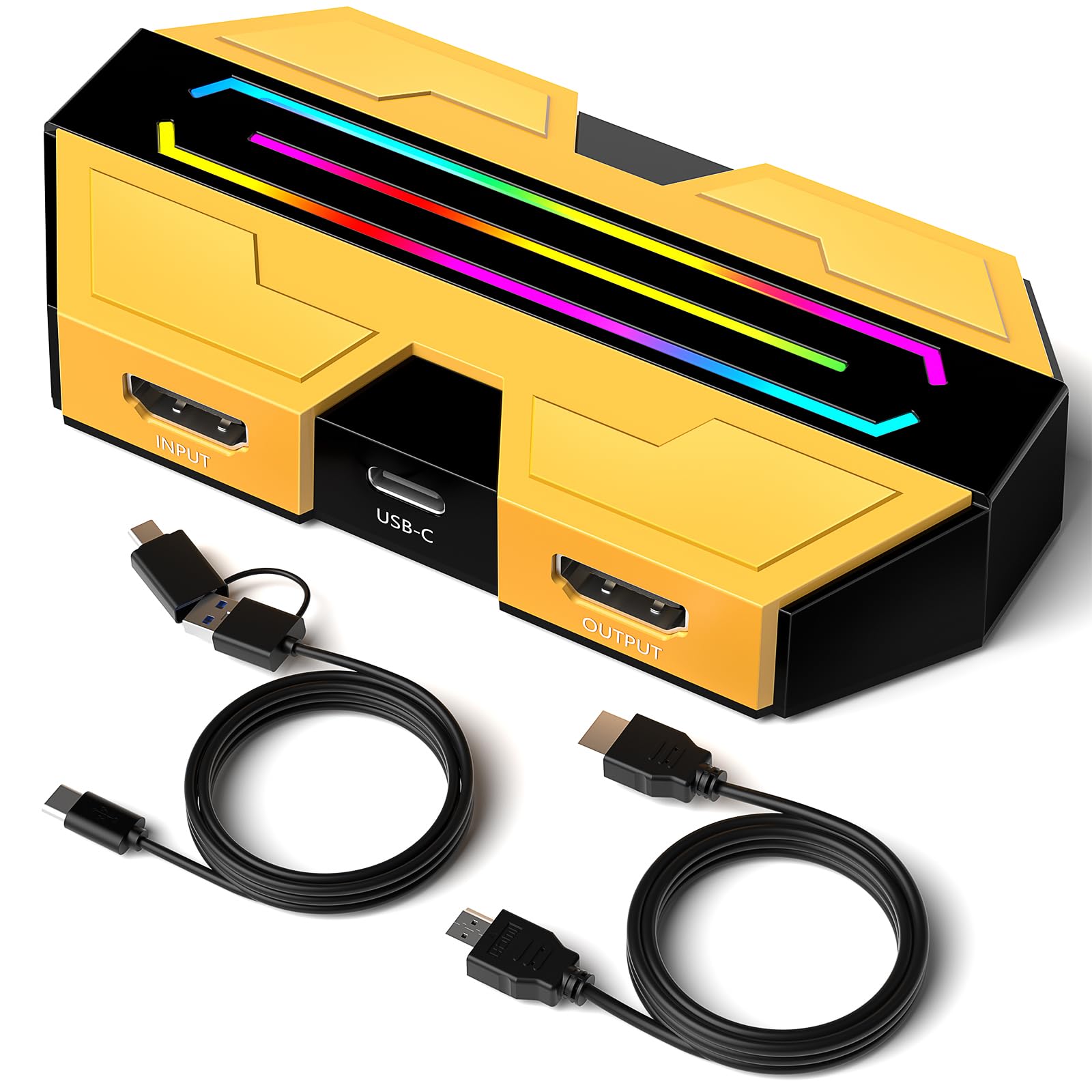
A 1080p60 cap reads like a compromise until you count what a stream actually carries. Twitch and YouTube hand viewers 1080p60 at most, so a card that captures exactly that is not leaving anything on the table. This one does it for less than almost anything else here, with a 4K input and loop-out so the console still feeds your television at full resolution while the capture runs alongside.

What we did not expect at this price is how little it feels like a budget part: an aluminum case, a braided cable, and both USB-A and USB-C connections so a laptop without full-size ports does not need an adapter. Setup is as short as it gets, with no driver and no software, straight into OBS as a webcam source, and the YUY2 output keeps the picture clean without a trip through the settings menus.

The ceiling is stated plainly: 1080p60 capture and a loop-out that passes 4K at 60Hz rather than anything faster. If you want a 4K archive of a playthrough, this is not the card and the Elgato is. For going live, which is why most people buy one of these, the extra money buys very little that a viewer would ever see.

Pros

  • 1080p60 capture at a budget price
  • 4K loop-out keeps the TV fed
  • Aluminum case and braided cable
  • USB-A and USB-C connections

Cons

  • No HDR capture
Our verdict

Our value pick: 1080p60 capture, 4K passthrough for the TV, and a build that feels better than the price suggests.

Check Latest Price
3

Best 4K60 for Less

BlueAVS Cyber4K

83 /100
Lab Score Excellent

Key details

Audio
3.5mm line-in and headset
Connection
USB-C, 5Gbps port
Video Formats
MJPEG, YUY2, NV12, P010, RGB
Capture And Passthrough
Up to 4K60Hz, 1440P144Hz, 1080P240Hz
View on Amazon

Between the budget dongles and the two Elgatos there is a gap, and the Cyber4K fills it with a spec sheet borrowed from the expensive end: 4K60 capture, 4K60 passthrough, and 1440p144 or 1080p240 for high-refresh play.

Those numbers come with the boring details done right, which is what makes us comfortable with a name you may not know. UVC and UAC compliance means no drivers, the connection is USB-C into a 5Gbps port, there are separate line-in and headset jacks, and the warranty runs two years. At 126 grams it is light enough to hang off a laptop lid without dragging the cable out of the port.

The catch is the format ladder. The top of it, meaning 4K60, 1440p144 and 1080p240, is MJPEG, which is fine for a live stream and heavy for an archive: big files and a slightly softer frame than an uncompressed capture. Push for uncompressed and you are working lower down, around 1440p or 1080p. For a PS5 owner who wants 4K60 in the can without Elgato money, that is a fair trade, and a fast drive makes it a comfortable one.

Pros

  • 4K60 capture and passthrough
  • 1440p144 and 1080p240 support
  • Line-in and headset jacks
  • No drivers to install

Cons

  • 4K60 records in MJPEG only
Our verdict

Same headline resolution as our top pick for a lot less, provided you are content recording 4K60 in MJPEG.

Check Latest Price
4

Best Internal

Elgato 4K Pro

88 /100
Lab Score Excellent

Key details

Interface
PCIe with HDMI 2.1
Max Capture
4K60 HDR10
Pass-through
8K60
High Frame Rate
Up to 1080p240
View on Amazon

The 4K Pro is the only card here that goes inside the computer, and most of what is good about it follows from that. Nothing on the desk. No USB bandwidth shared with a keyboard, mouse and webcam. No cable running across the floor to a laptop.

What it does for the PS5 is the part that matters: HDMI 2.1 in and out with 8K60 passthrough, so the television keeps everything the console sends, including 4K120, VRR and HDR, while the card records 4K60 HDR10 to the PC. High-frame-rate capture reaches 1080p240. If a capture card has ever quietly downgraded your display mode, you will understand why the passthrough spec is the first one to read.

We think it is the right card for a desktop that already lives next to the TV. The install is a PCIe slot and a driver, and after that the card behaves like part of the machine rather than a peripheral. Dual-PC streaming works, and it is the tidiest way to run one box for play and another for the broadcast.

One caution. It deserves a trial run: black-screen output and periodic stutter are the faults to watch for, so test capture and passthrough while returning it is still easy. Beyond that it simply works, quietly, from inside the case.

Pros

  • 8K60 passthrough keeps 120Hz and VRR
  • 4K60 HDR10 capture over HDMI 2.1
  • Nothing added to your desk
  • Dual-PC streaming support

Cons

  • No Linux driver
  • Desktop-only: needs a free PCIe slot
Our verdict

For a gaming desktop beside the TV, this is the cleanest build: 8K60 passthrough keeps 4K120 and VRR, and the card disappears into the case.

Check Latest Price
5

Best Budget

Dcyfol USB 3.0 Capture Card

85 /100
Lab Score Excellent

Key details

Setup
No drivers (UVC)
Loop-out
4K
In The Box
HDMI, USB-C adapter, USB extension
Max Capture
1080p60
View on Amazon

For a first capture setup, the Dcyfol does the two things that matter and skips the rest: it records 1080p60 with no drivers, and its loop-out previews 4K so the television is not downgraded just because a capture card is in the chain. That pairing suits anyone testing whether streaming is for them, because the cost of finding out is small and the picture is good enough to publish.

The box itself is tiny, about an inch square and under three inches long, and the bundle covers the awkward cases: an HDMI extension, a USB extension, and a USB-C adapter for a laptop with small ports only. In OBS it appears as a webcam source, which is the least dramatic way to start streaming and, we think, the right one.

Audio is the part to be ready for. Budget cards in this class tend to need a sync offset before the game sound and the picture line up, and one test recording settles it: clap on camera, see where the sound lands, set the offset in OBS, then forget about it. Everything else here is honest, with sharp 1080p60, low heat, and no surprises once it is running.

Pros

  • 1080p60 capture with 4K loop-out
  • No drivers, straight into OBS
  • USB-C adapter and extension cables included

Cons

  • The 4K figure is loop-out, not recording
Our verdict

The cheapest sensible start: 1080p60 capture, 4K passthrough for your TV, and no drivers, with ten minutes set aside for audio sync.

Check Latest Price
6

120Hz TV Setups

NearStream CCD10

80 /100
Lab Score Excellent

Key details

Audio
Mic in and headset jack
Capture
1080p60
Connection
USB-C 3.0
Pass-through
4K60 / 1440p120 / 1080p240
View on Amazon

If your PS5 is plugged into a 120Hz television, the interesting number on this card is not the capture resolution. It is the passthrough. The CCD10 sends 4K60, 1440p120 or 1080p240 to your screen, so a fast game still reaches your eyes at the refresh rate you paid for while the capture runs alongside.

Capture itself is 1080p60 over USB-C 3.0, and the audio side is thought through better than most: a 3-pole mic input for a standalone microphone, and a 4-pole TRRS jack that takes a headset mic and sends game audio back to your ears. If you stream with a headset rather than a desk mic, that second port is the one you will use every session.

The passthrough is the confident half of the spec sheet. The capture is where the claims can outrun what you see, with soft images at 1080p and frame rates below what you would expect showing up as the risks. Those faults surface fastest in a fast-moving game, so test with one in the first week rather than a slow menu.

That is why it sits below the Elgato and the Cyber4K here, and why it still earns a place. For a 120Hz television, a headset, and a stream that goes out at 1080p60 regardless, the passthrough and the audio jacks are what you notice every session, and the capture is the part you tolerate rather than the part you bought.

Pros

  • 4K60, 1440p120 and 1080p240 passthrough
  • Separate mic input and headset jack
  • Small, light USB-C body

Cons

  • Capture tops out at 1080p60
Our verdict

A passthrough-first card for a 120Hz TV and a headset, with 1080p60 capture that is not the reason to buy it.

Check Latest Price
7

Headset Audio Routing

Guermok USB 3.0 Capture Card

81 /100
Lab Score Excellent

Key details

Audio
Mic in, line in, headphone out
Weight
2.33 oz
Capture
1080p60 / 2K30
Pass-through
4K60
View on Amazon

Four audio ports on a capture card this small is unusual. The Guermok gives you mic in, audio in, a headphone jack and a speaker output, which turns a budget dongle into the center of a small streaming desk: mic on one port, game audio monitored on another, no mixer in between.

Capture runs at 1080p60, or 2K at 30fps if you prefer resolution to frame rate, and the loop-out handles 4K60 so the television keeps its signal. At 66 grams and about four inches long it disappears behind a laptop, and setup is UVC and UAC, so OBS finds it without a driver install.

What we like is how little the audio routing costs you. Plugging headphones into the card lets you hear the game before it goes through OBS, which is the difference between monitoring a stream and guessing at it, and the separate mic input means commentary does not have to share a channel with anything else. It is a card for a headset streamer on a tight budget, and it does not pretend to be more than that.

Pros

  • Mic, line-in and headphone monitoring jacks
  • 4K60 passthrough to the TV
  • Small and light at 66 g

Cons

  • Capture detail trails the pricier cards
Our verdict

The audio-first budget pick: separate mic and headphone jacks make a headset stream simple, and 1080p60 covers the basics.

Check Latest Price

How We Tested Capture Cards With a PS5 Running

We started by rounding up every card we could find that claims 4K60 passthrough or better over USB-C or PCIe, then cut anything that required opening the PC case, needed its own wall adapter just to pass a signal along, or had a documented habit of tripping the PS5's HDCP handshake. That left 11 cards, which we bought at retail rather than accepting loaners.

Each one lived in two places: my living room, between a PS5 and a 4K 120Hz TV, and my desk, feeding a laptop and a 1440p monitor. On the TV I played the same three games for at least two hours at a stretch and watched for passthrough dropouts, HDR that suddenly looked washed out, and any lag I could feel in a parry window. On the desk I recorded a running stopwatch on screen and compared the timestamp in the file against the live display to put a number on delay, then checked audio sync by watching lips in cutscenes and listening for drift late in a session.

Setup was timed from the moment I cut the tape to the first saved clip, including driver install and whether the app demanded an account. For audio, I ran party chat through each card and listened for hiss or a swapped channel. I unplugged and replugged mid-session to see which cards recovered on their own, swapped in a longer cable to separate card problems from cord problems, and left each capturing four hours straight to watch for dropped frames and heat. Value came last: what a card records versus what it merely passes through, since 1080p60 capture at a 4K price is a bad deal however clean the picture looks.

How to Choose a Capture Card for Your Ps5

Capture Resolution and Passthrough

These are two different numbers, and cheaper listings blur them. Capture is what lands on your PC; passthrough is what reaches your TV while you play. A card advertising 4K with 1080p60 capture is not lying, it is describing the loop-out, and that distinction is the single most common way PS5 buyers end up disappointed.

For live streaming, 1080p60 is what Twitch and YouTube actually deliver to viewers, and it is where the value sits. Pay for 4K60 capture only if you are archiving gameplay or uploading in 4K. Find both numbers before you order, then buy on the capture figure.

HDR and High Refresh Rates

PS5 games ship in HDR, and a growing number run at 120Hz. Most budget cards quietly require you to switch HDR off, and a card with a 60Hz passthrough caps your television no matter what the console can manage. If either matters to you, look for HDR10 handling in the capture path and a passthrough that lists 4K120 or 1440p120.

USB or Internal

A USB card travels: laptop, desktop, an iPad with USB-C, a friend's machine. It also shares USB bandwidth with everything else on the bus and usually tops out at a 4K60 passthrough. An internal PCIe card disappears into a desktop, holds 8K60 passthrough and VRR intact, and ties itself to that one computer and a free slot.

Gaming desktop already sitting beside the TV? Internal is the cleaner build. Streaming from a laptop? It is not an option, so buy the USB card and stop reading about PCIe.

Audio and Party Chat

PS5 party chat does not travel over HDMI, so a card that only grabs HDMI audio records the game and silence from your friends. A 3.5mm input is the fix: run chat out of the controller or a headset and into the card, then mix it in OBS.

The better budget cards add a headphone jack so you can monitor the game before it reaches the software. Check the port list before you buy: a budget card with a mic input is more useful to a headset streamer than an expensive one without.

Frequently Asked Questions

Final Verdict

Start with the Elgato 4K S if your PS5 feeds a 4K TV and you want recordings that match what is on screen: 4K60 capture, HDR10 tone mapping, and a passthrough that leaves the console's output alone.

If your stream goes out at 1080p60, which is what viewers get anyway, the Acer does the essential job for a fraction of the price and feels better made than it has any right to. And if the gaming desktop already sits beside the TV, the Elgato 4K Pro is the tidy answer: nothing on the desk, nothing downgraded on the screen.