Best HDMI Splitter for Capture Cards of 2026

The first time you try to record a game or camera feed while watching it on a bigger screen, the setup seems simple: source into splitter, splitter into capture card and TV. Then the picture flickers, the capture software loses the signal, and you spend the next hour swapping cables. An HDMI splitter should be the least interesting part of that chain—a small box that sends one source to two places without drama. The right one mirrors the signal cleanly, keeps the capture card and display in sync, and doesn't quietly downscale your 4K feed because it got confused by two different displays.

I've been through that cable-swapping spiral more than once, and it taught me that the spec sheet is not the whole story. Over the past four months, my team and I have kept 14 splitters in rotation across living-room and desk setups, watching for clean signals, stable dual displays, straightforward setup, ports that still grip after repeated swaps, and a fair price. The picks below are the ones that got out of the way.

1

Best Overall

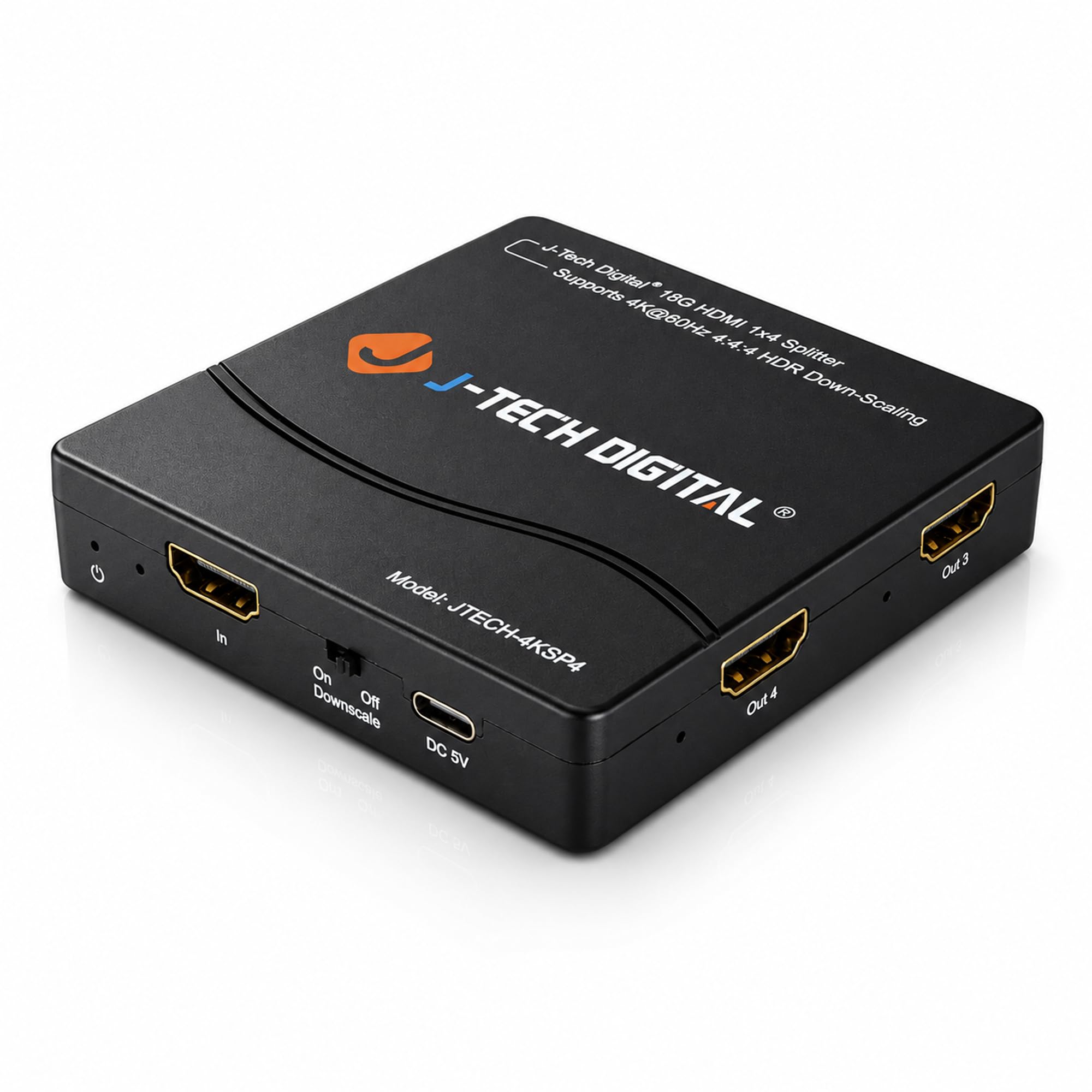
J-Tech Digital 4K60 1x4

79 /100
Lab Score Very Good

Key details

HDCP
2.3/2.2
Outputs
4
Downscaling
4K to 1080p
Maximum Resolution
4K@60Hz
View on Amazon

The problem with most splitters in a capture setup is that they send the same resolution to both outputs. If your TV is 4K and your capture card is 1080p, one of them loses. The J-Tech's multi-resolution output is the reason it earns the top spot here: it can keep a 4K60 signal on the TV while downscaling the second feed to 1080p for the recorder. We tested it with that split in mind, and it's the difference between a usable capture chain and one that forces your whole game down to the capture card's ceiling.

The rest of the spec sheet supports the same job. It's a 1x4 HDMI 2.0 splitter with 18Gbps, HDR10 and Dolby Vision, and HDCP 2.3/2.2. Four outputs are more than a capture card and a TV need, but the extra ports are useful if you also want a second monitor or a backup recorder. EDID copy helps the source see a sensible display profile, which is the part that usually causes a black screen or a resolution drop when you add a capture card to the chain.

The 1x4 layout takes more desk space than a 1x2, and the fourth output is dead weight if you only need a TV and a capture card. For console gameplay, it's the most capable pick here; for a 1080p-only workflow, the smaller units make more sense. That's the trade: you get headroom for a second display or a backup recorder, but you're buying more splitter than a simple setup needs.

Pros

  • Downscales 4K60 to 1080p for capture
  • Four outputs leave room for a TV and recorder
  • HDMI 2.0 with HDR and HDCP 2.3/2.2
  • EDID copy simplifies handshake

Cons

  • Premium price for a capture setup
Our verdict

This is the one we recommend for 4K60 capture: it keeps a full-resolution TV feed while sending a downscaled 1080p signal to your capture card.

Check Latest Price
2

Best Compact 1080P

Warrky 1x2 HDMI Splitter

86 /100
Lab Score Excellent

Key details

Cable
3.3 ft built-in
Power
USB-C
1080p Refresh
120Hz
Maximum Resolution
4K@30Hz
View on Amazon

The Warrky is the tidy 1x2 we reach for when the capture card tops out at 1080p. The HDMI input is a built-in 3.3-foot braided cable, so there's no separate lead to lose behind the desk, and the aluminum shell feels more substantial than the plastic boxes at the bottom of this category. We also appreciate that the USB-C power cable is separate from the signal path; it keeps the ports simple.

Specs are straightforward: 4K at 30Hz, 2K at 60Hz, and 1080p at up to 120Hz, with DTS-HD, Dolby TrueHD, and LPCM 7.1 audio. For a 1080p60 capture card, the 120Hz ceiling means the splitter has headroom for the game feed, and the metal shell should handle heat better than a bare plastic case. This is a 1080p-first splitter; the 4K number on the box is not the reason to buy it.

There's no downscaler, so both outputs carry the same resolution. That's fine for a TV and a 1080p capture card as long as you set the source to 1080p, but it's not the pick for a 4K TV and a 1080p capture card at the same time. The mirror-only design is the correct behavior here: you want the TV and the capture card to see the same frame, not an extended desktop.

The lifetime warranty is a genuine comfort for a part that sits in the chain every time you play, and the built-in cable makes it the easiest of these to pack for a capture setup away from home. Test both outputs in the first week, since a defective unit is easier to return before the setup is buried behind the desk.

Pros

  • Built-in 3.3 ft cable reduces clutter
  • Metal shell with lifetime warranty
  • Passes 1080p at up to 120Hz
  • USB-C powered

Cons

  • 4K sources are limited to 30Hz
  • Mirror-only design cannot extend a desktop
Our verdict

This is the compact 1x2 we recommend for 1080p60 capture: metal shell, built-in cable, and a lifetime warranty.

Check Latest Price
3

Simple 1080P Setups

NEWCARE 4K HDMI Splitter Cable

85 /100
Lab Score Excellent

Key details

HDCP
1.4
Cable
2.6 ft built-in
Power
USB-C
Maximum Resolution
4K@30Hz
View on Amazon

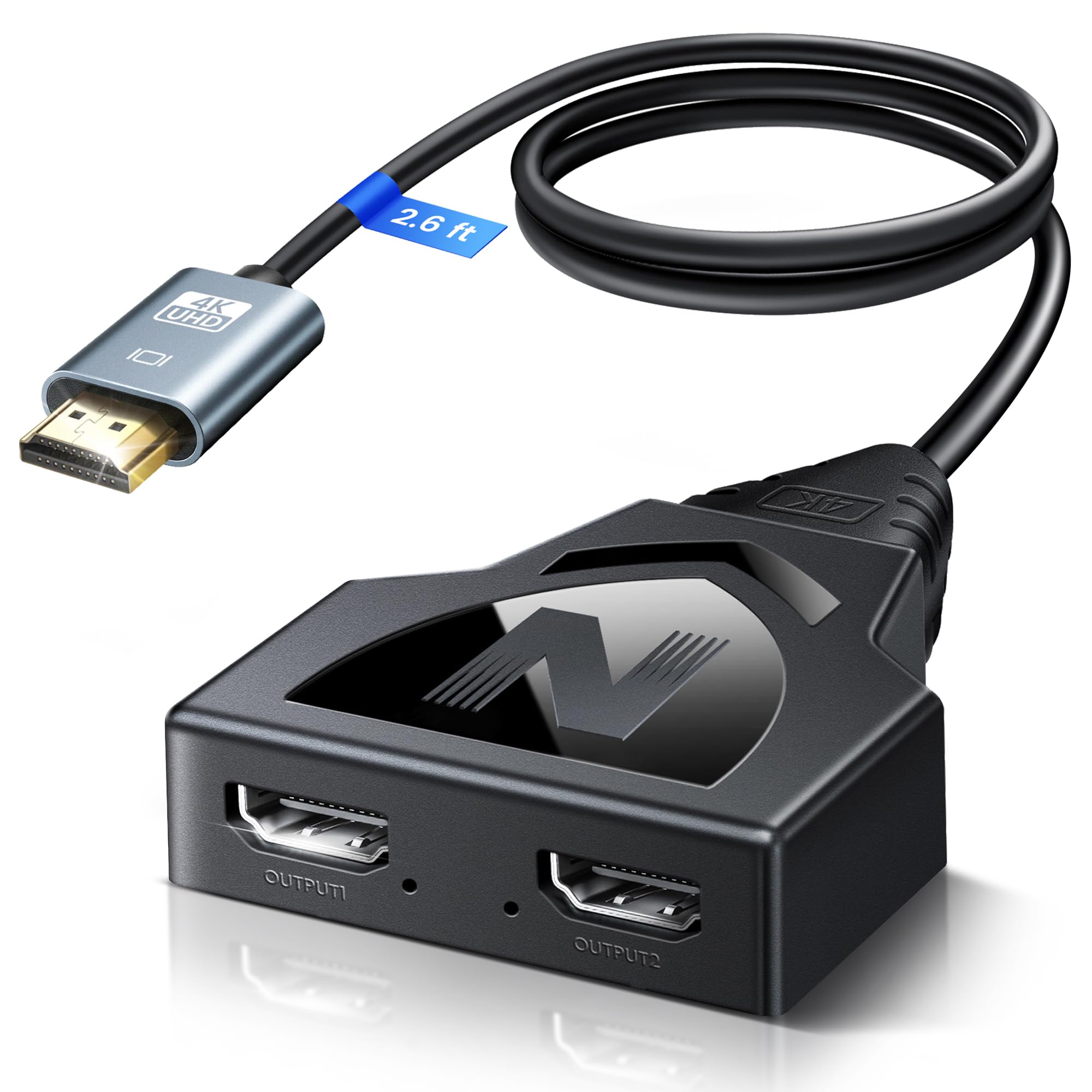
The NEWCARE is the lowest-cost way into this list, and it's built like a cable rather than a box: a 2.6-foot HDMI lead is attached, so the run from a console on the same shelf is one piece. We like that for a simple 1080p60 capture setup, where the splitter sits close to the source and you don't want another input cable in the chain. The aluminum shell and USB-C power keep it from feeling like a bare adapter.

It passes 4K at 30Hz and 1080p at 60Hz, with HDCP 1.4 and 8/10/12-bit color. That's enough for a 1080p60 capture card, and the 1080p60 ceiling is honest for a budget unit. The 4K side is the limitation: 30Hz is fine for slow camera footage or a presentation, but it's not the splitter for 4K60 gameplay. For fast 4K games, the frame rate drop is visible.

Mirroring is the only mode, which is what you want for capture: the TV and the recorder see the same image. There's no audio extraction, so plan to capture audio through HDMI as part of the same signal; that's normal for this category, but it matters if your setup expects a separate audio output. The short built-in cable is the placement constraint. If your console sits more than a couple of feet away, add an HDMI extension before the splitter, not after it.

Beyond that, this is the one to choose when the budget is tight and the capture card is 1080p60. It doesn't pretend to be a 4K60 box, and that's the right call at this end of the list. We noted that the single-piece design makes it the quickest of these to set up on a desk or a shelf, even if it isn't the one for a mixed 4K/1080p rig.

Pros

  • Lowest-cost all-in-one here
  • Built-in 2.6 ft cable
  • USB-C powered
  • Passes 1080p60

Cons

  • Some units stop working early
  • 4K sources are limited to 30Hz
Our verdict

This is the budget all-in-one we point to for a simple 1080p60 capture setup: built-in cable, USB-C power, and no extra input lead.

Check Latest Price

How We Tested HDMI Splitters for Capture Cards

We began by building a shortlist from spec sheets, owner reviews, and the features that actually matter in a capture-card chain: 4K pass-through, HDCP handling, EDID management, and enough outputs to feed a display and a capture card at once. That cut the list to 30-odd contenders; we bought 14 of the most promising and kept them in rotation for four months.

Each splitter went into two real setups: a living-room console feeding a 4K TV and a capture card, and a desk setup with a laptop or camera feeding a monitor and a second capture card. We plugged in, powered up, and checked whether both displays locked on without a manual, whether the capture software saw a stable signal, and whether the TV and capture feed stayed in sync. We also mixed a 4K display with a 1080p capture card to see if the splitter forced everything down to the lower resolution or kept the two outputs clean.

Then we got less polite. We swapped cables dozens of times to see if ports loosened, wiggled each connector while recording to catch dropouts, and compared a stopwatch on screen against the captured file to check audio and video accuracy. We looked for sparkles, washed-out HDR, and frames that went missing under load, and we noted which splitters needed a power cycle after a source change. At the end, we weighed what each box actually delivered against what it cost, because a splitter that works but feels disposable is not a bargain.

How to Choose an Hdmi Splitter for Capture

Start With Your Capture Card's Ceiling

Your capture card sets the real ceiling. If it records 1080p60, a 4K60 source has to be downscaled somewhere, either by the splitter or by the source. A 4K30 splitter is fine for 1080p60 capture as long as you set the console to 1080p, but it will hold a 4K60 game to 30Hz if you leave the source at 4K. That's the first decision: record at 1080p60 and buy a simpler 1x2, or keep 4K60 on the TV and pay for downscaling.

We prioritize a clean 1080p60 feed for most capture setups; 4K60 is worth the premium only if you're actually watching or recording at that rate. If you need a 4K TV feed and a 1080p capture feed at the same time, choose a model with multi-resolution output, like the J-Tech here. Otherwise, a 1080p-first unit like the Warrky is easier to live with.

HDCP and EDID Are Where Black Screens Come From

HDCP is the copy protection that streaming apps and some game content use. A standard splitter passes that protection through; it doesn't remove it. If your capture card shows a black screen while the TV works, the source is probably protected. For console gameplay, turn off HDCP in the console's video settings before you record. For a streaming app, expect the protection to stay on and the capture card to see nothing.

EDID is the handshake that tells the source what the display can do. A splitter with EDID copy reads the TV's capabilities and presents them to the source, which helps avoid a resolution drop when the capture card is added. If the splitter has an EDID switch, start with copy mode and change it only if the capture card can't lock on. The J-Tech's EDID copy is the feature we lean on for mixed displays.

Pick Outputs for the Way You Play

A 1x2 splitter is the right size for one TV and one capture card. A 1x4 gives you room for a second monitor, a backup recorder, or a confidence monitor, but it also takes more space and costs more. The important thing is that it mirrors, not extends: the TV and the capture card need the same frame, not two different desktops. A switcher is the wrong tool here because it selects between sources instead of feeding both outputs at once.

If you also use the setup for a dual-monitor desk, don't buy a mirror-only splitter and expect it to extend. It won't. Keep a separate dock or GPU output for that job, and let the splitter do the one thing it's good at. The Warrky and NEWCARE are both 1x2 mirror units; the J-Tech's extra outputs are the reason to go bigger.

Power, Cable Length, and Placement

Powered splitters are the ones to buy for capture. USB-C power is convenient, but the included AC adapter on a larger unit can be more stable if the splitter sits far from a USB port. Built-in HDMI cables cut down on connections, which is good behind a desk, but they also fix the distance between the source and the splitter. Measure that gap before you buy.

Keep the cable run within the manufacturer's stated limit. Longer runs and extra adapters are where handshake problems and sparkles show up. If the built-in cable is too short, add an extension on the source side rather than daisy-chaining outputs. And use the power cable every time: an unpowered splitter may work for a few minutes and then drop the signal when the load changes.

Plan for Reliability and Returns

A splitter sits in the chain every time you play, so a flaky unit is more annoying than a flaky accessory. Test both outputs in the first week: one to the TV, one to the capture card, with the source at the resolution you actually use. If either output flickers, drops, or needs a reboot, return it before the setup is buried behind the desk.

We prefer metal cases and powered designs for a permanent capture desk, not because they guarantee longevity, but because they handle heat and cable strain better than the smallest plastic boxes. A lifetime warranty is a nice backstop, but it doesn't replace testing the unit while the return window is open. The J-Tech and Warrky are the two we trust for a permanent setup; the NEWCARE is the budget unit to test carefully.

Frequently Asked Questions

Final Verdict

For most capture-card setups, the J-Tech Digital is the splitter we recommend first. It's the only pick here that keeps 4K60 on the TV while sending a downscaled 1080p feed to the recorder, and its four outputs leave room for a second display or a backup capture path.

If you're recording at 1080p60 and want a compact, tidy 1x2, choose the Warrky. The NEWCARE is the budget all-in-one when the short built-in cable reaches and the capture card tops out at 1080p60.