Best G-Sync Gaming Monitors of 2026

G-Sync is hardware inside the monitor that tells your graphics card when to send the next frame, so the screen refreshes in step with the game rather than racing ahead of it. The payoff is no tearing and no judder when the frame rate dips — something you only fully appreciate when you sit back down at a display that lacks it. What it doesn't fix is everything else: two monitors with the same badge can look wildly different.

I've played on a G-Sync panel for years, and the differences that matter never show up on a spec sheet. My team and I have kept seven G-Sync monitors on our desks for eight months, cycling them through fast shooters, slow story games, and too many late-night work sessions; the gaps in color, brightness, and build showed up within a week. The mistake I see first-time buyers make is chasing refresh rate while ignoring panel uniformity — a blotchy grey field bothers you more than 20Hz ever will. The picks below are sorted by the desk each suits best.

1

Best Overall

ASUS TUF VG27AQ3A

91 /100
Lab Score Outstanding

Key details

Panel
27-inch Fast IPS
Resolution
2560 x 1440
Refresh Rate
180 Hz
Adaptive Sync
G-Sync Compatible, FreeSync Premium
View on Amazon

The question that decides this monitor is what your graphics card actually pushes. For most Nvidia builds the answer lands around 1440p, and this is the screen here that handles 2560 x 1440 at 180Hz without giving something up to get there. It is a 27-inch Fast IPS panel with G-Sync Compatible listed alongside FreeSync Premium and AdaptiveSync, so the variable refresh works whether the card is green or red.

We think it is the right default because there is no filler in the specification. ELMB Sync is the detail that matters: it lets the blur reduction and the variable refresh run at the same time, which is the combination that keeps motion clean in a fast game instead of forcing you to pick one or the other. The 1ms response and the matte finish do the rest.

Color is where to spend the first ten minutes. The factory tuning arrives a little off, and the picture improves noticeably once you have been through the on-screen menu and set the preset and brightness to suit the room. After that the 130% sRGB gamut holds up well, and the matte coating stops a window behind the desk from turning the panel into a mirror.

For one screen used for work all day and games at night, this is the one we keep coming back to. The three-year warranty with advanced replacement is the longest coverage in this group, and the VESA 100 x 100 pattern leaves the door open for a desk arm if the layout of the room changes.

Pros

  • 1440p at 180Hz for a midrange price
  • G-Sync Compatible and FreeSync Premium
  • ELMB Sync runs alongside variable refresh
  • Three-year warranty with advanced replacement

Cons

  • Dead pixels can turn up mid-panel
Our verdict

For most Nvidia setups this is the G-Sync monitor we start with: 1440p, 180Hz, and no weak link in the spec sheet.
Check Latest Price
2

Best High-Refresh Value

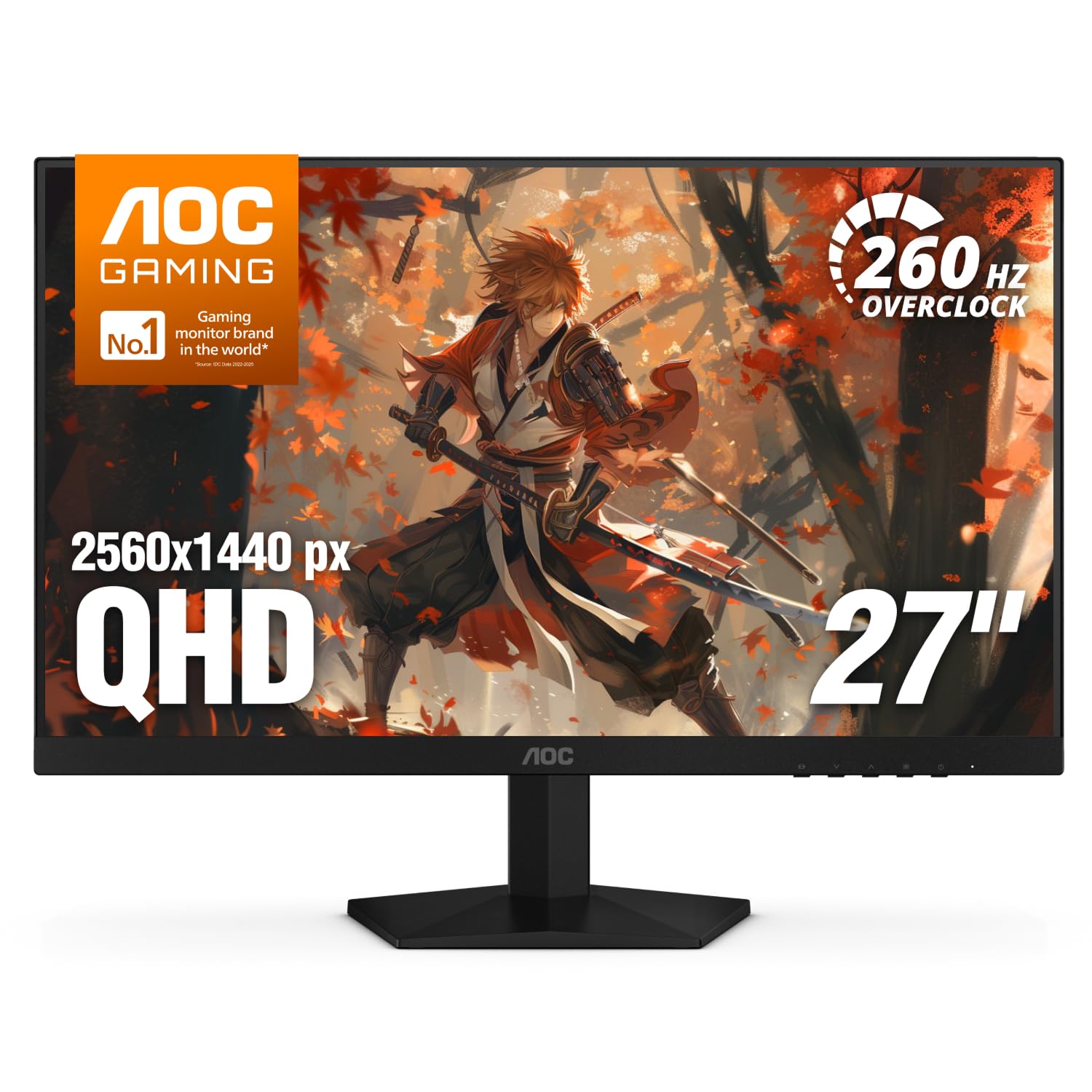
AOC Q27G41ZE

90 /100
Lab Score Outstanding

Key details

Panel
27-inch IPS
Resolution
2560 x 1440
Refresh Rate
240 Hz (260 Hz overclocked)
Adaptive Sync
G-Sync Compatible, FreeSync
View on Amazon

260Hz is the number that makes this AOC worth a look: 240Hz native over DisplayPort, with an overclock that takes it to 260, on a 27-inch 1440p IPS panel. That is more speed than anything else in this group at the price, and we take it over the ASUS whenever refresh rate is the specification that decides the buy.

The trade is brightness. At 300 nits the panel is comfortable in a dim room and it is the first thing to go in a bright one, a compromise we do not mind in a competitive setup and a real one on a sunlit desk. Everything else about the picture holds up: wide IPS viewing angles, Adaptive-Sync doing its job, and a 0.3ms MPRT that keeps fast pans readable.

What you are paying for is headroom. If your card holds 200-plus frames in the games you actually play, this is where that shows up — the step from 180Hz to 240Hz is not subtle in a shooter, and the overclock adds a little more on top. If most of your time goes to single-player games running at 90 frames, the extra hertz sit unused and the top pick's brightness and coverage make more sense.

Small things land well, too. The on-screen menu is quick to learn, the frameless edges let a two-monitor setup line up cleanly, and the 1440p resolution means the desktop does not look like a compromise the way a 1080p panel beside it does.

Pros

  • 240Hz native, 260Hz overclocked
  • 0.3ms MPRT keeps motion clean
  • G-Sync Compatible plus FreeSync
  • Lowest-priced 1440p pick here

Cons

  • Tilt-only stand, no height adjustment
Our verdict

We take this one when refresh rate decides the purchase: 240Hz native, 260Hz overclocked, and the lowest 1440p price here.

Check Latest Price
3

Best 4K

ASUS ROG XG27UCG

85 /100
Lab Score Excellent

Key details

Panel
27-inch Fast IPS
Ports
USB-C, DisplayPort, HDMI
Resolution
3840 x 2160 (4K)
Refresh Rate
160 Hz at 4K, 320 Hz at 1080p
View on Amazon

This is two monitors wearing one bezel. It runs 3840 x 2160 at 160Hz for anything with detail in it, and a switch drops it to 1920 x 1080 at 320Hz when frames matter more than pixels. The USB-C input carries video and doubles as a hub, so a laptop can drive the whole desk through a single cable.

We think it is the 4K pick here, and the dual mode is the reason. A 4K panel on its own is a liability in a shooter — you push four times the pixels for the same frames — and the 320Hz mode turns the same screen into a competitive display. Add 95% DCI-P3 coverage, Fast IPS response, and ELMB Sync doing the blur-reduction-plus-VRR trick, and it is the most versatile monitor in this group.

Two things to be honest about. 160Hz at 4K wants a top-tier card; if yours cannot hold that frame rate in the games you play, you are paying for a mode you will not use and a 1440p panel serves you better. And VESA DisplayHDR 400 is a badge rather than an experience — expect brighter highlights, not a true HDR picture, and switch it off in dark games where it flattens shadow detail.

For a desk that has to cover photo work, a docked laptop, and competitive play, nothing else here covers as much ground.

Pros

  • 4K at 160Hz or 1080p at 320Hz
  • USB-C carries video and doubles as a hub
  • 95% DCI-P3 color coverage
  • ELMB Sync works with variable refresh

Cons

  • Signal can drop out intermittently
Our verdict

Our 4K pick: dual-mode 4K at 160Hz or 1080p at 320Hz, as long as your graphics card can drive it.

Check Latest Price
4

Best Budget 27-Inch

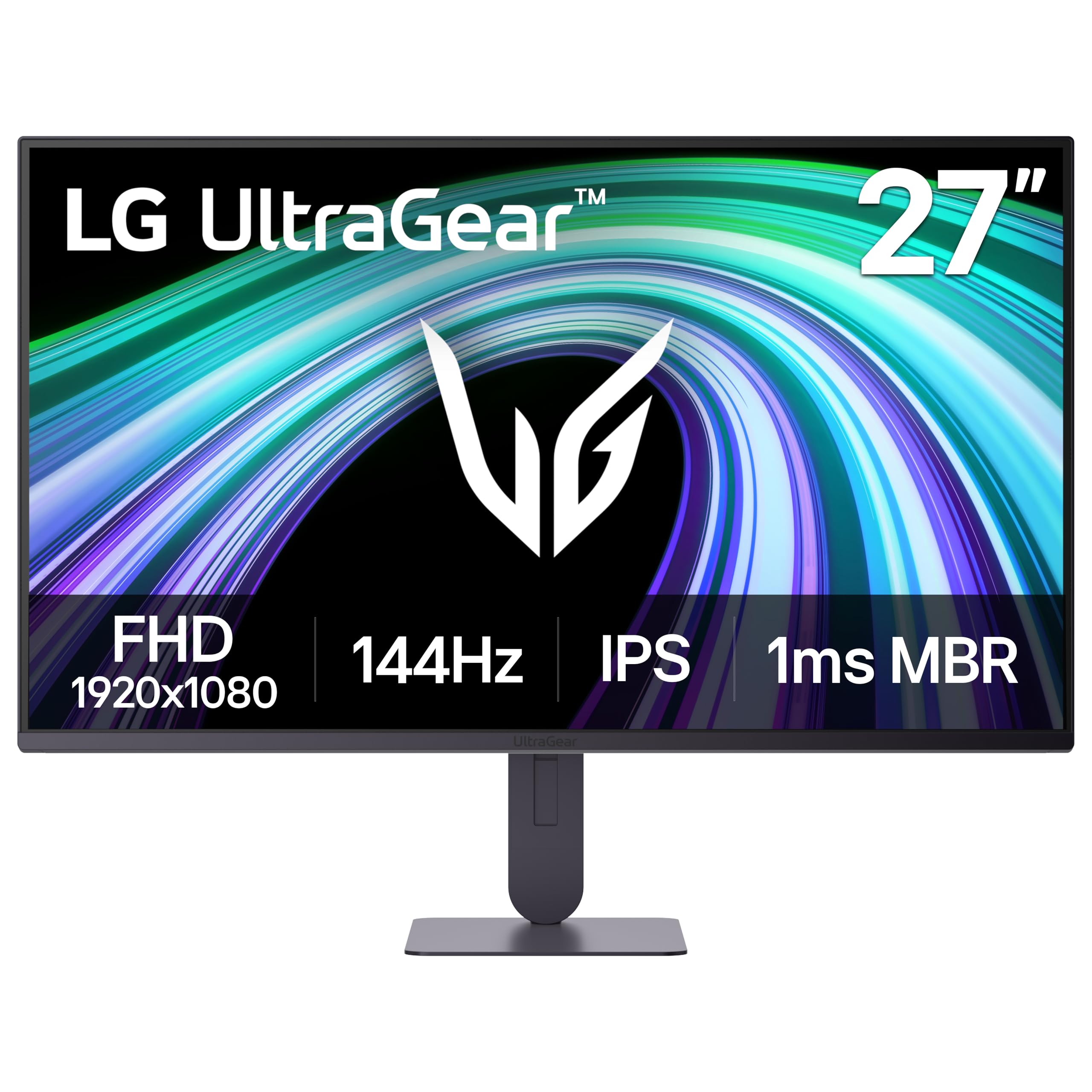
LG UltraGear 27G414B-B

83 /100
Lab Score Excellent

Key details

Panel
27-inch IPS, 99% sRGB
Resolution
1920 x 1080
Refresh Rate
144 Hz
Adaptive Sync
G-Sync Compatible, FreeSync
View on Amazon

1080p across 27 inches is the compromise this monitor is built around, and it is worth being straight about: up close you can see the pixel structure that a 24-inch panel of the same resolution hides, and text is a little softer than on the 1440p picks. From a normal sitting distance it stops being something you notice.

The rest of the specification is honest budget work. 144Hz, G-Sync Compatible with FreeSync alongside it, 99% sRGB, and a 1500:1 contrast ratio that beats most of the IPS panels here on black level. It draws about 20 watts, which matters in a dorm or a shared room, and the stand adjusts for height as well as tilt, which is rare at this price.

We keep this one for the tightest budgets and for anyone whose graphics card was the bigger purchase. A 144Hz panel the card can actually feed looks better than a 1440p panel running at 70 frames, and that is the whole argument for a monitor like this. Budget for a DisplayPort cable as well, since the box carries HDMI only and DisplayPort is the input to use for G-Sync.

Pros

  • 144Hz 1080p IPS at a budget price
  • G-Sync Compatible and FreeSync
  • Height-adjustable stand and built-in speakers

Cons

  • Ships with an HDMI cable only
Our verdict

We keep this one for the tightest budgets: 144Hz and G-Sync Compatible at 27 inches, with 1080p as the honest compromise.

Check Latest Price
5

Best Big-Screen 1440P

Samsung Odyssey G50D

87 /100
Lab Score Excellent

Key details

Panel
32-inch Fast IPS
Stand
Height, tilt, swivel, pivot
Resolution
2560 x 1440
Refresh Rate
180 Hz
View on Amazon

Thirty-two inches changes the arithmetic. This panel spreads 2560 x 1440 across a much larger area than the 27-inch picks, so you trade a little sharpness for a lot of screen, and whether that is a good deal depends on how far back your chair sits. At a normal desk depth the trade is worth it for racing games, third-person adventures, and anything you prefer to watch rather than study.

The stand is the part we appreciate most, because it is what the cheaper picks do not give you: height, tilt, swivel, and pivot, so the panel can rise to eye level, swing toward a second chair, or turn vertical for reading and code.

We point to it when the desk can take 32 inches and the alternative is two smaller screens. One panel at this size, on a stand that rises and pivots, is a tidier answer than a pair of 24-inch displays, and 180Hz does more work here than you might expect — panning across a big screen is where slow refresh normally gives itself away. Sit much closer than a couple of feet and the lower pixel density shows, and that is the boundary of what this one is for.

Pros

  • 32 inches of 1440p at 180Hz
  • Stand adjusts for height, swivel, and pivot
  • G-Sync Compatible with FreeSync for Radeon

Cons

  • Blue cast out of the box needs correcting
Our verdict

For a single big screen, we point to this: 32 inches of 1440p with a stand that actually adjusts.

Check Latest Price
6

Small Desks

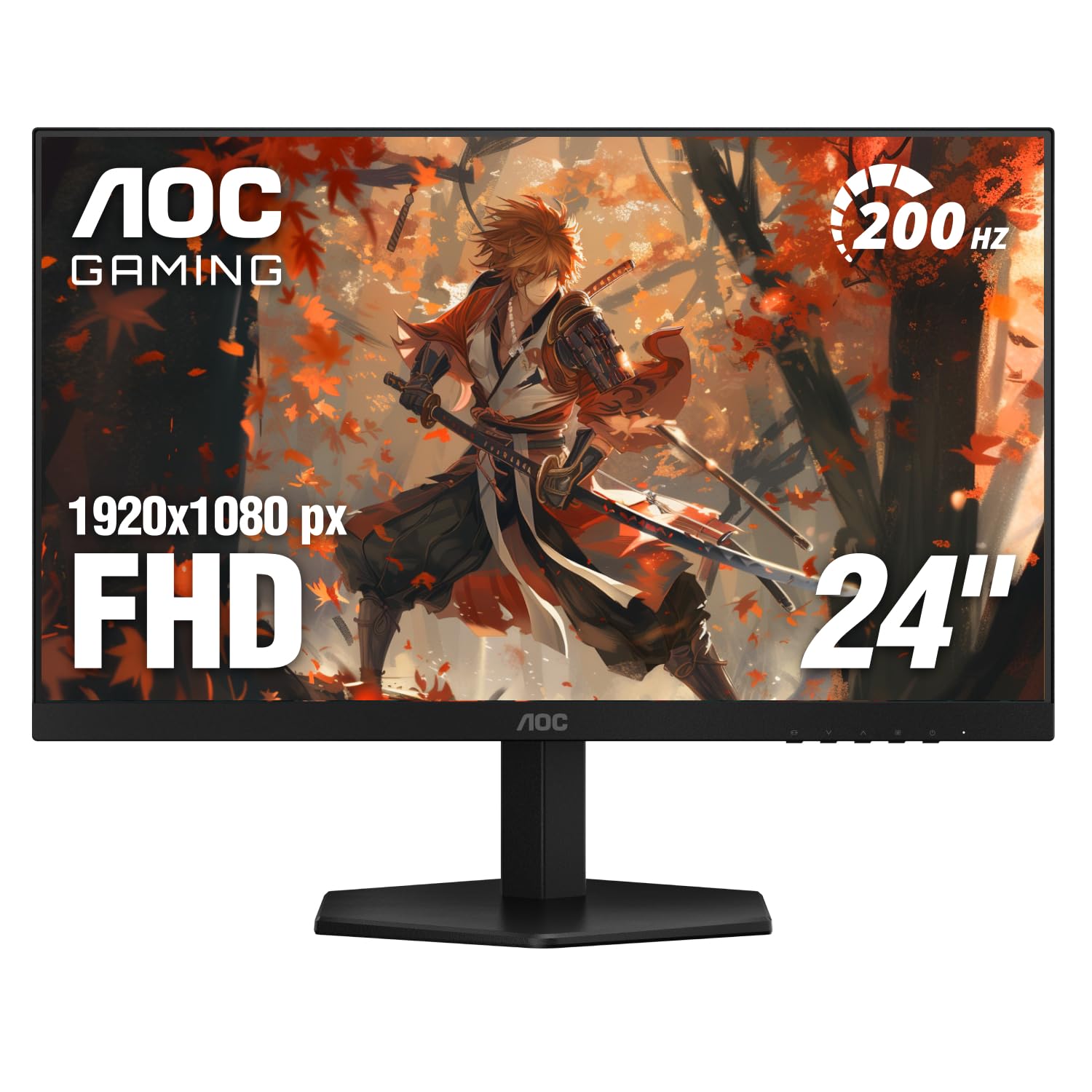
AOC 24G42HE

88 /100
Lab Score Excellent

Key details

Panel
23.8-inch IPS
Resolution
1920 x 1080
Refresh Rate
200 Hz
Adaptive Sync
G-Sync Compatible, FreeSync
View on Amazon

If the desk is narrow, this is the one we hand people first. At 23.8 inches, 1080p is dense enough to look crisp at arm's length — the opposite of the stretched 27-inch 1080p problem — and the panel runs at 200Hz, which is faster than the size or the price suggests.

The rest of the specification is sensible rather than exciting: 116% sRGB, HDR ready rather than real HDR, 300 nits, and one HDMI plus one DisplayPort, which means a console and a PC can both stay connected. That last part is more than a lot of budget screens manage, and it is what makes this a small desk hub rather than just a cheap panel.

It will not sell anyone on 1440p and it is not trying to. For a first setup, a dorm room, or the second screen beside a bigger main display, the resolution matches the size rather than compromising it, and the 200Hz refresh makes the whole thing feel more expensive than it is. Three years of coverage on the least expensive monitor here is the detail that makes it easy to recommend to someone buying their first proper screen.

Pros

  • 200Hz across a 23.8-inch IPS panel
  • G-Sync Compatible and FreeSync
  • Two inputs for a PC and a console

Cons

  • No height adjustment on the stand
Our verdict

We hand this to small desks and first builds: 200Hz at 24 inches, where 1080p still looks sharp.

Check Latest Price

How We Chose and Tested the Best G-Sync Monitors

We started with research, pulling every current G-Sync display we could find and filtering by panel type, resolution, refresh range, and port selection. Anything with a fixed stand, a warranty that read like an excuse, or a price that didn't line up with its specs came off the list. That left seven monitors, which ran for eight months across a shared office and two home desks.

Color and picture quality got the pickiest treatment. We pulled up full-screen grey gradients to look for banding, played the same dusk-lit level across several games to see whether shadow detail turned to mud, and watched film trailers specifically to judge skin tones. Every panel also displayed solid red, green, blue, and black fields in a dark room, where stuck pixels and corner backlight bleed are impossible to miss. For brightness, we ran each one at 20 percent in a dim room at night, then again with HDR highlights in a bright one, noting whether highlights clipped or the whole image dimmed.

Adjustability and sturdiness were hands-on: I raised, tilted, and swiveled each stand through its full range, sat off-center to check viewing angles, and nudged the desk to see how much the panel shook. We measured stand footprints on a narrow desk and mounted each monitor on a VESA arm. Performance came down to frame pacing in fast shooters with the frame rate both capped and uncapped, and value came down to what each one actually gave us for its asking price.

How to Choose a G-Sync Gaming Monitor

What G-Sync Compatible actually gets you

Full G-Sync with a dedicated hardware module inside the monitor has become rare and expensive. Every screen here qualifies as G-Sync Compatible, which means Nvidia has validated the panel's variable refresh behaviour, and the practical effect is the one you want: the refresh rate follows your frame rate, so tearing and the judder of mismatched frames go away.

What we watch for is the marketing gap. A product title can advertise G-Sync while the certification line says Compatible, and that is fine — but it is not worth a premium over a well-built panel carrying the same certification. Read the certification line before you pay extra for the word.

Match resolution to the card you own

27 inches at 2560 x 1440 is the balance point in this group: sharp enough that text and detail hold up, and light enough that a midrange card can still push high frame rates. 1080p on a 27-inch panel saves money and pixels, and you can see the difference at normal desk distance. 4K is genuinely better for detail and genuinely harder to drive.

Work backwards from the frame rates your card reaches. If it holds 60 to 90 frames at 1440p in your games, buy a 1440p panel; if it holds 100 or more at 4K, the 4K pick earns its premium. Buying resolution your card cannot feed means paying for pixels you render at a lower internal resolution anyway.

Buy the refresh rate you can feed

180Hz covers most people. It is smooth in shooters, forgiving in slower games, and it is a refresh rate a midrange card can genuinely reach at 1440p. The 240Hz and 260Hz panels here are for players who already see 200-plus frames and want the last of the blur gone, and the fastest modes on the 4K pick only exist because that screen can drop to 1080p.

Use variable refresh as the safety net it is. If your frame rate swings between 90 and 160, a 180Hz panel with G-Sync on will feel better than a 240Hz panel running without it, because the screen stops fighting the frame rate instead of waiting for it.

Stands, ports, and the shape of your desk

At the budget end the stand tilts and nothing else, which is fine until you want the panel at eye level. Height adjustment, swivel, and pivot are what separate the comfortable desks from the stack-of-books desks, and VESA 100 x 100 mounting appears on most of these, so a desk arm is always an option.

Ports decide how much cable clutter you live with. DisplayPort is the input to use for G-Sync on a desktop card, HDMI is what a console needs, and a USB-C input like the one on the ROG lets a laptop carry video and peripherals down a single cable. Check what is in the box, too — several of these ship with a DisplayPort cable and at least one does not.

Check the panel in the first week

Dead pixels and backlight bleed are the lottery you enter with any LCD. Open a full-screen white, black, red, green, and blue image the day the monitor arrives and look at the center of the panel, not the edges. A cluster of stuck pixels or a bright line is a return, and it is far easier to arrange inside a retailer's return window than through a warranty claim later.

Coverage varies more than the panels do: ASUS and AOC run three-year coverage on the models here, while LG and Samsung list one year. That difference matters more than most specifications on the page, because it is the part of the purchase you only use when something has already gone wrong.

Frequently Asked Questions

Final Verdict

The ASUS TUF VG27AQ3A is the G-Sync monitor we point most Nvidia buyers to. 1440p at 180Hz is the resolution-and-speed combination that still fits a normal graphics card and a normal desk, and nothing in its specification is there just to fill a line on the box.

If you chase frames in shooters, the AOC Q27G41ZE buys you 240Hz for less and asks only that your room can be darkened. If you want 4K on the same desk, the ROG XG27UCG does 160Hz and drops to 1080p at 320Hz when the game matters more than the view.