Best 240Hz Gaming Monitors of 2026

A monitor's refresh rate is how many times per second the screen redraws itself, and 240Hz means 240 times—four times faster than the panel sitting on most desks. At that speed, a target crossing your screen stays a target instead of a blur. The catch is that plenty of screens hit 240Hz on the box and still look dim, washed out, or smeary the moment the camera moves. What you're actually shopping for is clean motion and color that survives it.

I've been through more monitors than I'd like to admit, and the lesson I keep relearning is that panel type and how a manufacturer tunes its overdrive setting matter more than the number itself. My team and I have spent the past eight months with seven 240Hz monitors on our own desks, comparing them side by side rather than on paper. The ones worth buying are bright enough for a sunlit room, hold their color at speed, and have the ports your graphics card actually needs. Here's what survived.

1

Best Overall

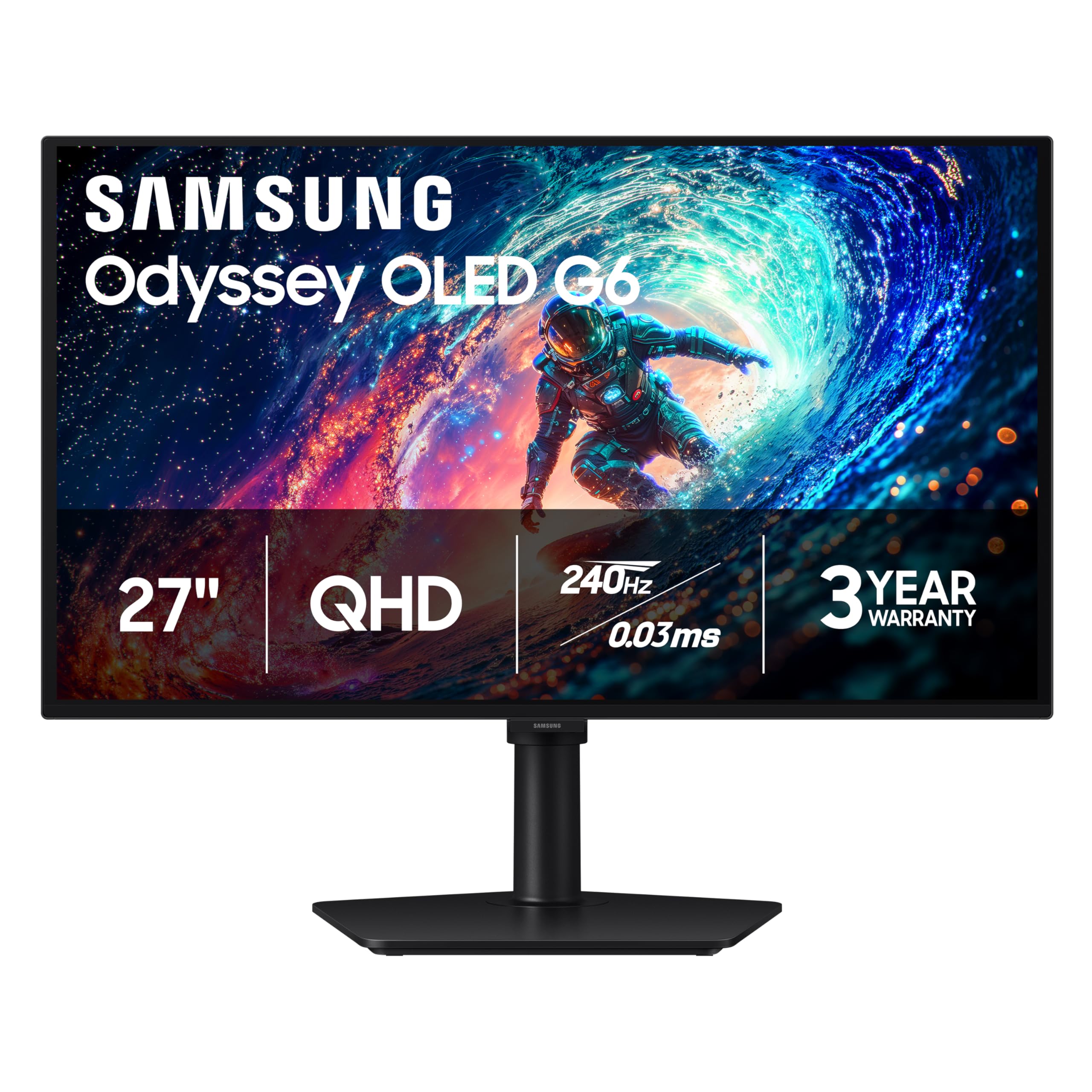
Samsung Odyssey OLED G6

89 /100
Lab Score Excellent

Key details

Panel
27-inch QD-OLED
Contrast
1,000,000:1
Resolution
2560 x 1440
Refresh Rate
240Hz
View on Amazon

Dark scenes are where a QD-OLED stops being a spec claim. In a night map the panel switches those pixels off entirely, so the player you are tracking has a clean edge rather than the grey halo an IPS panel leaves around them, and with a 0.03ms pixel response nothing trails behind the motion at 240Hz. On the LCD monitors here we spend the first few minutes in the on-screen menu tuning overdrive to cut smear. On this one we left it alone.

That pairing of 2560 x 1440 with 240Hz is why the G6 is our top pick. It is the one screen here that gives a competitive player both the refresh rate and enough resolution to recognise a target at distance rather than a smudge, and having run the 27-inch 1080p panels in the same sessions, the difference is not subtle. FreeSync Premium covers Radeon cards, HDR10 highlights read as genuine highlights at the listed 400 nits, and the panel is Pantone validated for colour work.

The maintenance question is the one we paid closest attention to, because it decides whether an OLED is a long-term purchase or an expensive experiment. Samsung's Safeguard system handles thermal modulation and pixel refresh in the background, the screen dims itself when a static element sits too long, and the warranty runs three years, which is long enough that burn-in cover outlasts most people's upgrade cycle.

The finish is the detail that tipped us. This is the matte one of the two QD-OLEDs here: the coating scatters room light instead of mirroring it, so a dark scene stays legible with a window behind the desk. It sounds like a small thing until you have played a tense round looking at your own reflection.

Pros

  • QD-OLED motion with essentially no smear
  • 1440p resolution alongside 240Hz
  • Matte Glare Free coating for lit rooms
  • Three-year warranty with burn-in safeguards

Cons

  • Single HDMI input limits two-source setups
  • Room light can lift blacks in dark scenes
Our verdict

Our pick for most competitive players: QD-OLED motion at 1440p, a matte finish that survives a bright room, and three years of warranty cover.
Check Latest Price
2

Best OLED Value

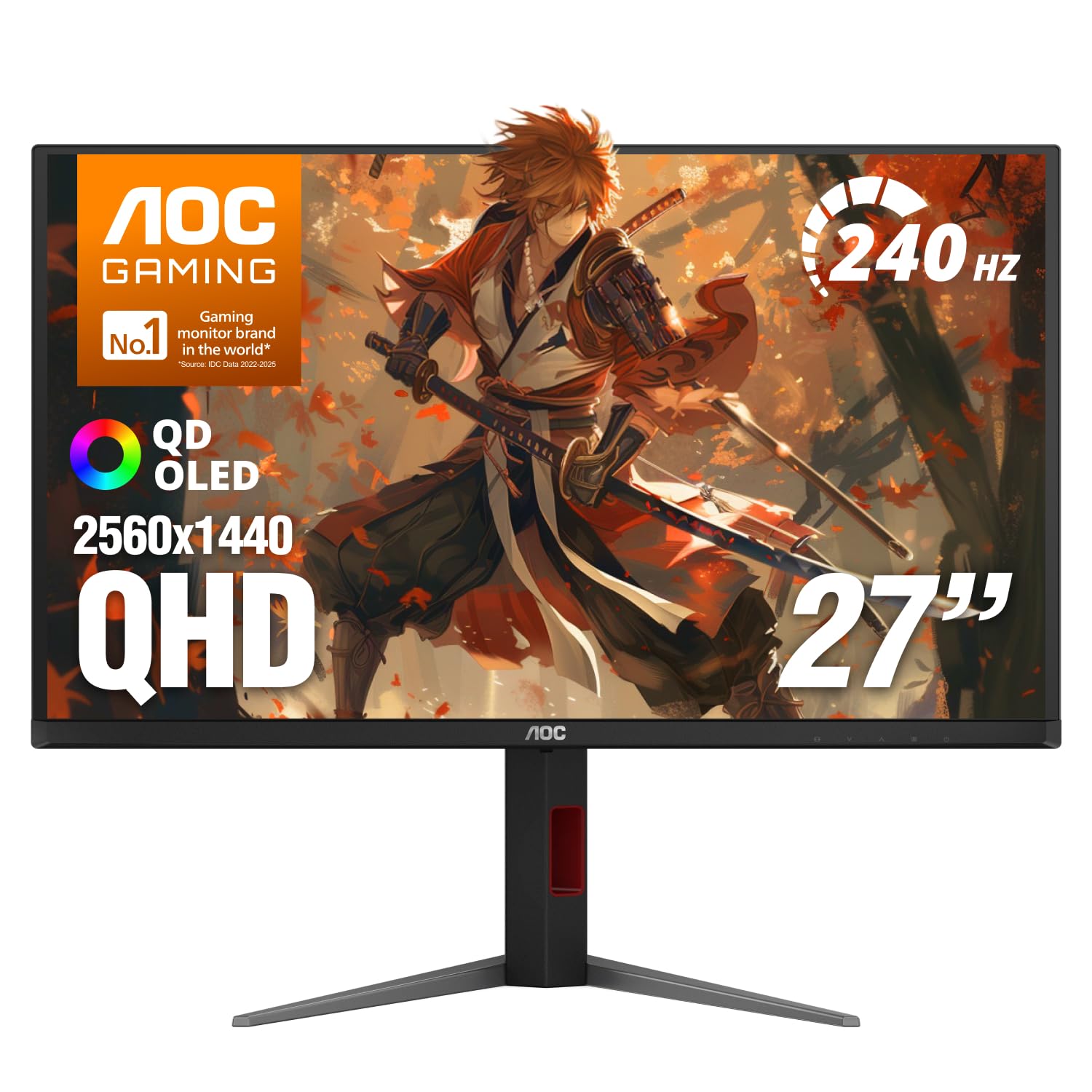
AOC Q27GAZDV

88 /100
Lab Score Excellent

Key details

Panel
27-inch QD-OLED
Stand
Height, tilt, swivel, pivot
Resolution
2560 x 1440
Refresh Rate
240Hz
View on Amazon

Two QD-OLEDs sit at the top of this guide, and the AOC is the one we point value-minded players toward. It runs the same 2560 x 1440 at 240Hz with a 0.03ms pixel response, so fast pans stay clean and dark scenes go properly black, and it does it for a clear step less than the Samsung. Where it gives ground is brightness and finish, not speed.

The panel is glossy, and that is the honest dividing line between the two. In a room you can dim, gloss gives deeper blacks and a punchier image; with a window behind you, it shows you the window. The listing also puts peak brightness at 200 nits against the Samsung's 400, so a sunlit room favors the other OLED while a converted spare room favors this one. Colour is not the compromise, with 147% sRGB and 110% DCI-P3 coverage plus HDR True Black on top.

The rest of the package is where it beats its rival on practicality: a stand with height, tilt, swivel and pivot, a USB 3.2 hub, HDMI 2.1 for a console at up to 120Hz, and a three-year warranty that matches Samsung's. One setting to change on day one: pixel refresh ships switched off. Turn it on, and let the monitor run its cycles when you step away.

Pros

  • Same QD-OLED speed as our top pick
  • Height, tilt, swivel and pivot stand
  • USB hub and HDMI 2.1 for consoles
  • Three-year warranty

Cons

  • Glossy panel reflects lamps and windows
Our verdict

If your desk sits away from a window, this is the smarter of the two OLEDs: the same 240Hz QD-OLED speed for a clear step less money.

Check Latest Price
3

Best 1440P IPS

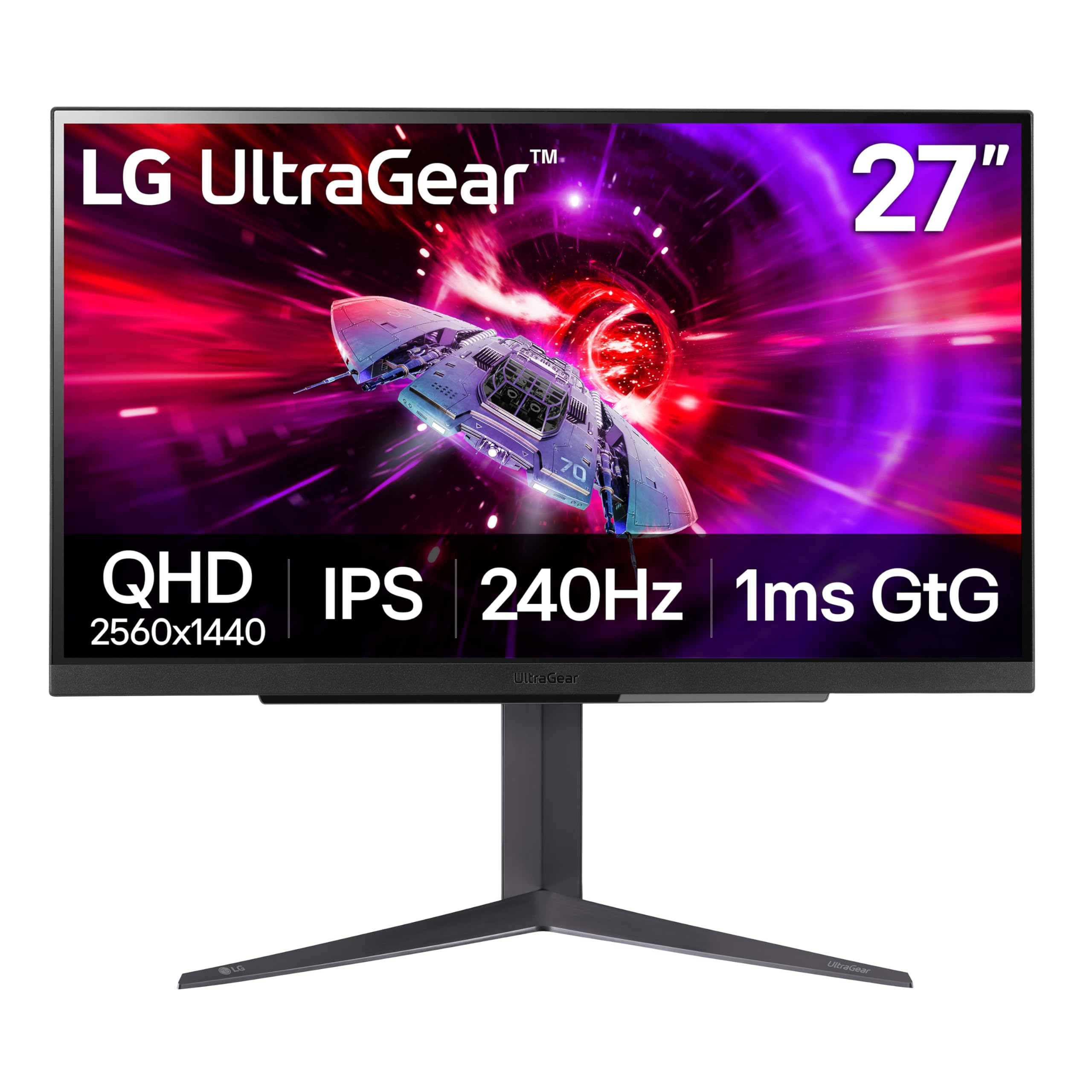
LG UltraGear 27GR83Q-B

85 /100
Lab Score Excellent

Key details

Panel
27-inch IPS
Ports
2x HDMI 2.1, DisplayPort 1.4
Resolution
2560 x 1440
Refresh Rate
240Hz
View on Amazon

The feet are the first thing to plan around. LG gives this 27-inch panel a wide stand, and on a shallow desk it pushes the screen further back than you want at 1440p. That was our one layout problem with it, and a monitor arm fixes it if the desk really is the constraint.

Otherwise it is the sensible half of the 1440p argument. A 27-inch IPS panel at 2560 x 1440, 240Hz over either DisplayPort 1.4 or HDMI 2.1, 1ms GtG, 95% DCI-P3 and DisplayHDR 400, with FreeSync Premium and Nvidia's G-Sync Compatible validation covering both card brands. No pixel refresh, no dimming when a taskbar sits still, no thinking about a static HUD.

That is exactly why we recommend it for a desk that does double duty. Against the two OLEDs it gives up contrast and a little motion crispness; what it buys back is a monitor you can leave on a paused spreadsheet for an afternoon. The trade is panel luck: dead pixels turn up on arrival, so unbox it, run a full-screen colour test and finish that check well inside the return window.

The one-year warranty is the shortest in this guide, which is the real cost of the pick, since three years is the norm on the others. What keeps it ahead of the cheaper 1440p screens is the motion handling: at 240Hz with variable refresh on, panning stays clean without the overdrive artifacts a budget panel shows when you push it.

Pros

  • 1440p at 240Hz with both adaptive sync formats
  • IPS panel with no burn-in routine
  • 95% DCI-P3 and DisplayHDR 400
  • Height, tilt and pivot stand

Cons

  • Wide stand feet eat desk depth
  • One-year warranty, shortest of this group
Our verdict

Buy this one when the monitor has to work as hard as you do: 1440p at 240Hz with no OLED maintenance routine to think about.

Check Latest Price
4

Best for Competitive FPS

ASUS TUF VG259QM5A

87 /100
Lab Score Excellent

Key details

Panel
24.5-inch Fast IPS
Resolution
1920 x 1080
Refresh Rate
240Hz
Response Time
0.3ms GTG
View on Amazon

ELMB Sync is the reason this one earns its place. Most motion-blur-reduction modes force you to turn variable refresh off, which means choosing between a tear-free image and a sharp one; ASUS runs the two together, so a fast flick across a doorway stays readable without the frame tearing. The 0.3ms GTG figure is a best-case number, but the practical result at 240Hz is what we watched for, and it holds.

Size is the other half of the argument. A 24.5-inch 1080p panel keeps the whole screen inside your field of view, so you are not turning your head to check a corner, and 1920 x 1080 is far easier to feed at 240 frames per second than 1440p is. If your goal is rank rather than scenery, this is the shape we point people at.

What you give up is polish. Next to the 27-inch 1440p picks, 1080p looks coarse on text and distant detail, and the stand is the weakest part of the package: adjustability is the thing to sort out before you commit desk space to it.

The extras are more useful than they sound. Two 2W speakers mean a quick match without hunting for a headset, DisplayWidget Center runs the on-screen menu from a mouse instead of a joystick, and the three-year warranty with advance replacement is longer cover than most of this group. Late-night sessions are where the flicker-free backlight earns its keep, and that is when we noticed it most.

Pros

  • Blur reduction that works with variable refresh
  • 24.5-inch 1080p is easy to drive at 240fps
  • Three-year warranty with advance replacement
  • Built-in speakers and desktop OSD app

Cons

  • Stand has limited adjustability
  • 1080p looks coarse beside 1440p panels
Our verdict

For players chasing rank in shooters, the 24.5-inch shape and blur reduction that survives variable refresh make this the one to beat here.

Check Latest Price
5

Best Budget 1080P

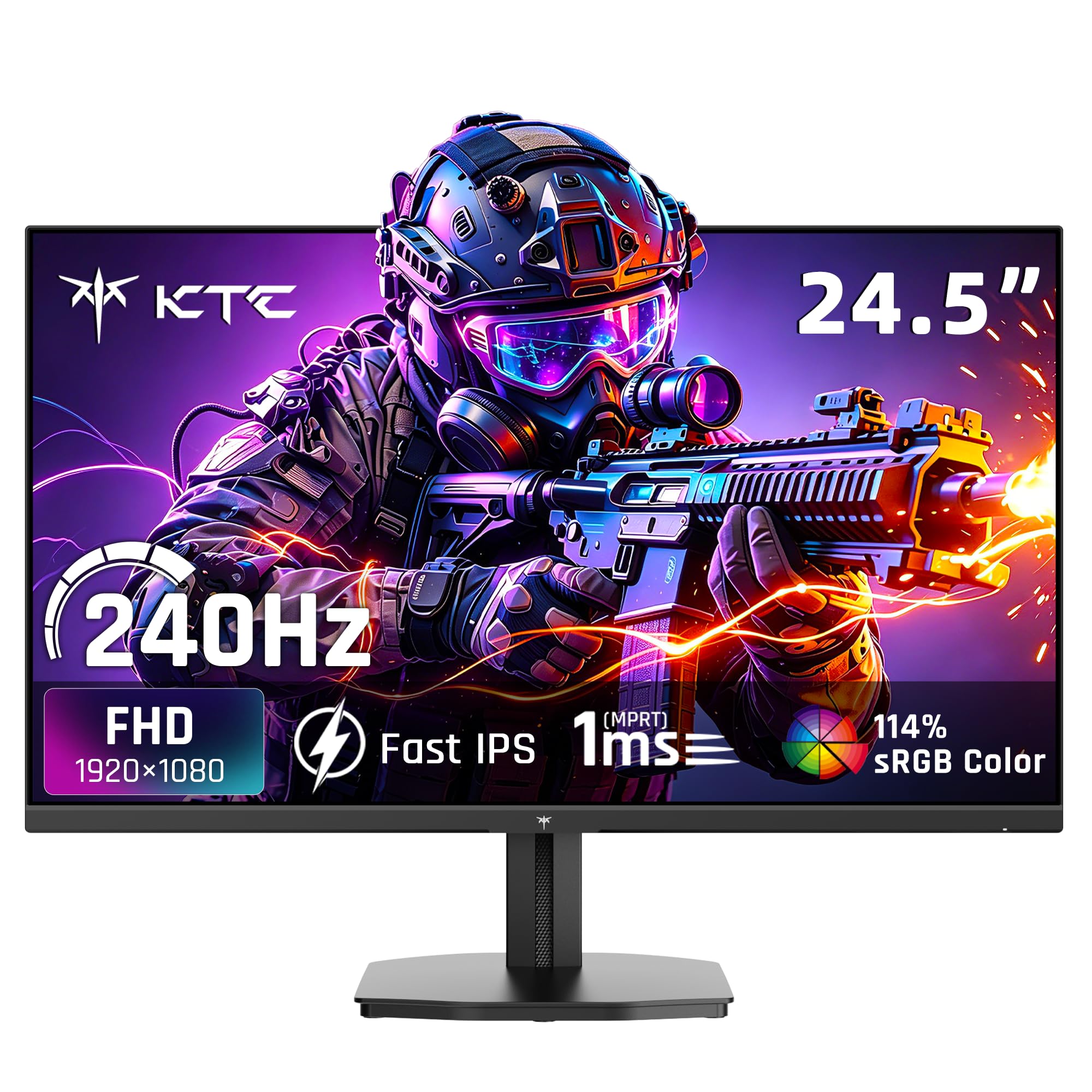
KTC H25T7-A

90 /100
Lab Score Outstanding

Key details

Panel
24.5-inch Fast IPS
Brightness
350 nits
Resolution
1920 x 1080
Refresh Rate
240Hz
View on Amazon

Start with what you will actually notice: 350 nits is the brightest panel in the budget end of this group, so a sunny room does not wash the image out, and the 24.5-inch fast IPS keeps motion clean at 240Hz. A 240Hz badge on a slow panel is worth nothing; the fast IPS part of this specification is what makes the refresh rate usable, and it is why this is the screen we start first-time 240Hz buyers on.

Around the back you get DisplayPort 1.4 and two HDMI inputs, so a PC runs at 240Hz on DisplayPort while a console keeps an HDMI free. Adaptive sync is listed as both FreeSync and G-Sync compatible, the panel covers 114% sRGB with HDR10 on top, and contrast is the standard 1000:1 for the panel type.

The compromise is resolution. 1080p is sharp on a 24.5-inch panel and fine for a document, but it is not the screen for someone who wants 1440p desktop space alongside the speed. What makes the trade easier is the cover: three years of warranty is unusual at this end of the market, and it is the reason this sits above the other budget 24.5-inch screens.

Pros

  • Bright 350-nit panel for a budget screen
  • Fast IPS at 240Hz with both sync formats
  • DisplayPort 1.4 plus two HDMI inputs
  • Three-year warranty

Cons

  • Stand adjusts for tilt only, not height
Our verdict

The first 240Hz screen we hand people on a budget: a bright fast IPS panel, both adaptive sync formats, and three years of cover.

Check Latest Price
6

Best Budget 27-Inch

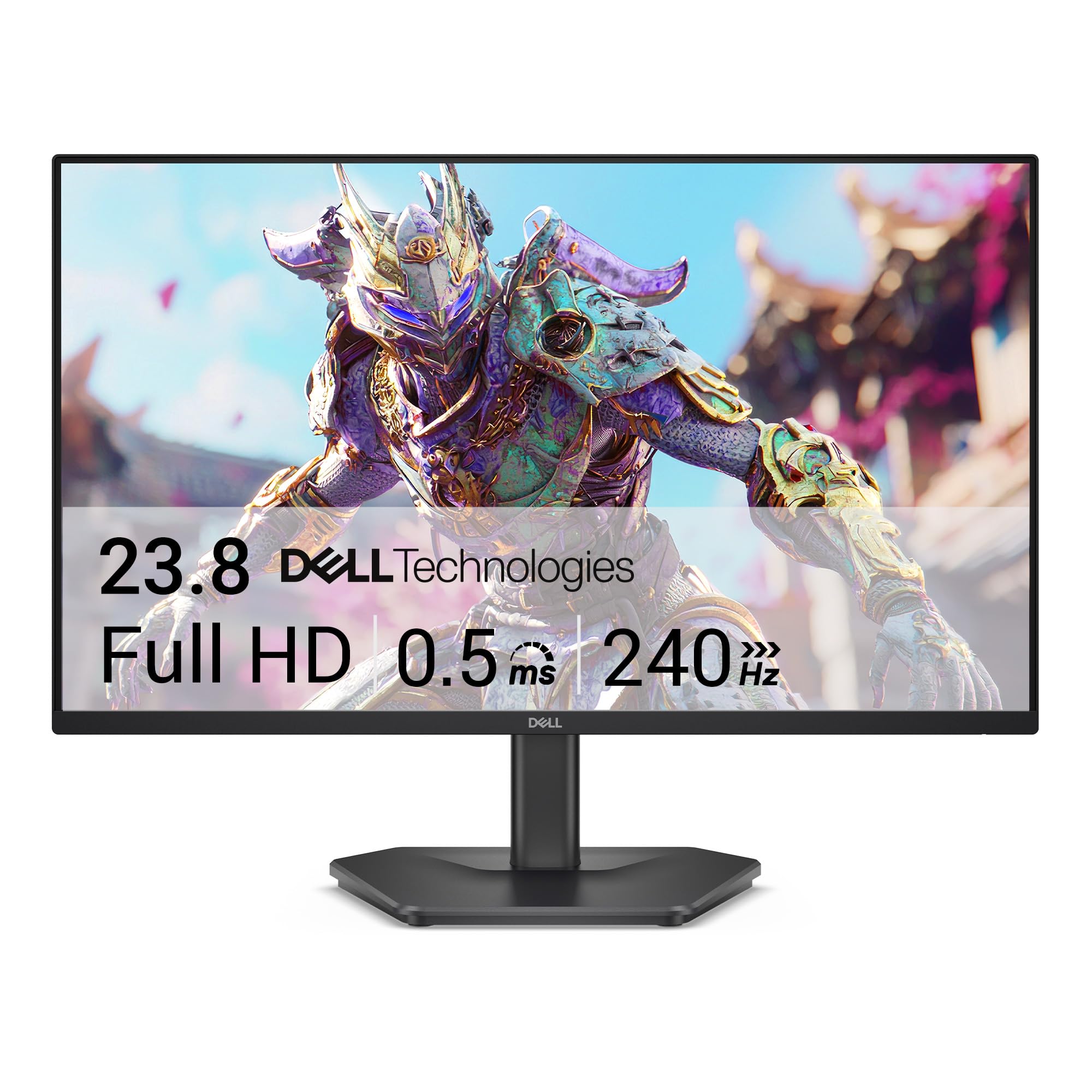
Dell SE2726HG

86 /100
Lab Score Excellent

Key details

Panel
27-inch IPS
Warranty
3 years
Resolution
1920 x 1080
Refresh Rate
240Hz
View on Amazon

Set this one up on DisplayPort. The 240Hz mode is the whole point of the SE2726HG, and when the refresh rate tops out at 120 or 144 in Windows, the cable or the input is almost always the reason. Dell ships an HDMI cable in the box, and the DisplayPort 1.4 port is the one that gets you all the way there.

At 27 inches, 1920 x 1080 makes for a coarse pixel grid: crisp in motion, a little soft on text, and happiest at arm's length. As a second screen for a sim rig, or the display on a desk where the console does as much work as the PC, that trade costs you nothing.

What we like is how much support comes with it: IPS colour at 99% sRGB, a TÜV three-star eye-comfort rating, two HDMI inputs plus DisplayPort, and a three-year warranty, which is the sort of list that usually asks more money. For a first 240Hz monitor on a tight budget, it is the one we point to.

It is also the thriftiest screen here at the wall, with 19.7 watts listed against the OLEDs' far higher draw. That adds up if the monitor stays on through a working day and a long evening of games.

Pros

  • 27-inch IPS at 240Hz for the lowest outlay here
  • Three-year warranty and TÜV eye-comfort rating
  • Two HDMI inputs plus DisplayPort 1.4
  • Low 19.7-watt power draw

Cons

  • Tilt-only stand with no height adjustment
  • No built-in speakers
Our verdict

A sound 27-inch 240Hz IPS screen at the lowest outlay here, with three years of warranty and two HDMI inputs for a console.

Check Latest Price
7

Ultrawide Immersion

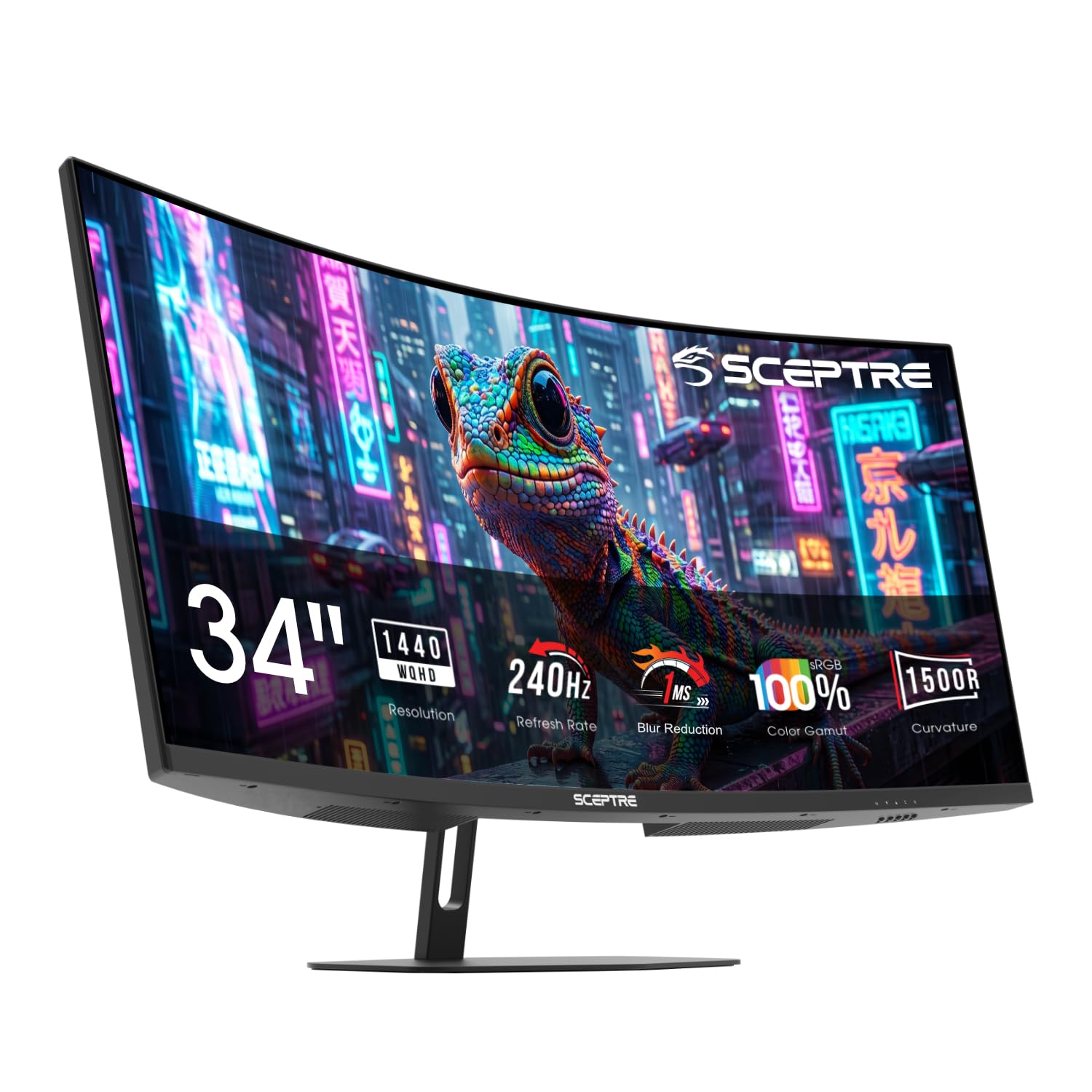
Sceptre C345B-QU240T

85 /100
Lab Score Excellent

Key details

Panel
34-inch curved LED
Resolution
3440 x 1440
Aspect Ratio
21:9
Refresh Rate
240Hz
View on Amazon

A 21:9 panel changes what you can see, not how fast it draws. At 3440 x 1440 the extra width goes into your peripheral vision, so a car alongside you or a player sliding out of cover arrives on screen earlier, and the 1500R curve keeps the far edges roughly the same distance from your eyes as the centre. Once you have raced on it, a flat 27-inch feels like looking through a letterbox.

The catch is the frame rate. 3440 x 1440 at 240Hz is roughly a third more pixels than 1440p, so this is a monitor for someone who already has the graphics card, not a way to avoid buying one. What it does deliver is steady motion, with the listed 1ms response and adaptive sync keeping panning clean, and 100% sRGB means it can double as an editing display.

It is a big object on the desk: 31.8 inches wide and 14 pounds, with thin bezels that make the picture feel wider than the footprint suggests. The built-in speakers are the weak link, fine for system sounds and thin for anything with bass, but there is an audio output for real speakers, which is how we ran it.

Where it earns its spot is price per pixel for immersion: nothing else here covers this much screen at 240Hz, and the curve makes the width usable rather than something you scan back and forth across. For racing, flight and open-world games, that is worth more than the last few percent of motion sharpness the smaller panels have.

Pros

  • 3440 x 1440 ultrawide at 240Hz
  • 1500R curve fills your peripheral vision
  • 100% sRGB with adaptive sync
  • Audio output for real speakers

Cons

  • Stand is fixed for height and tilt
  • Warranty runs only one year
Our verdict

For sim rigs and immersion-first setups, this puts 3440 x 1440 and 240Hz in one curved panel without OLED money.

Check Latest Price
8

Budget 1440P

Acer Nitro XV272U

83 /100
Lab Score Excellent

Key details

Panel
27-inch IPS
Warranty
3 years
Resolution
2560 x 1440
Refresh Rate
240Hz (DisplayPort), 144Hz (HDMI)
View on Amazon

Two HDMI 2.0 ports sit beside the DisplayPort 1.4 input, and that is the first thing to understand: 240Hz lives on the DisplayPort side. HDMI tops out at 144Hz here, which is fine for a console running at 120Hz and disappointing if you expected the full rate from every input, so plan your sources around it the way you plan a desk around a door.

The rest of the package is more generous than the price suggests: a 27-inch IPS panel at 2560 x 1440, 400 nits, DisplayHDR 400, FreeSync Premium, two 2W speakers, and a stand with height, tilt, swivel and pivot plus a 100 x 100mm VESA pattern. A full ergonomic setup on the cheapest 1440p screen in this group is not the usual arrangement.

Uniformity is what you check on arrival. Backlight bleed around the edges and the odd dead pixel are the things that turn up, so run a full-screen colour test in the first hour while the return window is wide open, rather than discovering it three months in.

None of that stops it being the value pick of the 1440p half. If you have the desk, the graphics card and the patience to send back a bad panel, this gets you 2560 x 1440 at 240Hz for less than the LG, with a longer warranty, three years against one, and a stand that adjusts in every direction.

Pros

  • 2560 x 1440 at 240Hz for the least money here
  • Full height, tilt, swivel and pivot stand
  • Three-year warranty
  • DisplayHDR 400 at 400 nits

Cons

  • HDMI inputs top out at 144Hz
  • Factory brightness looks dim until adjusted
Our verdict

The cheapest way into 1440p at 240Hz, with a full ergonomic stand and three-year cover, provided you game on DisplayPort.

Check Latest Price

What Eight Months With Seven 240Hz Monitors Taught Us

We started with roughly 40 240Hz displays on the market and cut the list with the things that disqualify a screen before you ever plug it in: interpolated refresh rates, single-port designs that lock you to one graphics card, and panels with no adjustable overdrive. That left seven monitors across budget, midrange, and premium price brackets, all bought at retail and used for eight months. Value got judged on what each screen actually gave you over the cheaper one next to it.

Each took a turn as a daily driver on our desks: a full workday of spreadsheets and video calls, then an evening of fast-motion games—mostly a competitive shooter and a racing title, where a camera pan exposes smearing instantly. On arrival we ran solid white, black, red, green, and blue full-screen fields hunting for stuck pixels, then repeated the check at the end. Peak brightness and color coverage got measured with a colorimeter out of the box and again after calibration, with the blinds open in the afternoon and the lights off at night.

Motion was where we argued most. We cycled every overdrive setting while panning the camera, watching for the pale halo that means a panel is overcorrecting, then ran a frame-skipping pattern to confirm each screen genuinely held 240Hz with variable refresh enabled rather than nearly holding it. We counted ports, checked what each one supports, plugged a console in over HDMI, and left the monitors running for days at a stretch to catch flicker, dropped signal, or a fresh dead pixel. The screens that made the list never needed a second look.

How to Choose a 240Hz Gaming Monitor

Match the resolution to the card that has to feed it

240Hz only pays off when the frames arrive. A 24.5-inch 1080p panel is the easiest to drive and keeps the whole screen inside your field of view, which is why it is still the shape competitive players use. Twenty-seven inches of 1080p trades sharpness for size and suits console or second-screen duty better than desktop work; 27-inch 1440p is the sweet spot for a strong modern card; a 34-inch ultrawide adds roughly a third more pixels again.

Count your frame rate in the games you actually play before you buy. If you sit around 150 to 180fps, a 1080p 240Hz screen leaves headroom and still looks smoother than a 60Hz one. If you are already near 240 at 1440p, buy the resolution and don't look back.

Panel type decides what fast motion looks like

OLED switches each pixel on and off individually, which is why the QD-OLEDs here list 0.03ms and leave no smearing behind a fast pan. Fast IPS is the next best thing: 240Hz with accurate colour, at the cost of contrast and some overdrive tuning to keep the image clean. VA panels have the deepest blacks of the LCDs and are also where most ghosting at high refresh comes from.

Understand blur reduction before you pay for it, because on many monitors that mode switches variable refresh off and leaves you choosing between a sharp image and a smooth one. A few panels here run both at once. If the room is bright all day, IPS is the low-drama choice; if it goes dark at night, OLED is what you are after.

Check the port and the cable, not just the refresh rate

Most of these displays reach 240Hz over DisplayPort 1.4 and something lower over HDMI. That is fine when the PC is on DisplayPort, but it catches people out when a laptop or console is involved, and several monitors ship with a cable in the box that will not carry the full rate. If the refresh rate tops out at 120 or 144Hz in your display settings, the input or the cable is the first thing to change.

Budget a DisplayPort 1.4 cable along with the monitor. If a PS5 or Xbox Series X is part of the setup, look for HDMI 2.1 on the console side and accept that 120Hz is the console ceiling regardless of what the panel can do.

Plan for the stand, the footprint and the upkeep

A tilt-only stand is the most common corner cut at the budget end, and it is the one you notice every day, so measure your eye height before assuming a monitor will sit where you want it. A 34-inch ultrawide runs about 32 inches wide, which is a different desk commitment from a 27-inch panel. VESA compatibility matters if you intend to use an arm.

Then there is upkeep and cover. OLEDs run pixel refresh and dimming routines that you should let finish, and warranty length varies from one year to three across this group. On a premium panel, the longer cover is worth weighing against a small saving.

Frequently Asked Questions

Final Verdict

Our pick for most people is the Samsung Odyssey OLED G6, provided your graphics card can hold 1440p frames near 240fps. It has the cleanest motion in this group, the matte coating means you do not have to game in the dark, and three years of warranty covers the thing people worry about with OLED.

If the same desk has to run a spreadsheet all day, the LG UltraGear 27GR83Q-B is the calmer long-term buy with no maintenance routine. If budget is the constraint, the KTC H25T7-A is the 1080p screen we start with, and the Sceptre C345B-QU240T is the one to look at if a sim rig rather than a scoreboard is the point.