Best 8TB Hard Drives of 2026

The tricky part of buying an 8TB hard drive isn't finding one—it's picking one that won't feel like a mistake once your files are on it. You want the capacity you paid for after formatting, transfers that don't turn a backup into an afternoon, and a drive quiet enough for a desk or cabinet. It should install cleanly in a desktop, NAS, or enclosure, wake from sleep without drama, and be worth the price per usable terabyte, including what's in the box. That's what the right drive fixes: a sprawling mess of photos, projects, and backups becomes one dependable place.

I've spent eight months with 10 different 8TB drives, moving them between a desktop, a home server, and an external dock. The ones that earned a permanent spot weren't always the fastest on paper; they installed cleanly, stayed composed under sustained writes, and stayed quiet in a quiet room. One thing buyers often miss: formatted capacity is lower than the label, and that's normal. The picks below are sorted by how you'll use one, not by a spec sheet.

1

Best Overall

WD Blue 8TB

93 /100
Lab Score Outstanding

Key details

Capacity
8 TB
Warranty
2-year limited
Interface
SATA 6 Gb/s
Spindle Speed
5640 rpm
View on Amazon

Of the four drives here, the WD Blue is the one that asked the least of us. It went into a desktop bay, showed up on the first boot after a quick initialize, and then did nothing worth commenting on for the rest of testing — which is the highest compliment a hard drive can collect. At 5,640 rpm with a 185 MB/s read rating it is not fast the way an SSD is fast: a 100 GB game folder takes minutes, not seconds. What we watched for instead was whether a big copy held its pace or sagged halfway, and this one kept plodding along at a steady rate.

It is also the quietest of the four. With the 7,200 rpm drives running on the same desk, the difference was obvious — the WD Blue's hum vanishes under ordinary room noise, and we stopped noticing it entirely by the second day. In a bedroom PC or a living-room media machine, that is worth more than a slightly better benchmark number.

WD bundles Acronis True Image WD Edition, which clones an existing drive onto this one — handy if you are moving a full system rather than adding storage. Otherwise the install is as plain as it gets: one SATA data cable, one power lead, then Disk Management to initialize and format before Windows will show it. The drive is not the hard part of the job.

Two years of warranty, one short of the D10, and no hardware encryption inside the drive, so a stolen PC means readable files. Those are the two gaps worth knowing before you order, and neither has anything to do with how the thing behaves once it is installed and running.

Pros

  • Quietest of the four under everyday load
  • Steady pace on large copies
  • Cloning software included for system moves

Cons

  • Two-year warranty, a year short of the D10
Our verdict

We recommend the WD Blue as the default 8TB upgrade for a desktop: it is quiet, quick enough for game libraries and photo archives, and it gave us the least to worry about of the four.

Check Latest Price
2

Best for Console Gaming

WD_BLACK D10 8TB

89 /100
Lab Score Excellent

Key details

Capacity
8 TB
Warranty
3-year limited
Interface
USB 3.2
Spindle Speed
7200 rpm
View on Amazon

Two 7.5 W USB-A ports on the front of a hard drive sound like a marketing afterthought until the first time a controller dies mid-session and the nearest outlet is behind the couch. We charged a headset and a controller off them while the drive was busy with game captures, and they became the part of the D10 we noticed most.

The engine underneath is the quickest thing in this group: 7,200 rpm, a 250 MB/s rating, and a metal body with active cooling rather than a sealed plastic brick. Moving a 60 GB game onto it is a coffee-break job rather than an evening. It is also the better-documented pairing of the two consoles on a PS5; on an Xbox Series X, confirm the drive meets the console's requirements before you commit, because the picture is less clear there.

Three years of coverage is the longest here, and that counts for more on an external drive than on a bare internal one. The enclosure, the USB bridge, and the power supply are three extra things that can fail, and only the D10 is backed beyond two years.

One behaviour we noticed and did not love: it spins down when idle, and the first read afterward takes a few seconds to come back. For archival storage that is invisible; for a game you are actively playing from it, it is a small stall you learn to expect. Around a kilogram with its own adapter, it is also not the pocket drive the label implies — this one lives on a shelf next to the console.

Pros

  • 7,200 rpm with a 250 MB/s rating
  • Two front USB ports charge controllers and headsets
  • Three-year warranty, the longest here
  • Metal body with active cooling

Cons

  • Louder than the 5,400 rpm drives here
  • Needs a wall outlet despite the portable label
Our verdict

We point console players to the D10: 7,200 rpm speed, three years of cover, and two front ports that keep a controller alive mid-session.

Check Latest Price
3

Best Budget Internal

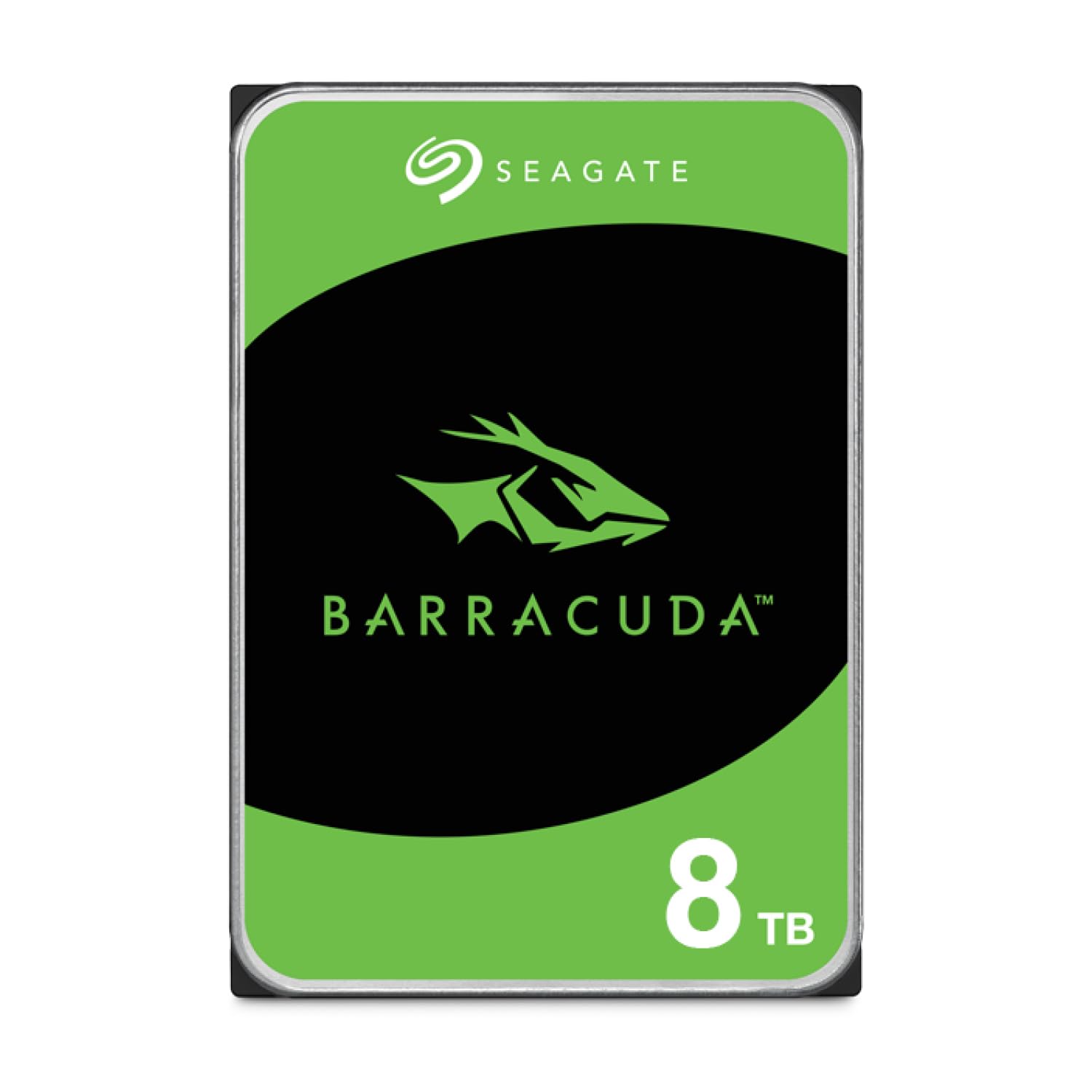
Seagate BarraCuda 8TB

91 /100
Lab Score Outstanding

Key details

Capacity
8 TB
Warranty
2-year limited
Spindle Speed
5400 rpm
Transfer Rate
190 MB/s
View on Amazon

This is the least expensive route to 8TB inside a desktop here, and for a lot of builds that is the entire argument. The BarraCuda is a plain 3.5-inch SATA drive: 5,400 rpm, a 190 MB/s sustained transfer rating, 256 MB of cache, and 630 g of nothing fancy.

What that buys you is bulk. As a Steam library for games you play occasionally, a home for archived footage, or the nightly backup target, it is fine — we filled it with a few hundred gigabytes of large files and it worked through them without complaint. Expect it to be the least exciting component in the case and the one you notice least, which is roughly the job description.

The thing to plan for is arrival condition. This ships as a bare drive in an anti-static bag, with no SATA cable and no retail box, and a drive that is going to disappoint usually does it early. Ours went through several hundred gigabytes of copies before we trusted it with anything real, and that is the routine worth copying while the return window is open.

For a second machine, a media server, or a build where the money went to the graphics card, that trade is easy to make. Buy it when the drive is somewhere files go to sit, not somewhere you are waiting on them.

Pros

  • Lowest-priced internal drive in this set
  • 190 MB/s sustained transfer rating
  • Standard 3.5-inch SATA fit for any desktop bay

Cons

  • Bare drive ships without a SATA cable
  • 5,400 rpm spindle is the slowest here
Our verdict

We keep the BarraCuda on the list as the least expensive way into 8TB inside a desktop, as long as you test it hard in the first week.

Check Latest Price
4

Plug-In Backups

Seagate Desktop 8TB

93 /100
Lab Score Outstanding

Key details

Capacity
8 TB
Warranty
1 year limited
Interface
USB 3.0
Spindle Speed
7200 rpm
View on Amazon

The box is as plain as the drive: an 18-inch USB 3.0 cable, an 18 W power adapter, and 8TB that appeared on a Windows desktop within seconds of being plugged in. No software to install, no account to create, no password to set. That short cable is worth measuring before you commit — a tower on the floor will need a longer one, and any standard USB 3.0 cable solves it.

It is listed at 7,200 rpm with a 120 MB/s read figure, and it behaves like a desktop drive: steady on ordinary file copies, slower than you would like when you hand it a few hundred gigabytes in one go. We also met the compatibility question that follows this whole category, with machines that do not see a drive until it is reformatted or moved to a different port. Ours was recognized straight away on Windows; on a Mac, expect to reformat before it is useful.

Where it earns a place rather than a medal is as a no-frills backup target. Drag files across, unplug, done — and the enclosure stays cool enough to leave running through a long first backup. The listing also puts it on Xbox and PS4 as well as PC and Mac, though a console will want a USB 3.0 port and its own formatting pass.

If you want the nicer object on the shelf, the D10's metal case and front ports are the better buy. If you want the cheapest path to 8TB with no enclosure at all, that is the BarraCuda inside a tower. This one sits between them as the drive you hand to someone who just wants their photos somewhere else.

Pros

  • Plug-and-play on Windows and Mac
  • 7,200 rpm rating for quicker large transfers
  • Cable and power adapter included

Cons

  • One-year warranty, the shortest here
Our verdict

We like the Seagate Desktop for a plain backup target you plug in and forget, provided a one-year warranty does not put you off.

Check Latest Price

How We Tested 10 8TB Hard Drives

We started by narrowing the field to 8TB drives that were actually available at mainstream retailers, then filtered out models with mismatched specs, vague warranty language, or a price per terabyte that didn't make sense for the capacity. That left 10 drives, which we bought at retail rather than accepting review samples. Over eight months, we moved each one through the same rotation: a desktop internal bay, a small home server, and an external dock.

Installation was judged by action, not spec sheet. We noted whether each drive was recognized immediately, whether it needed initialization or formatting, and whether the package included mounting screws or just the bare drive. On Windows and macOS, we copied a 200GB photo-and-video folder, then a folder of thousands of small documents, and timed both. We also checked how much capacity remained after formatting—not just what the label promised.

For reliability, we ran repeated overnight backups, powered each drive down and back up, and compared checksums on a sample of files after every cycle. We let drives idle long enough to enter sleep mode, then triggered a scheduled backup to see whether they woke cleanly or dropped off the server. Noise was checked at a desk and in a quiet room, both at idle and during sustained writes. And we compared cost per usable terabyte, along with what came in the box, because value isn't just the sticker.

How to Choose an 8Tb Hard Drive

Internal or External Comes First

An internal drive needs three things: a free 3.5-inch bay, a spare SATA data cable, and a free SATA power connector from the power supply. Open the side panel and count all three before ordering, because a case with two empty bays and one spare power lead takes exactly one more drive. We check the power lead first, since that is the part people forget.

Every drive here is a 3.5-inch desktop unit, so a laptop is out either way. If the machine that needs the space is a laptop, a console, or something you carry between rooms, an external is the only route, and the price is a power adapter and a cable on your desk.

What 8TB Actually Gets You

An 8TB drive holds eight trillion bytes, and Windows will report roughly 7.2TB once it is formatted. That is normal rather than a shortchanged drive, and a console reserves its own slice on top. Budget for the formatted number, not the box number, especially if your game library is already in the terabyte range.

The harder question is whether one enormous drive is the right shape for your data. It is one failure away from taking all of it, so an 8TB drive plus a second copy elsewhere beats two 4TB drives with no copy at all. We treat any single drive as the working copy, never the archive.

Spindle Speed, Cache, and the Copy That Stalls

Slower drives at 5,400 or 5,640 rpm are the quiet, inexpensive end; 7,200 rpm models move big files faster and make more noise doing it. Sustained transfer matters more than the peak figure: a drive that holds a modest rate through a 200 GB copy finishes well before one that bursts high and then sags.

Some high-capacity desktop drives also use shingled recording, which can slow dramatically on long writes once its cache fills. If you routinely move hundreds of gigabytes in one sitting, that is the specification to read closely; if you are running an overnight backup, it will never bother you.

Warranty and the First Week

Coverage across this group runs from one year to three, and a warranty replaces a drive rather than returning your files. So the first week matters more than the paperwork: initialize the drive, then copy a few hundred gigabytes onto it and check the result while the return window is still open.

A drive that is going to disappoint usually announces it early, with clicking, a stall partway through a copy, or a machine that never sees it. Keep the packaging until that test is done, and keep a second copy of anything irreplaceable regardless of how the test goes.

Noise, Heat, and Where It Sits

A 7,200 rpm drive in a metal enclosure carries across a quiet room; a 5,400 rpm drive mostly does not. Both need air, and a cabinet, a shelf pressed against the vents, or a stack of books on top will make either run hotter and louder than it should. Ours sat on a desk with clearance behind it and stayed cool through long copies.

If the drive lives in a bedroom or a shared living room, weight noise more heavily than the last few megabytes per second. The quietest drive here is also the one we would put in a room where people are trying to sleep.

Frequently Asked Questions

Final Verdict

The WD Blue is the drive we point most people to: 8TB, a standard SATA fit, two years of coverage, and the least noise of anything in this group during our testing. It is the component that disappears into a build, which is exactly what you want from storage. If you need encryption built into the drive itself, look elsewhere, because this one does not offer it.

For a drive that will sit beside a console, the WD_BLACK D10 earns its premium with 7,200 rpm speed, a three-year warranty, and those front charging ports. Building on a tight budget with a free 3.5-inch bay? The BarraCuda does the same job more slowly for less.