Best FreeSync Gaming Monitors of 2026

Screen tearing is one of those problems you don't notice until it's gone — a horizon that splits mid-pan, a flicker at the edge of a fast turn. FreeSync smooths it by matching a monitor's refresh rate to whatever your graphics card is actually pushing, and the gap between a panel that handles that well and one that merely claims support is the difference between a game that feels fluid and one that feels like it's fighting you. What you're really buying is consistency: a display that holds its picture, its color, and its pacing into hour four, not just the first ten minutes.

My team has spent the past nine months living with 11 FreeSync monitors, and the lesson that stuck is how little the spec sheet predicts. Overdrive tuning does more for ghosting than a higher refresh rate does, a mid-priced panel set up well can beat a premium one left on defaults, and a display that sings in daylight can fall apart at midnight. The picks below are the ones that held up through all of it.

1

Best Overall

ASUS TUF VG27AQ3A

91 /100
Lab Score Outstanding

Key details

Panel
27-inch Fast IPS
Resolution
2560 x 1440
Refresh Rate
180 Hz
Adaptive Sync
FreeSync Premium, G-Sync Compatible
View on Amazon

A midrange graphics card is where this monitor makes the most sense. The VG27AQ3A pairs a 27-inch 2560 x 1440 Fast IPS panel with a 180Hz refresh rate, and that combination is the reason we keep it at the top of this group: you get more detail than 1080p without giving up the frame rates that make FreeSync useful. The 1ms response figure and ELMB Sync are there for fast motion, while the 130% sRGB coverage gives games and desktop work more color than a plain office panel.

Adaptive sync is the part that matters most. FreeSync Premium covers AMD cards, and G-Sync compatibility means Nvidia owners can use variable refresh too. We paid close attention to how the feature set lines up with the panel: 180Hz is fast enough for competitive shooters, but the 1440p resolution is what makes this a better all-day monitor than a 24-inch 1080p screen. Two HDMI ports and a DisplayPort give you room for a PC and a console, and the 100 x 100 VESA pattern leaves the door open to a monitor arm.

The caveats are small but worth knowing. Color looked good rather than plug-and-play perfect, so expect to spend a little time in the menu; the panel also deserves a dead-pixel check while the return window is open. Neither changes our recommendation for a mixed gaming and work setup. What we like most is that ASUS did not make you choose between resolution and speed at this price. If you want the cleanest motion for twitch shooters above all else, a 240Hz panel is the better tool; for everything else, this is the one we start with.

Pros

  • Sharp 1440p detail at a fast 180Hz
  • FreeSync Premium and G-Sync compatibility
  • Strong color coverage for games and work
  • Two HDMI ports plus DisplayPort

Cons

  • Tilt-only stand limits height adjustment
Our verdict

We recommend the ASUS TUF VG27AQ3A as the default FreeSync gaming monitor for most people: 1440p, 180Hz, and both AMD and Nvidia adaptive sync in one balanced package.
Check Latest Price
2

Best 240Hz Value

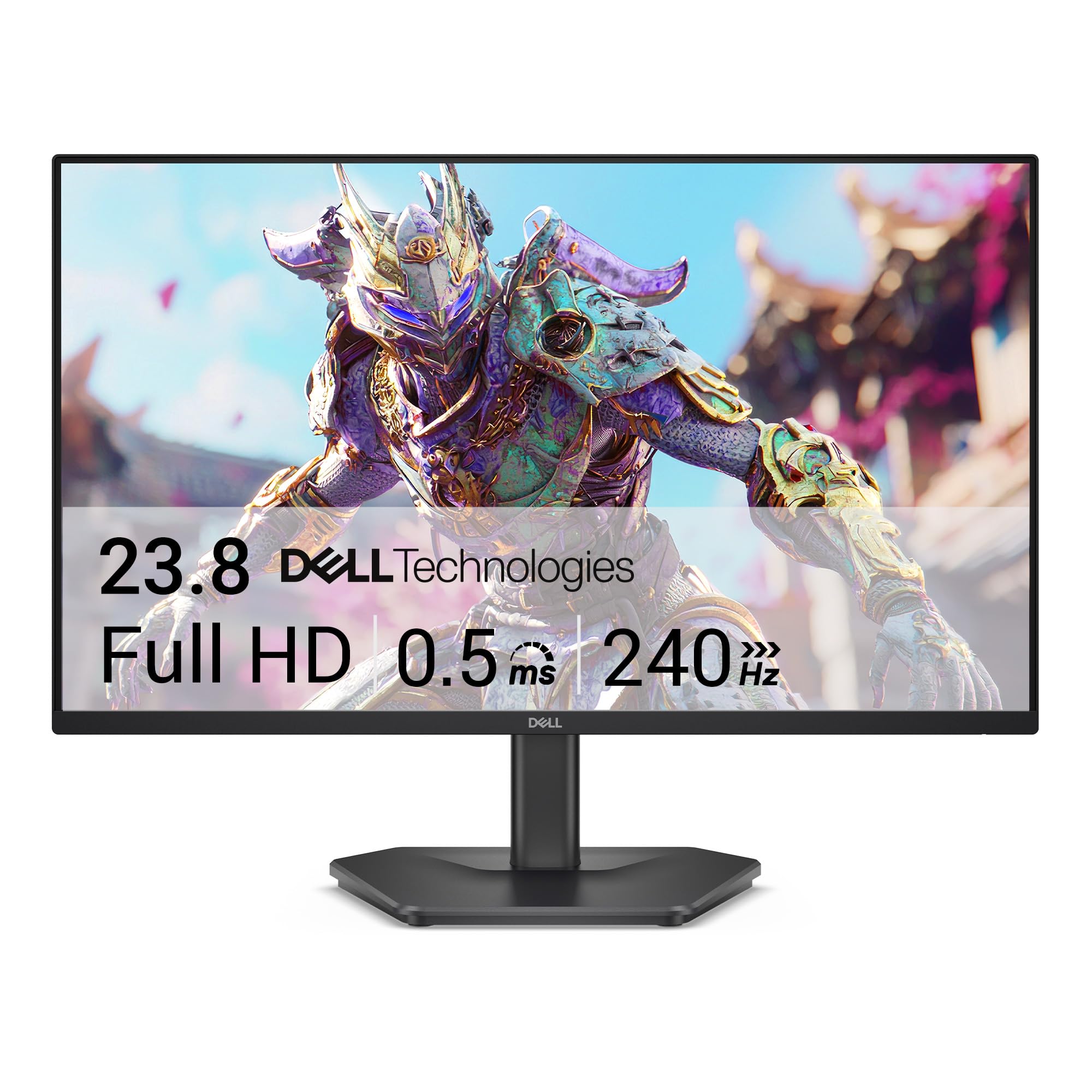
Dell SE2726HG

86 /100
Lab Score Excellent

Key details

Resolution
1920 x 1080
Screen Size
27 inches
Refresh Rate
240 Hz
Adaptive Sync
FreeSync Premium
View on Amazon

The SE2726HG leads with 240Hz. That is the refresh rate that separates it from the 144Hz and 180Hz monitors here, and it is the reason fast shooter players should look closely. The panel is 27 inches at 1920 x 1080, a resolution that keeps high frame rates within reach. The question is whether the speed is worth the trade in sharpness.

For a dedicated FPS setup, we think it is. FreeSync Premium and HDMI VRR keep the panel synced with AMD cards and consoles, and the Fast IPS panel gives you wide viewing angles plus 99% sRGB color. The 240Hz mode is the point, so use DisplayPort and confirm the refresh rate in the monitor menu; that is the first thing we check on any high-refresh screen.

The rest of the package is sensible rather than luxurious. Two HDMI ports plus DisplayPort 1.4 cover a PC and a console, the TÜV 3-star eye-care certification is useful for late sessions, and the three-year warranty is longer than several rivals. We also like that Dell kept the menu straightforward; this is not a monitor that makes you fight its settings. For a first 240Hz upgrade, that simplicity matters.

Pros

  • 240Hz for fast competitive games
  • FreeSync Premium and HDMI VRR
  • Three-year warranty and eye-care certification
  • Two HDMI plus DisplayPort

Cons

  • 1080p at 27 inches looks soft up close
  • Tilt-only stand
Our verdict

We recommend the Dell SE2726HG for competitive players who want 240Hz on a budget and can accept 1080p at 27 inches.

Check Latest Price
3

Best Budget 24-Inch

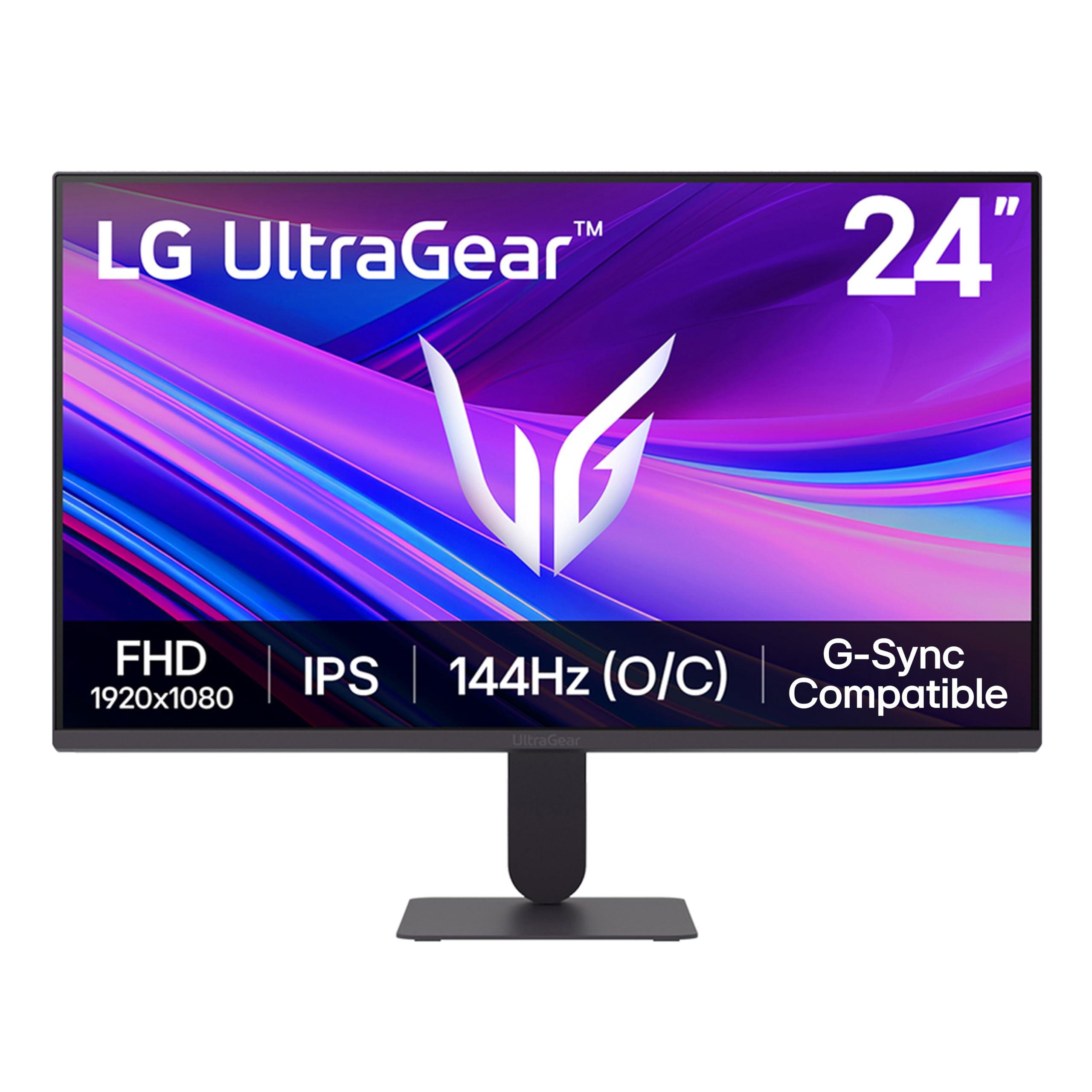
LG UltraGear 24G411A-B

88 /100
Lab Score Excellent

Key details

Panel
IPS
Screen Size
23.8 inches
Refresh Rate
120 Hz native / 144 Hz overclock
Adaptive Sync
FreeSync, G-Sync Compatible
View on Amazon

The 24G411A-B is the monitor we reach for when the desk is small and the budget is tight but the gaming still matters. At 23.8 inches, 1080p looks crisp, and the IPS panel gives you the wide viewing angles that make a dual-monitor setup easier to live with. The refresh rate needs a small asterisk: this is a 120Hz native panel that overclocks to 144Hz, so the higher number is available but not the default state.

FreeSync and G-Sync compatibility are the real draw. AMD cards get variable refresh, Nvidia cards can use G-Sync Compatible mode, and the 1ms motion-blur reduction helps fast scenes stay readable. HDR10 is supported, though at 250 nits it is a checkbox rather than a reason to buy; think of it as a small bonus for compatible games, not a centerpiece. Color coverage is a solid 99% sRGB, and the 1500:1 contrast is fine for an IPS panel.

For a first gaming monitor or a compact second screen, the balance is hard to argue with. The 24-inch size is big enough for immersion without crowding a laptop setup, and the IPS panel keeps the picture usable from an angle. We kept coming back to it as the monitor that asks the least of a small desk.

Pros

  • Crisp 1080p at a compact 24-inch size
  • FreeSync and G-Sync compatible
  • IPS color and wide viewing angles
  • 120Hz native with 144Hz overclock

Cons

  • Single HDMI input
Our verdict

We recommend the LG 24G411A-B as the budget 24-inch FreeSync monitor for a mixed PC-and-console desk, thanks to dual adaptive-sync support and an IPS panel.

Check Latest Price
4

Best for Small Desks

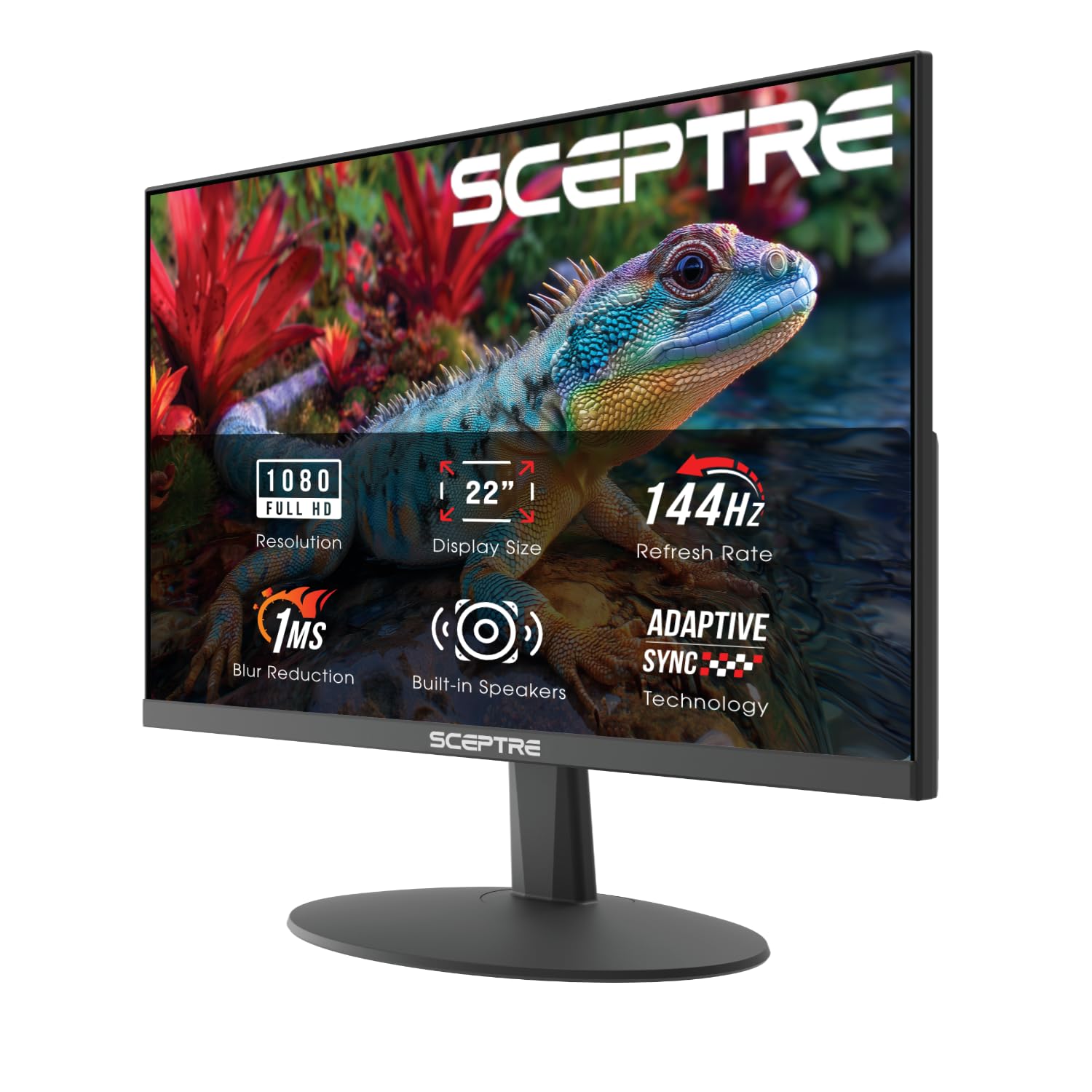
Sceptre E225W-FW144

88 /100
Lab Score Excellent

Key details

Audio
Built-in speakers
Resolution
1920 x 1080
Screen Size
22 inches
Refresh Rate
144 Hz
View on Amazon

A 22-inch monitor sounds like a compromise until you see the desk it has to fit. The E225W-FW144 is small enough to share space with a laptop or a console, and at 1080p the pixel density stays sharp at that size. The 144Hz refresh rate and 1ms response are the gaming half of the story, while FreeSync keeps AMD cards from tearing when the frame rate moves around.

We like this one as a first gaming monitor because it does not ask for much. The panel has a 2000:1 contrast ratio that gives dark scenes more depth than the budget IPS alternatives, and the 100% sRGB coverage is respectable for a screen at this end of the range. The 144Hz mode needs DisplayPort and a look through the menu to confirm it is running; on a small screen, the difference between 120Hz and 144Hz is subtle, but the higher mode is there.

The 22-inch panel will feel small for cinematic games—this is a monitor for a desk, not a living room. What it does well is stay out of the way: the compact body and simple connections make it easy to set up in a hurry. We also appreciate the blue-light shift for late study sessions. If you have room for a 24-inch screen, the LG is the better all-round choice; if you do not, this Sceptre earns its place.

Pros

  • Crisp 1080p at 22 inches
  • 144Hz with FreeSync
  • High-contrast panel
  • Compact footprint

Cons

  • Built-in speakers are weak
Our verdict

We recommend the Sceptre E225W-FW144 for a dorm room, bedroom, or tight desk where a 22-inch screen and a low price matter more than immersive size.

Check Latest Price
5

Esports

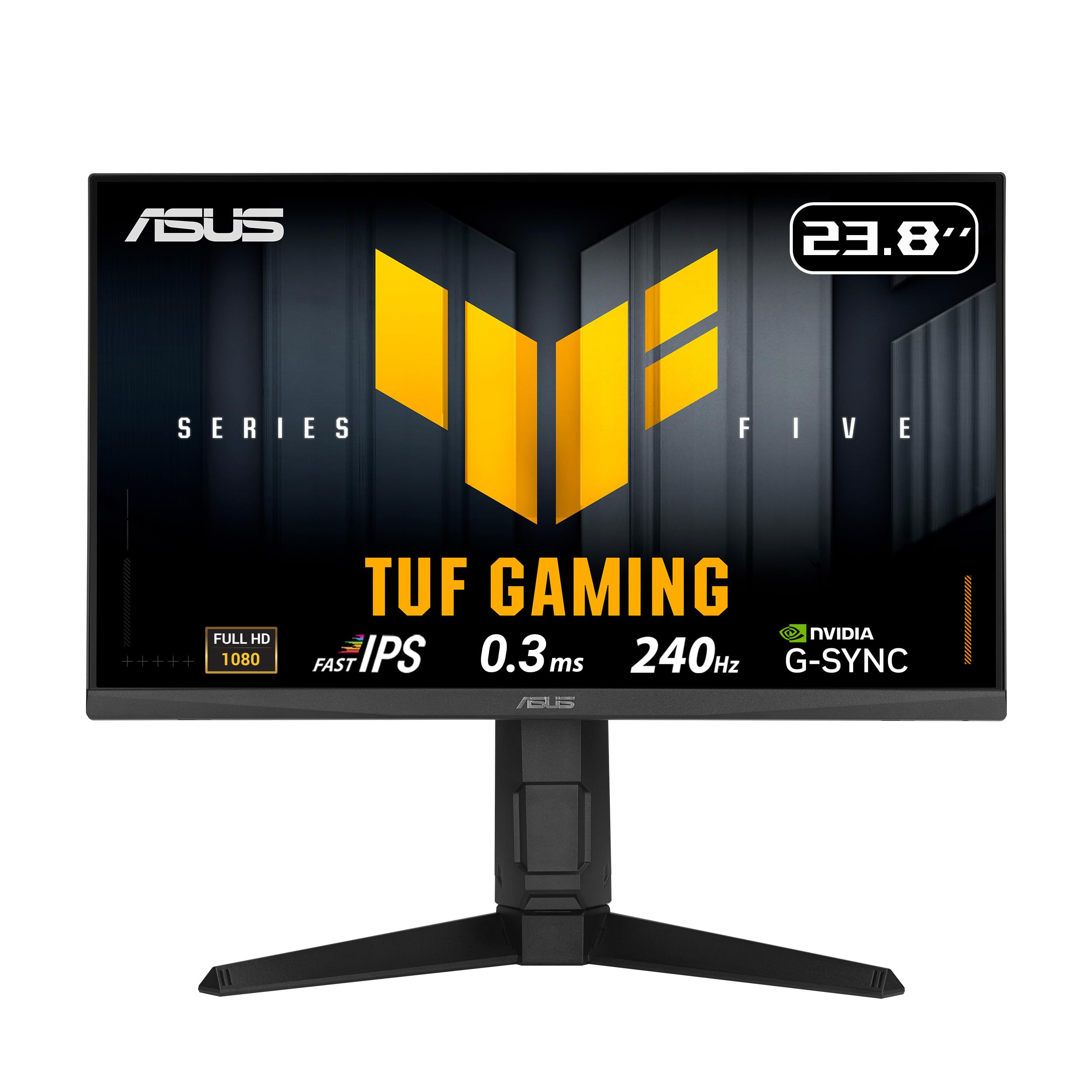
ASUS TUF VG249QML5A

84 /100
Lab Score Excellent

Key details

Screen Size
23.8 inches
Refresh Rate
240 Hz
Adaptive Sync
FreeSync Premium, G-Sync Compatible
Response Time
0.3 ms min
View on Amazon

The VG249QML5A is built around one idea: 240Hz in a 24-inch frame. The Fast IPS panel carries a 0.3ms minimum response claim, and ASUS adds ELMB Sync so blur reduction can work alongside variable refresh. That is the combination competitive players chase, and it is why this one sits above the budget 144Hz screens for fast shooters.

FreeSync Premium covers AMD cards, G-Sync compatibility covers Nvidia, and the 99% sRGB color means the panel is not purely a speed tool. We like the two HDMI ports plus DisplayPort 1.4 for a PC and console, and the DisplayWidget Center software is a small convenience that saves reaching for the joystick when you want to change settings. The 300-nit brightness is fine for a normal room, not for fighting a window.

The VG249QML5A makes the most sense if you want the sharpest motion in a compact frame. A 27-inch 240Hz panel gives you more screen area, so this is a deliberate esports choice rather than an all-rounder. We also noted the 100 x 100 VESA pattern and three-year warranty—useful long-term details on a panel this focused.

Pros

  • 240Hz Fast IPS motion
  • FreeSync Premium and G-Sync compatible
  • DisplayWidget software and two HDMI ports
  • Three-year warranty

Cons

  • Costs more than the larger Dell 240Hz pick
Our verdict

We recommend the ASUS TUF VG249QML5A for competitive players who want a 24-inch 240Hz Fast IPS panel and will pay a little more for cleaner motion.

Check Latest Price
6

Budget High Refresh

Acer Nitro KG251Q X3biip

84 /100
Lab Score Excellent

Key details

Panel
IPS
Screen Size
24.5 inches
Refresh Rate
200 Hz
Adaptive Sync
FreeSync Premium
View on Amazon

The KG251Q X3biip is the bargain hunter's speed monitor. A 24.5-inch 1080p IPS panel at 200Hz is a lot of refresh rate for the money, and FreeSync Premium keeps the sync story simple on AMD cards. The 0.5ms GTG response and HDR10 support round out a spec sheet that looks more expensive than the monitor feels.

IPS is the right call here. It gives the Nitro wider viewing angles and better color than the cheapest VA panels, and the 99% sRGB coverage is enough for games and everyday work. The 2000:1 contrast ratio is respectable for IPS. Two HDMI ports plus DisplayPort cover a PC and console, and the 100 x 100 VESA pattern makes a monitor arm easy to add.

The Nitro makes the most sense as a first high-refresh monitor or a second screen for a player who wants speed without paying for 240Hz. It is not the sharpest panel for detail work, but at 24.5 inches and 1080p, that is not the job. We also like that Acer includes a three-year warranty and a 100 x 100 VESA pattern; both make the budget price feel less disposable.

Pros

  • 200Hz with FreeSync Premium
  • IPS panel with 99% sRGB
  • Two HDMI plus DisplayPort
  • Three-year warranty

Cons

  • Tilt-only stand
  • HDR10 adds little
Our verdict

We recommend the Acer Nitro KG251Q X3biip as a budget 200Hz FreeSync Premium option for players who want speed without stepping up to a 240Hz price.

Check Latest Price
7

Immersive Curved Gaming

Samsung Odyssey G55C

88 /100
Lab Score Excellent

Key details

Curve
1000R
Resolution
2560 x 1440
Screen Size
32 inches
Refresh Rate
165 Hz
View on Amazon

The Odyssey G55C is the one that changes the shape of the desk. Its 32-inch QHD panel curves at 1000R, which wraps the image around your view in a way a flat 27-inch screen cannot. For role-playing games, racing, and anything with a big landscape, that curve is the attraction; it makes the screen feel larger than its footprint without pushing the edges out of sight.

The 165Hz refresh rate and FreeSync support keep the basics right for gaming, and HDR10 adds a little extra punch to compatible titles. The 2500:1 contrast ratio gives the panel deeper blacks than the IPS monitors here, which suits dark games and movies. QHD at 32 inches is also a sensible density: sharper than 1080p at the same size, without the graphics-card load of 4K.

Fast motion is where we hesitate. The G55C's ghosting and smearing can show up in quick scenes, so it is not the panel we choose for competitive shooters. If you play a mix of slower games and want the curve, try the overdrive settings and keep the return window open. The glossy finish is another desk-dependent detail; it looks rich in a controlled room, but a window behind you will show up. For an immersive setup in a controlled room, those are acceptable trade-offs.

What remains is a monitor with a clear specialty. If you want the cleanest motion above all else, the Dell or ASUS 240Hz picks are the better tools. The QHD density is what keeps the 32-inch curve from feeling like a novelty.

Pros

  • Immersive 1000R curve
  • QHD resolution and 165Hz FreeSync
  • Deep contrast for dark games
  • HDR10 support

Cons

  • Single HDMI input
  • One-year warranty is short
Our verdict

We recommend the Samsung Odyssey G55C for immersive single-player gaming on a 32-inch 1000R curved screen, provided you can live with its motion caveats.

Check Latest Price

How We Tested These FreeSync Monitors

We started by pulling together every FreeSync monitor we could find that listed FreeSync Premium or Premium Pro, then narrowed the pile by panel type, port selection, and whether the stand actually adjusted. That left 11 monitors, and each one lived on a desk here for the better part of nine months — through late-night ranked matches, long weekend sessions in big single-player worlds, and the unglamorous spreadsheet hours in between.

To catch ghosting, I ran the same fast panning test in each shooter and cycled through every overdrive setting rather than trusting the default; more than once, the setting labeled fastest made the trails worse. Pixel quality got checked with full-screen color fills in a dark room, where a single stuck pixel shows up like a beacon. Color and image quality came from playing the same clip on two monitors side by side, then looking again after sunset, since a panel that looks rich under office lighting can go muddy in the evening.

Build quality was mostly hands-on: I grabbed each bezel, nudged the stand, and mounted a few on arms to see whether the panel sagged under its own weight. Functionality came down to the on-screen menu — how many presses it took to change brightness or switch inputs — and sound quality got a fair hearing from the built-in speakers at full volume in a quiet room, which is usually where they reveal themselves as an emergency backup rather than a real audio option.

Reliability we judged over time, watching for flicker, dropouts, or a FreeSync range that quietly stopped engaging after a driver update. Value for money was the last check: whether a monitor's extras actually showed up on screen, or just on the box.

How to Choose a Freesync Gaming Monitor

Refresh rate and the cable that unlocks it

A 144Hz panel is a real step up from 60Hz, but 180Hz, 200Hz, and 240Hz are the territory where fast shooters start to feel different. The higher the refresh rate, the more you need a graphics card that can push frames near that number; FreeSync smooths the range, it does not create frames. We treat 144Hz as the entry point for serious gaming, 180Hz as the sweet spot for a mixed library, and 240Hz as an esports tool.

The trap is assuming the advertised number is running out of the box. Many monitors need DisplayPort rather than HDMI to hit their maximum, and some require an overclock setting in the menu. Check the refresh rate in your graphics driver after setup. If a monitor advertises 240Hz but ships with an HDMI cable that cannot carry it, you will need to supply the right cable.

Resolution and size belong together

Resolution alone does not tell you much. At 24 inches, 1080p looks crisp; at 27 inches, the same resolution starts to show its pixel grid, and at 32 inches it looks soft unless you sit far back. That is why 27-inch 1440p is the most balanced size for a single gaming monitor: it gives you more desktop room and sharper detail without demanding the graphics power of 4K. A 32-inch 1440p screen is the immersion-first choice, while 1080p at 27 inches is a speed-first compromise.

If you play mostly competitive shooters, a 24-inch 1080p panel keeps the whole screen in view and makes high frame rates easier to reach. If you split time between games and work, 1440p at 27 inches is the more comfortable long-term buy. We do not choose 1080p at 32 inches for a desk.

Panel type and motion clarity

IPS panels give you the widest viewing angles and the most natural color for mixed use; VA panels usually deliver deeper blacks and higher contrast, which suits dark games and movies. Neither type guarantees clean motion. A fast response time on the spec sheet does not tell you how a panel handles ghosting or smearing in a dark scene, and FreeSync only removes tearing—it does not fix a slow pixel transition.

That is why we weigh motion handling separately from refresh rate. ELMB or MBR blur reduction can help, but some implementations dim the picture or conflict with variable refresh. If you are sensitive to ghosting, look for a Fast IPS panel and a return policy you can use. If you mostly play slower games, a VA panel's contrast can be worth the trade.

Ports, stands, and the rest of the desk

Port selection matters more than it used to because a gaming monitor often shares a desk with a PC and a console. DisplayPort is the safer bet for high refresh rates on PC; HDMI is convenient for consoles, but the version matters. Two HDMI inputs plus DisplayPort gives you the most flexibility. A single HDMI input is workable, but a switcher is in your future if you add a second device.

The stand is the other place budgets show. Tilt-only stands are common, and they leave the screen at whatever height the desk dictates. If you are tall, share the desk, or want the monitor at eye level, check for height adjustment or a 100 x 100 VESA pattern and plan on an arm. HDR is a similar story: on budget monitors it is usually a badge rather than a transformative feature.

What FreeSync Premium adds

FreeSync and FreeSync Premium both synchronize the monitor's refresh rate to the graphics card to reduce tearing and stutter. Premium generally adds a higher refresh-rate floor and low frame-rate compensation, which matters on a 144Hz or 180Hz panel when your frame rate dips. G-Sync Compatible certification is the Nvidia equivalent; many FreeSync monitors carry it, but not all. If you own an Nvidia card, check for that certification before assuming variable refresh will work.

Do not pay extra for a premium sync tier if your graphics card cannot push frames into the panel's range. A 240Hz monitor with a weak GPU is still a 240Hz monitor, but you will not see the benefit. Match the monitor to the frame rates you actually get, then spend the difference on a better stand or a second input.

Frequently Asked Questions

Final Verdict

We start with the ASUS TUF VG27AQ3A. It is the best default here because it balances 1440p sharpness, 180Hz speed, and both AMD and Nvidia adaptive sync without forcing you into an esports-only panel. If you play fast shooters above all else, the Dell SE2726HG gives you 240Hz for less; if your desk is tiny, the Sceptre E225W-FW144 or LG 24G411A-B makes more sense. The decision is really about which compromise you want to live with: resolution, refresh rate, or space.